

Comparing OLED vs IPS laptop screens for office work starts with the text you read for hours. Open your ordinary documents at a comfortable scale, then look at reflections and the screen in the room where you work. Strong contrast in a video demonstration does not settle a spreadsheet purchase.
I would compare exact panels and configurations, including their care guidance and representative battery evidence. The annotated inspection diagram and scaling calculator below turn resolution figures into useful questions while keeping clarity, comfort and practical workspace tied to the actual screen.
OLED vs IPS office-laptop guide contents
Start an OLED vs IPS office-laptop comparison with text and room lighting
If your day is mostly documents, email and spreadsheets, I would prioritize comfortable text, manageable reflections and a sensible battery result. A good IPS panel can be a straightforward choice. OLED can also work well, especially when its contrast and media quality matter to you, but the exact implementation needs checking. Do not compare the best OLED you have seen with an old low-quality IPS screen. Panel quality varies within each technology. Size, resolution, coating, brightness control and factory configuration can change the result substantially.
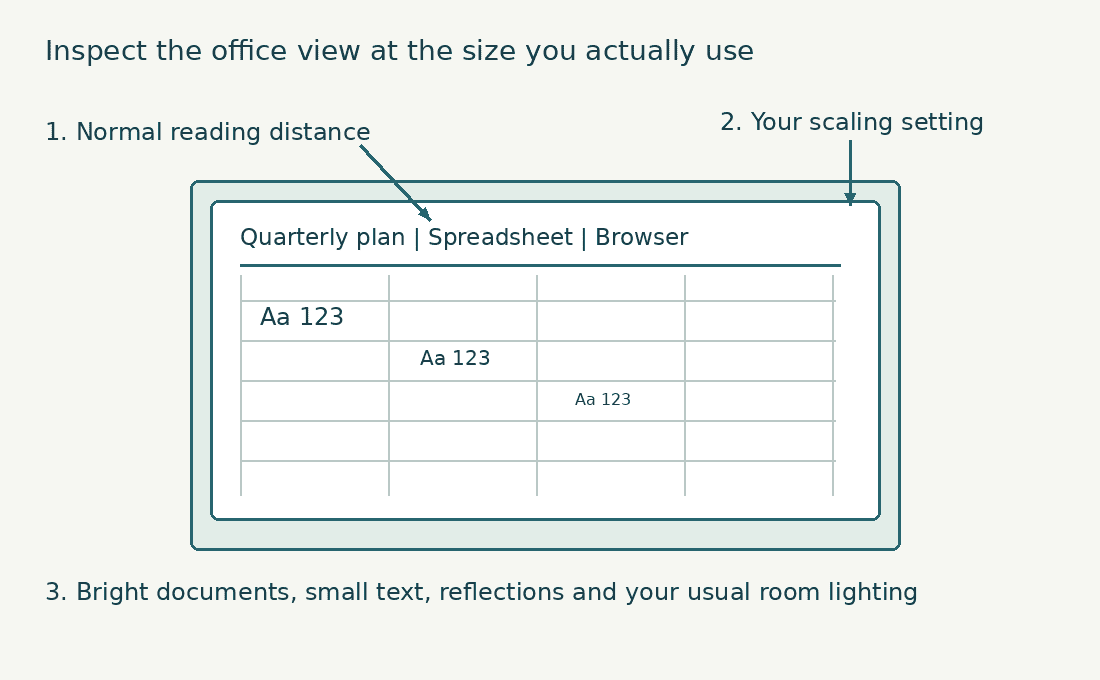
Write down the ordinary working conditions: light or dark application theme, window placement, hours away from power and the amount of static content. A financial dashboard left open for hours creates a different exposure pattern from frequently changing documents and video. Treat a showroom demonstration as a starting point. Ask to open a document, a spreadsheet and a browser at normal scaling. Read for a while at the distance you use rather than judging the panel from an oversized promotional image.
Keep the display decision inside the full business-laptop buying checklist. Keyboard, support, ports and application compatibility still matter. A panel upgrade should not remove a feature essential to your work.
| Office priority | OLED consideration | IPS consideration |
|---|---|---|
| Small text | Inspect exact panel layout and scaling | Inspect resolution, sharpness and coating |
| Bright documents | Check comfortable full-screen brightness and battery use | Check backlight brightness and reflections |
| Static dashboards | Read care features and warranty terms | Different display technology; still follow manufacturer care |
| Video after work | Strong black-level contrast can be attractive | Quality varies; compare the actual panel |
| Long mobile sessions | Test the real light or dark workload | Low-power configurations may be worth comparing |
Understand OLED and IPS technology in office laptop screens
OLED pixels emit light. IPS is a type of liquid-crystal display that uses a backlight. These different light paths help explain black-level contrast and content-dependent power behavior, but they do not decide every aspect of a laptop display.
On OLED, black content can be produced by turning relevant pixels off. Samsung Display’s discussion of dark-mode power use explains that principle. Its reported savings describe its test conditions; they should not be turned into a universal laptop battery claim.
An IPS screen’s backlight remains part of the system even when much of the picture is dark. The exact panel and any backlight-control features still matter. Avoid assuming every LCD has the same contrast or power behavior. Resolution is separate from panel technology. An OLED panel can have fewer or more pixels than an IPS alternative. Refresh rate, touch capability and surface finish are also separate characteristics, even when a manufacturer bundles them into one premium option.
This is why an exact configuration comparison is essential. If the OLED option also has higher resolution and refresh rate, a battery difference cannot automatically be attributed to OLED alone. The whole display configuration changed.
Compare small-text clarity on OLED and IPS office laptops
Text occupies far more of an office day than dramatic black backgrounds. Inspect the applications you use, including thin spreadsheet fonts, browser tabs and small interface labels. Check both dark text on light backgrounds and the reverse.
Pixel layout can affect edge appearance. Dell’s discussion of coding displays notes that some OLED layouts can show color fringing around fine text. That is a panel-specific consideration, not proof that every OLED laptop has objectionable text.
Distance, pixel density, eyesight and rendering settings all influence what you notice. A close-up photograph is useful for explaining structure but is not the same as reading at a normal distance. Judge the actual machine with your usual font sizes. Windows text rendering also matters. Microsoft describes ClearType as a text-smoothing method. Adjusting supported text settings may improve appearance, but it does not change the physical panel layout.
Use native resolution and a comfortable supported scaling level before making a comparison. If a legacy application looks blurry, determine whether its scaling behavior is responsible. One problematic program should not be assumed to represent the entire screen. For a coding-heavy day, our coding screen-size guide adds the workspace question. A panel can look sharp while still providing too little comfortable room for your editor, reference material and terminal.
Watch OLED pixel layouts and text rendering explained
Tony Tascioglu explains OLED display types, text fringing and burn-in, including pixel-layout demonstrations. These monitor examples help explain what to inspect on an office laptop; assess the exact laptop panel at your usual scaling and reading distance.
Compare reflections and usable brightness on OLED vs IPS screens
Peak brightness is not a complete description of office usability. A small bright highlight in HDR content and a full white document are different cases. Seek evidence for the sort of screen content you work with. Surface finish changes reflected light. Glossy panels may show sharp reflections; matte coatings scatter them differently. Neither label alone guarantees comfort beside a window. Screen position and the room’s lighting remain part of the result.
Open a mostly white document and a dark application view. Check whether you can use both at a comfortable brightness without seeing a distracting reflection of yourself or an overhead light. Test brightness changes while switching windows. Some systems adjust brightness or contrast based on content or ambient light. Microsoft’s display guidance describes relevant Windows controls where supported.
Do not use maximum brightness as the default test for an entire day. It can obscure how the display behaves at your normal setting. Compare the range you would use in the actual room and during mobile work.
Check OLED care and static office content against IPS ownership needs
Office interfaces often keep taskbars, toolbars, grid lines or dashboards in fixed positions. OLED aging can be uneven under prolonged static content, particularly with high brightness. This is a reason to read the manufacturer’s care guidance and warranty, not a reason to predict a universal failure date.
ASUS’s OLED notebook-care guidance discusses supported protection settings, screen timeouts and reducing prolonged static exposure. Apply the instructions for the exact model; feature names and availability differ.
Do not promise that pixel shifting or another protection feature makes burn-in impossible. Equally, do not treat every OLED office screen as certain to fail quickly. Usage, panel design, brightness and maintenance behavior vary. Read warranty coverage in writing before purchase. Check whether image retention or burn-in is covered, for how long and under what conditions. A general warranty duration does not answer those questions.
If your main task is an unchanged dashboard for long daily periods and you prefer minimal display-care involvement, I would give an appropriate IPS configuration serious consideration. If the workload changes regularly and you value OLED’s strengths, assess the care and warranty requirements alongside them. Keep a normal screen-off timeout and follow the device guidance. Do not run improvised aggressive maintenance routines or disable protections because a forum claims they are unnecessary. A new panel should be evaluated as a supported product.
Compare OLED vs IPS laptop battery life during office work
Whole-laptop battery life depends on the display, processor, graphics, battery capacity, background work and settings. Panel technology is only one contributor. Do not infer hours from a screen label. Content matters for OLED power use. A largely dark interface and a bright spreadsheet are different display workloads. If your day is mostly white documents, a video-playback or dark-mode result may not represent it.
Keep brightness and refresh settings comparable when assessing evidence. A high-refresh, high-resolution option compared with a lower-resolution low-power panel changes several variables at once. Microsoft’s Windows battery-saving guidance includes brightness and refresh-rate adjustments. These controls can help on supported systems, but they do not establish a fixed saving for your laptop.
Test your own session during the return period: documents, browser tabs, calls and the brightness you need. Record the settings and avoid drawing a conclusion from one unusually quiet day. If the laptop stays connected to a desk monitor most of the time, internal-panel battery differences may matter less to the purchase. If you regularly work away from power, give representative battery testing more weight than a spectacular media demonstration.
Assess OLED vs IPS office-screen comfort at your usual settings
Display comfort is personal. Reflections, brightness, text size, viewing distance and brightness modulation can all affect the experience. Neither OLED nor IPS is a universal medical recommendation. If you know you are sensitive to a display’s flicker or dimming behavior, look for exact-panel measurements and try the laptop at the brightness you use. A technology label or generic eye-care badge cannot guarantee comfort for you.
Test a normal working session instead of a few seconds in a shop. Read, scroll and move between light and dark applications. Note whether the display remains comfortable without forcing an unsuitable brightness. Keep the workspace adjustable. Change the screen angle and room lighting before assuming the panel is the sole problem. Use readable text sizes rather than shrinking the interface to fit more material.
Persistent visual symptoms deserve appropriate professional advice. A purchasing guide cannot diagnose the cause or promise that replacing one panel technology will resolve it.
Balance office and color-critical work when choosing OLED or IPS
For ordinary documents and meetings, accurate enough colors and comfortable reading may matter more than a very wide gamut. Saturated sample images should not distract from those priorities.
If your office work includes client photography, design or print approvals, color management becomes a separate requirement. Gamut coverage does not establish accuracy. Check profiles, application behavior and the intended output path.
Our photo-editing laptop guide covers that workflow, while the digital-art guide includes pen and illustration considerations. Neither task should be reduced to OLED automatically wins or IPS automatically wins. Touch capability is another separate decision. A glossy touch layer may change reflections and how the display feels. The touchscreen versus non-touch comparison helps keep that choice distinct from the underlying panel technology.
If the laptop supports an external color-managed monitor at your desk, decide which screen will be used for final decisions. A practical split between mobile office work and desk-based creative work can change the value of the internal panel upgrade.
Calculate office-laptop workspace from resolution and scaling
Formula: Physical dimension / (scaling percentage / 100). The same formula applies to height.
Worked example: 2,880 x 1,800 at 150% gives an approximate 1,920 x 1,200 logical workspace.
This is geometric planning arithmetic. Applications, operating systems and rounding may behave differently. It does not predict text clarity, physical text size or the quality of an OLED/IPS panel.
Test OLED and IPS office laptop screens side by side
Prepare a small test folder with a document, spreadsheet, PDF and a few familiar images. Use material you are allowed to show. Open the same files on the candidate machines.
Set each display to native resolution and comfortable scaling. Match apparent brightness as closely as practical rather than assuming identical slider percentages produce identical output. Disable a demonstration mode only through ordinary supported settings.
Read small text from your normal distance. Check grid lines, punctuation, thin fonts and the edges of letters. Scroll a long document and assess whether motion is comfortable. Move between a bright full-screen document and a dark window. Check reflections, brightness shifts and whether controls remain readable. Try the panel at the angle you use on a desk or in a meeting.
Spend time with the keyboard and trackpad too. The panel is part of a laptop, and a screen preference should not conceal an uncomfortable input setup or missing connection. Write down the result in task terms: easier to read, fewer distracting reflections, better battery evidence or better media contrast. That is more useful than declaring a technology winner without reference to the actual day.
| Test file or action | What to inspect |
|---|---|
| Small spreadsheet text | Letter edges, grid lines and comfortable scaling |
| White document | Full-screen brightness and reflections |
| Dark application | Black-level preference and readable controls |
| Window switching | Distracting brightness or contrast changes |
| Normal mobile session | Battery behavior with representative settings |
Match OLED or IPS to your office laptop routine
For mostly static documents, spreadsheets and long mobile sessions, I would start by investigating a good low-power IPS configuration. It is a practical default when its text, brightness and battery behavior suit the work. For mixed office use and regular films or visual work, OLED may be worth the premium if the exact panel is comfortable, the battery result is acceptable and you understand the care and warranty terms.
For an external-monitor-first setup, prioritize the laptop’s connections, portability and internal-screen usability during travel. You may not need the most expensive internal panel if most work happens elsewhere. For a fixed dashboard or long unchanged interface, give static-content exposure particular attention. A panel that requires ownership habits you will not follow is a poor fit even if it looks excellent.
These are decision priorities, not model recommendations. Compare the exact configurations and keep return options available. A comfortable actual panel is stronger evidence than a broad preference for one acronym.
Compare workspace on two OLED or IPS office-laptop configurations
Enter candidate configurations to compare their approximate logical workspace. This does not rank panel clarity or comfort.
For each candidate, divide physical width and height by its scale factor. Compare those dimensions and their product. Operating-system and application behavior can vary; comfortable text size must be checked on the actual display.
OLED vs IPS office-laptop example: resolution, scaling and workspace
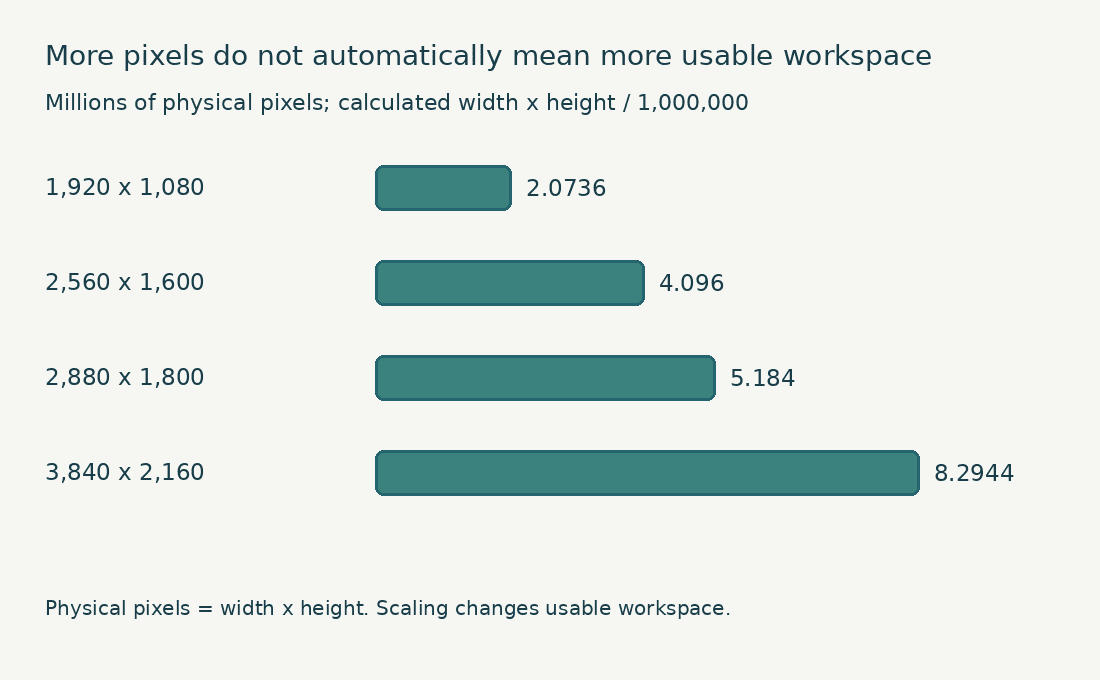
A 2,880 by 1,800 panel has 5.184 million physical pixels. At 150% scaling, dividing each dimension by 1.5 gives an approximate logical workspace of 1,920 by 1,200. Those figures describe the geometry; they do not decide whether the text looks comfortable on that physical screen.
Open the same spreadsheet and a document containing your usual body text on both candidates. Set a comfortable scale on each, sit at the normal distance and compare what you can read without leaning forward. Then examine reflections and brightness in representative light. The more useful result is the screen on which your work is clear at a comfortable setting, not the one with the largest pixel total.
Choose OLED or IPS around your office-laptop priorities
Open the situation closest to your own work.
My day is mostly bright documents and static spreadsheets.
Compare small-text clarity, reflections, brightness behavior, care guidance and representative battery evidence. Test the exact OLED and IPS configurations with the same files.
I split office work with photographs or video.
Add color-management and media requirements to the office test. Contrast and gamut are useful characteristics, but neither alone proves display accuracy.
I work in different rooms and travel frequently.
Compare the actual screens in representative light and examine comparable whole-laptop battery tests. Dark-mode display savings cannot be converted into a universal runtime promise.
Download the OLED vs IPS office-laptop comparison worksheet
Download the office-display laptop worksheet (fillable PDF, one page, 11 KB). Record the exact configuration, your workload, accessories and test results in one place. You can type into the fields and save your copy, or print the page.
OLED vs IPS office-laptop screen FAQs
Is an OLED laptop screen suitable for office work?
No blanket conclusion follows. It can be suitable, but small text, bright documents, static content, battery behavior and care requirements should be checked on the exact panel.
Do IPS laptop screens always show sharper office text than OLED?
No. Resolution, pixel density, layout, coating and rendering all matter. Some OLED layouts can show edge fringing; compare normal text at your usual distance.
Will dark mode guarantee longer battery life on an OLED office laptop?
It can reduce OLED display power under appropriate conditions, but whole-laptop runtime depends on more than the panel. Use a representative test and do not turn one display-energy claim into a fixed runtime promise.
Can laptop OLED protection features eliminate burn-in risk during office work?
They are intended to reduce risk, not establish a universal guarantee. Follow model-specific guidance and read the actual warranty coverage.
Should I choose OLED when a laptop handles office work and photo editing?
Assess color accuracy, profiling, gamut, brightness behavior and output needs. OLED contrast alone does not establish a complete color-managed editing setup.
Is a higher-resolution OLED or IPS laptop screen always better for spreadsheets?
It can improve detail, but comfortable scaling determines usable workspace. Test the actual application and text size before paying for more pixels.
Choosing OLED or IPS laptop screens for office work
I would choose an office display by reading real text in the real working conditions, then checking battery evidence and ownership requirements. A good IPS panel is a sensible starting point for document-heavy work; a suitable OLED panel can be worthwhile when its strengths serve the rest of your day.
Compare exact configurations, use the office test and keep the purchase tied to your routine. Neither panel label replaces a comfortable view of the work you do for hours.