
Choosing a laptop for CAD, architecture and 3D modeling is easier when you name the operation that has to work well: drafting, regenerating a model, orbiting a detailed scene or rendering a presentation. Those tasks can place different demands on the same laptop. Software compatibility comes first, especially when your course, employer or project depends on a specific application and plug-ins.
I would compare machines using a representative project and an exact software list. The task diagram, application-memory chart and working-budget tool below help organize that comparison without treating a minimum requirement or a gaming result as proof that every part of your workflow will run well.
CAD and 3D laptop buying guide contents
Identify the CAD and 3D tasks your laptop must handle
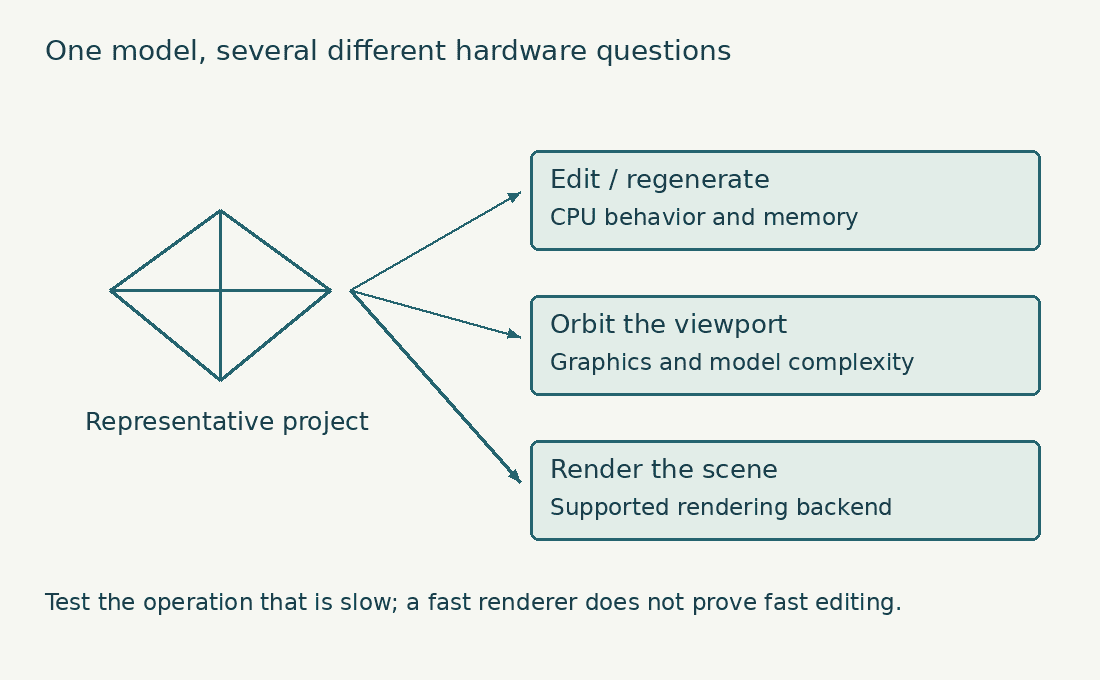
Write down three real projects before looking at specifications. Include the applications, approximate project size, number of linked files, and whether the work must happen away from a desk. A small house modeled by one person has a different working set from a coordinated commercial project with several consultant models, even when both use the same application.
Next, describe the delay you want to remove. Waiting after every parameter change points toward a different problem from a viewport that stutters when orbiting. A render that runs overnight creates another set of priorities. These distinctions prevent an expensive purchase that improves the wrong part of your day.
Do not use the size of one saved file as a complete workload measurement. Textures, references, undo history, linked models, caches and background applications can expand the resources required during a session. A compressed project archive says even less about the memory needed to edit its contents.
For a replacement purchase, open a representative project on your existing computer and record memory pressure, GPU memory use and disk activity during the troublesome task. Repeat the observation after closing unrelated applications. The aim is to identify a repeatable bottleneck, not to collect the highest number you can make a monitoring tool display.
If you are buying for a course, ask for the exact software versions and a sample assignment from the department. A generic requirement headed architecture laptop can miss a Windows-only add-in, a required rendering engine or a remote lab arrangement. Written course guidance is more useful than a salesperson’s assurance that a machine is powerful.
Check CAD software and laptop operating-system compatibility
Start with the applications you cannot replace. Check their current supported operating systems, processor architecture, plug-ins and licensing tools. Include the less visible dependencies: a practice may rely on a specialist exporter, a document-management client or a particular collaboration workflow that never appears in the laptop advertisement.
For example, SOLIDWORKS lists x86-64 processors, certified graphics guidance and operating-system support for its desktop products. Its requirements page also excludes Windows Home editions. That makes the Windows edition a purchasing detail rather than an administrative afterthought.
Revit needs equally careful checking. Autodesk’s Revit 2027 requirements separate native Windows configurations from a documented Parallels configuration for Mac. The latter has graphics limitations; it should not be treated as identical to a native Windows workstation.
I would verify the complete toolchain before choosing a Mac for a mixed architecture course or office. Native macOS applications may suit one part of the workflow while a required Windows component changes the answer. Remote access can be a legitimate arrangement, but only when reliable connectivity, licensing and access to the remote computer are established.
Virtualization consumes resources for the host and guest operating systems as well as the application. It also changes the graphics path. A large memory figure on the laptop does not establish that every plug-in, hardware dongle or graphics feature works inside a virtual machine.
Keep the compatibility check separate from a general Mac-versus-PC argument. The useful decision is whether your exact workflow is supported and practical. For drawing-focused work, our AutoCAD requirements guide provides a narrower application checklist; use that alongside the requirements for your specialist tools.
Interpret minimum laptop requirements for CAD and 3D modeling
A minimum requirement describes an entry condition for a defined application version. It does not promise a comfortable experience with your project, several other applications and future coursework. A recommended configuration is more informative, but it still needs to be interpreted against the size and structure of your work.
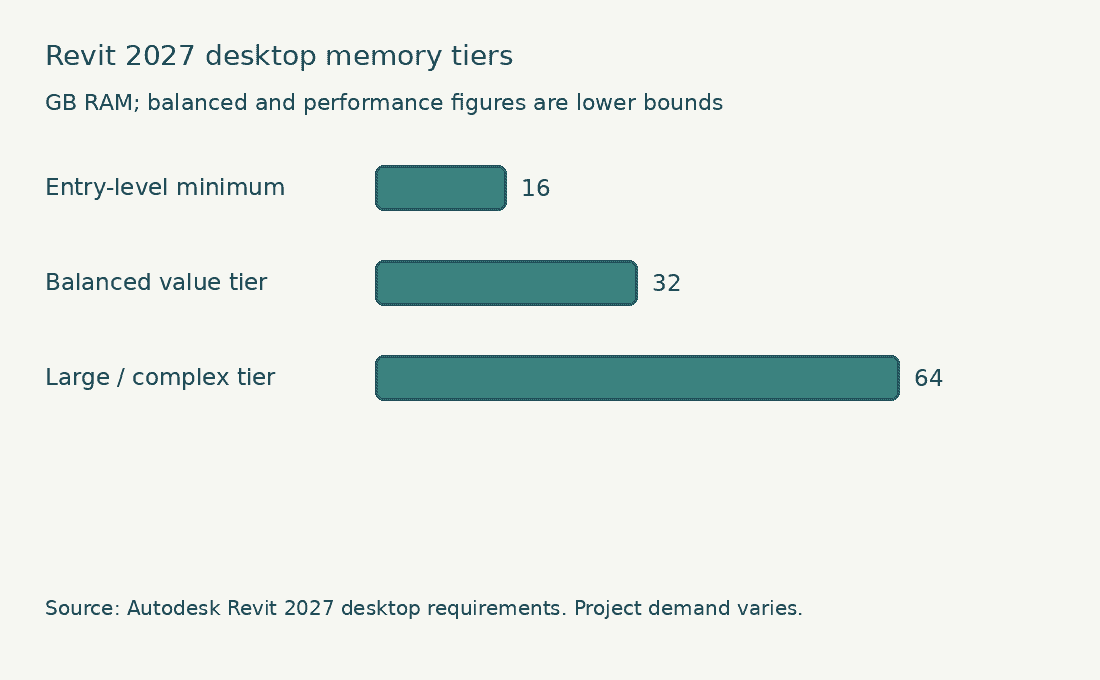
Revit 2027 illustrates why categories matter: Autodesk lists 16 GB for entry-level work, 32 GB or more for its balanced tier and 64 GB or more for large complex models. These are application-specific tiers, not a rule that every architecture student needs the largest configuration.
Treat vendor estimates about model size as approximate guidance. Two models with similar file sizes can behave differently because of their content. Geometry detail, imported objects, links and worksharing practices all influence the session. The useful question is how your representative model behaves, including opening and upgrading it.
I usually separate a buying target from an official minimum in my notes. A target includes room for the way I work: reference PDFs, a browser, communications, image editing and perhaps a rendering application. That makes the recommendation transparent instead of presenting an editorial preference as a software vendor’s requirement.
Check version-specific documentation close to purchase. An older guide may describe a supported operating system or graphics API that no longer applies to the release you must install. The machine’s ability to launch an older version does not settle compatibility with your office or course. Where your workflow is primarily building coordination, start with the workload distinctions in our Revit laptop requirements article. For mechanical assemblies, the corresponding SOLIDWORKS requirements need a separate check, especially around drivers and certified configurations.
| Workload example | Editorial starting point | Check before committing |
|---|---|---|
| 2D drafting and light models | 16 GB may serve a constrained workflow; compare the cost of 32 GB | Actual software minimums and upgrade access |
| Mixed CAD/BIM, PDFs and presentation work | 32 GB is a practical shortlist target | Peak memory on a representative project |
| Large linked models or heavy multitasking | Investigate 64 GB and suitable graphics | Measured demand, supported capacity and cooling |
Choose a laptop CPU for CAD editing and rendering
Interactive editing often exposes the speed of a limited number of busy threads. Other jobs, including some rendering and processing tasks, can use more cores. Buying solely by core count confuses these workloads; buying solely by the highest advertised clock speed ignores the laptop’s power and cooling limits.
Processor branding covers many designs. Record the exact processor model rather than only its family name. Two laptops carrying the same broad badge may have different core arrangements, power settings and thermal behavior. Even the same chip can deliver different sustained performance in different chassis.
For a laptop that will spend long periods rendering, look for evidence from extended workloads. A short burst benchmark can finish before the cooling system reaches steady operation. Fan noise, surface temperature and the power adapter then become part of usable performance, particularly in a studio or shared office.
I would not sacrifice sufficient memory to move one step up a processor range. If the existing workload already exhausts RAM, a faster processor cannot eliminate the delay caused by moving working data to storage. Equally, buying huge memory capacity will not accelerate every CPU-bound command.
Separate local rendering from remote rendering in the brief. If final renders run on an established render farm, the laptop may chiefly need to build, preview, upload and check the scene. Confirm file dependencies, upload time and service cost before using that arrangement to justify a weaker local machine.
Consider the machine under the conditions you will use. Plugged-in performance may matter most at a desk, while battery operation matters during a site visit. A laptop does not need to sustain its highest power level on battery to be useful, but you should know which tasks become slower when unplugged.

Match laptop graphics to CAD viewports and 3D renderers
Graphics requirements come from at least two places: displaying the working scene and calculating rendered output. Those paths can use different features and impose different memory demands. A computer that handles a clean drafting view may struggle when you enable a complex shaded scene or switch to GPU rendering.
Check the renderer’s supported backends before comparing graphics specifications. Blender’s Cycles GPU-rendering documentation distinguishes supported technologies and hardware. The presence of a discrete GPU alone does not establish support for the acceleration path you intend to use.
GPU memory, usually shown as VRAM for a discrete card, holds graphics working data. Texture-heavy scenes can reach a limit even when the processor and system RAM look generous. Do not add shared system memory to dedicated VRAM and assume the result behaves like a larger discrete graphics card.
A higher-end graphics processor may improve rendering, but it also changes weight, cooling and power demand. Ask how often the task occurs. Paying for large local rendering capacity is easier to justify when it saves time every week than when it serves one optional project.
Our guide to the GPU CAD software actually needs helps separate viewport demands from broad gaming specifications. For a sculpting or animation-heavy brief, compare that advice with the requirements of the actual modeling and rendering applications. Do not assume all graphics problems are hardware shortages. Driver faults, unsupported features and unusually heavy model content can produce poor behavior on an otherwise capable machine. Keep a reproducible example and compare supported drivers before deciding that the next purchase needs a much more expensive GPU.
Watch GPU rendering in a 3D-modeling workflow
Blender Guru demonstrates render engines and GPU rendering in this Blender 4.0 tutorial. Use it to understand the rendering stage of a 3D workflow when deciding which laptop components matter. It covers Blender rather than Revit or AutoCAD, and menu locations can differ in newer versions.
Check workstation certification for your CAD laptop
A professional graphics label and application certification answer different questions. A workstation configuration may be listed with a particular operating system, graphics card and driver for a specific application release. That is more precise than a claim that a laptop is suitable for all engineering software. Use the SOLIDWORKS hardware-certification database to check the actual configuration where support and certified drivers matter to your work. A related model name, different GPU or later driver should not be silently treated as the same tested combination.
I would give certification more weight when an employer requires it, when technical support depends on it or when unstable graphics would interrupt paid production. A student learning basic modeling may reasonably value other things more, provided the application and school allow the chosen hardware.
A gaming laptop can offer substantial graphics performance for the money. That does not make it a certified workstation, and it does not make it unsuitable for every CAD task. Evaluate application support, drivers, ergonomics and the exact workload rather than relying on either marketing category.
Include service arrangements in a professional purchase. Warranty length, response time, repair location and parts access can matter more than a small performance difference. Ask who handles support when a reseller has changed the memory or storage configuration. Certification also does not replace file-management discipline. A validated driver cannot recover an overwritten drawing or create a missing project dependency. Treat stable hardware, supported software and recoverable project storage as separate requirements.
Build a CAD laptop working-memory budget
Formula: Main application estimate + other apps/OS + additional allowance.
Worked example: 18 GB + 6 GB + 8 GB = 32 GB. These are hypothetical inputs, not a measurement or a universal CAD requirement.
Use a representative project and application requirements to supply the inputs. This sum cannot predict memory from model-file size or certify a laptop configuration.

The memory chart above refers to the desktop tiers in Autodesk’s Revit 2027 requirements. Revit Server, Revit LT and virtualized configurations have separate entries; do not substitute one of those tables for the desktop configuration you intend to buy.
Choose laptop RAM for CAD, architecture and 3D projects
For mixed design work, 32 GB is a sensible starting point to investigate, not a universal guarantee. Light drafting may need less; large models and multiple active applications may justify more. Base the final choice on the heaviest ordinary session rather than a single application opened to an empty file.
Watch the distinction between installed memory and maximum supported memory. Some laptops have soldered memory, some use replaceable modules and others combine both. A statement that a family supports more RAM may not apply to the exact processor or motherboard in the listing.
If upgrading is part of the plan, read the service documentation before purchase. Confirm available slots, supported module types and whether the installed configuration leaves room. Buying two replacement modules later can cost more than the simple advertised upgrade difference suggests.
Memory usage on a display can be misleading without context. Operating systems use spare memory for caching, so a high used figure alone does not prove a problem. Look for pressure, paging, delays and application failures during a repeatable task, then compare the behavior after closing other work.
When several applications stay open, budget for them together. A renderer, image editor, large PDF set and BIM model are not isolated purchases of RAM. You also need enough room for the operating system and background services. Avoid promising that doubling memory halves render time. Additional capacity helps when capacity is the limitation; it does not automatically make computation faster. That distinction is useful when deciding whether the next increment belongs in RAM, graphics, processor performance or storage.
Plan CAD laptop storage for models, caches and recovery
An SSD is the practical baseline for active work. Capacity deserves as much attention as a headline transfer-speed claim because project libraries, local copies, caches and application installs accumulate. A nearly full drive gives you less room to manage imports, exports and recovery files.
Build a simple capacity estimate from your own work. Add applications, current projects, reference assets and temporary working space, then leave room for growth. Keep archival storage separate in the calculation; a drive holding old exports is serving a different purpose from the internal active-project drive.
Check whether a second internal SSD slot exists and whether it is usable in the chosen configuration. A photograph of an empty slot on a different model is weak evidence. Service manuals and the exact manufacturer’s specification are better starting points. An external SSD can hold projects or libraries, but its usefulness depends on the port, enclosure, cable and workflow. Disconnecting an active drive unexpectedly can interrupt work. Keep frequently used portable storage secured and make its role clear to anyone sharing the project.
Do not confuse synchronization with a complete backup strategy. A synchronized deletion or damaged file may propagate. Maintain a recoverable copy and test that a project opens with its references intact. Version history helps only when it covers the files you actually need.
For a deadline-sensitive project, test the recovery procedure before the deadline. Restore a small representative project into a different folder, relink dependencies where necessary and verify that the deliverable exports. A backup plan becomes useful when the restore works, not when a status icon turns green.
| Storage item | What to estimate | Common omission |
|---|---|---|
| Applications and operating system | Current installed footprint plus updates | Installers and temporary update files |
| Active projects | Local models and linked references | Texture and material libraries |
| Working space | Caches, exports and temporary files | Multiple export versions |
| Recovery copies | Versioned recoverable copies elsewhere | Assuming synchronization covers every failure |
Choose a CAD laptop display and modeling workspace
Screen size affects how comfortably you can keep a model, properties and reference material visible. Resolution affects available detail, while scaling controls how large interface elements appear. A very high resolution is less useful if you must reduce the interface to an uncomfortable size.
For technical drawings, inspect text, fine lines and shaded geometry at the scaling you expect to use. For presentation work, color consistency and viewing angles also matter. A bright, saturated showroom display is not proof that colors will match a controlled print or another calibrated screen.
A matte finish can make reflected lights less distracting. A glossy display may still suit your workspace, but evaluate it near the kinds of windows and overhead lighting you encounter. Outdoor readability depends on more than one brightness specification. An external monitor changes the purchase equation. A portable laptop with a good docked setup may fit daily travel better than carrying a large chassis everywhere. Verify the display outputs, number of supported monitors, refresh rates and docking requirements before buying accessories.
Keyboard feel, a usable pointing device and port placement deserve a real trial. Repeated shortcuts and long drawing sessions make small ergonomic frustrations expensive. If a mouse or pen is essential to your workflow, include it in the bag-weight and budget calculation. For presentation boards and image work alongside CAD, the photography and photo-editing buying guide discusses a complementary display workflow. That is a more useful cross-check than treating one panel specification as the answer to every creative task.
Build a project-based CAD laptop buying worksheet
Create a one-page brief with a required column and a preferred column. Put application compatibility, sufficient memory and necessary connections under required. Preferences might include lighter weight, quieter operation or a larger screen. This prevents a good discount from erasing an essential requirement. Shortlist configurations before brands. If the work needs replaceable memory and a particular graphics backend, eliminate configurations that cannot provide them. Only then compare price, support and portability among the survivors.
Use a complete cost rather than the laptop price alone. Add an appropriate operating-system edition, any necessary memory upgrade, a dock, storage, monitor and service plan where needed. Check which items you already own and can actually reuse. For a student, consider how needs change between the first class and a major project. Buying extreme hardware for a speculative future task can waste money. Buying a non-upgradeable configuration that already sits at the minimum may create a replacement cost much sooner.
Keep a written reason for each trade-off. For example, accepting greater weight may make sense for better sustained local rendering; choosing a lighter machine may make sense if rendering is reliably handled elsewhere. A trade-off becomes a problem when it is hidden, not when it is deliberate. Before ordering, copy the exact configuration identifier and retain the advertised specifications. Similar product names can conceal different displays, memory layouts, graphics power and warranties. Compare the delivered configuration with that record during the return period.
Balance CAD modeling and architectural presentation needs
A model used to document a building and a scene prepared for a final image do not always need the same level of visible detail. Keep a clear purpose for imported furniture, vegetation and fixtures. A visually impressive object can carry much more geometry or texture data than a working view needs.
Use application-supported view settings and project conventions to manage detail during editing. Keep the high-quality output settings available for the final deliverable. This is a workflow choice to test, not a promise that reducing one display setting will cure every performance problem.
Before replacing hardware for one difficult project, make a copy and inspect unusually heavy assets. Check whether the slowdown follows a linked file, imported object or particular view. Document the result so the team can improve the source project instead of every person buying around the same avoidable load.
Do not compromise deliverable accuracy to make the laptop feel faster. Required geometry, dimensions, coordination data and output standards remain part of the brief. The aim is to distinguish necessary content from excessive presentation detail in a working session.
Presentation applications deserve their own test sequence. A laptop might be comfortable for drafting yet encounter a different limit when you combine high-resolution materials, lighting, animation and large output dimensions. Record those settings when comparing computers so the test remains meaningful.
For an interior visualization, try a modest scene and your heaviest ordinary scene. Note loading time, navigation, preview quality and final output behavior separately. If the renderer cannot use the chosen GPU backend, resolve that compatibility issue before interpreting the render time as a hardware comparison.
Avoid a test scene that represents work you never do. A spectacular benchmark can encourage an oversized purchase while overlooking the repeated save, regenerate or export operation that costs you time every morning. Include both a demanding case and a normal case in the decision.
Keep reusable templates and reference projects organized. If each new project starts with excessive unused content, hardware headroom disappears before design work begins. Good project hygiene will not replace sufficient RAM or graphics capability, but it makes the available resources easier to use and future comparisons more honest.
Test a CAD laptop with a representative 3D project
Use the return period for a controlled trial, not just installation. Update through supported channels, install the required applications and open a representative project. Keep your original project backed up so testing does not become the only copy of important work. Run the actual sequence you care about: open references, navigate the model, change a parameter, regenerate, save, export and render if relevant. Repeat with the browser and other applications you normally keep open. Record both time and usability.
Check a longer session after the initial excitement has passed. Listen to fan noise at the working distance you use. Confirm that the laptop remains comfortable on the intended desk and that the charger can maintain the expected plugged-in performance. Test the external display arrangement and accessories. A port that charges the laptop may not support every display function you assumed; a dock may have its own limits. Verify each connection instead of diagnosing it on a project-delivery day.
Separate a reproducible hardware limitation from a setup problem. Missing assets, an unsupported add-in, a power-saving profile or a driver issue can distort the result. Keep a short record of changes so you know which adjustment improved or worsened behavior. If the machine cannot perform an essential supported task reliably, use the seller’s return or support process promptly. Do not spend the entire return period hoping an unsupported configuration will become suitable. Keep evidence concise: application version, project steps and the observed failure.
CAD laptop example: separate model editing from rendering
Imagine a project that feels responsive while drawing but becomes awkward when you orbit a detailed model. A faster CPU render score does not answer that complaint. Keep the model and view settings fixed, record the viewport behavior, and compare supported graphics configurations under that same operation.
Now consider a different problem: a renderer cannot keep the scene in the available GPU memory. Check that renderer’s backend and memory requirements. Adding system RAM may be useful elsewhere, but it does not establish that a particular scene will fit the chosen graphics configuration. The buying brief should name both tasks so one successful demonstration cannot hide the other limitation.
Investigate a slow CAD or 3D operation before upgrading your laptop
Open the situation closest to your own work.
The model is awkward to orbit.
Investigate graphics support, viewport settings and project complexity. A renderer benchmark does not isolate interactive viewport behavior.
A supported GPU render runs out of memory.
Check the renderer’s requirements and the scene’s VRAM demand. More system RAM is not automatically interchangeable with dedicated GPU memory.
The software stack requires a certified setup.
Check the exact application version, GPU and driver in the certification database, plus employer support policy. A workstation label alone is insufficient.
Download the CAD and 3D laptop planning worksheet
Download the CAD and 3D laptop worksheet (fillable PDF, one page, 11 KB). Record the exact configuration, your workload, accessories and test results in one place. You can type into the fields and save your copy, or print the page.
CAD, architecture and 3D modeling laptop FAQs
Can one laptop cover CAD, architecture and 3D modeling?
Yes, when its configuration fits the complete software stack and workload. A balanced system can handle several disciplines, but the hardest regular task should guide the purchase. Large GPU renders and light 2D drafting should not receive identical specifications.
Is 16 GB of laptop RAM enough for CAD and 3D modeling?
It can be enough for some light workloads and matches the entry tier of certain applications, but it leaves less room for growth and multitasking. Check actual demand and upgradeability. I would investigate 32 GB first for a new mixed-workload purchase.
Does a CAD laptop need a workstation GPU?
Check application support, certification requirements and employer policy. Some workflows benefit from a certified configuration; others can run acceptably on supported consumer graphics. The label alone does not establish that your chosen driver and application combination is certified.
Is a Mac laptop suitable for CAD and architecture software?
It depends on the applications and required plug-ins. Check native support, documented virtualization arrangements and graphics limitations. A remote Windows workstation can be part of a solution when access is established; it should not be assumed to exist after the purchase.
Can a gaming laptop offer good value for CAD and 3D modeling?
It can offer useful CPU and graphics capability, but examine memory layout, display, noise, battery behavior and support. Compare it against a workstation using your actual task. Do not equate frame rates in a game with certified CAD performance.
Should a CAD laptop have more RAM or a faster GPU?
Identify the bottleneck first. Memory pressure favors more capacity; a supported GPU renderer may benefit from more suitable graphics hardware and sufficient VRAM. Neither upgrade is a universal solution to slow editing or oversized model content.
Choosing a laptop for CAD, architecture and 3D modeling
I would choose a CAD and 3D laptop by verifying the software stack first, then sizing memory and graphics for a representative project. Processor behavior, cooling and service support determine how useful that configuration remains during a full working day.
Use the project worksheet to compare exact configurations and test the winner with your own files. A purchase that fits your drawing, coordination and rendering workflow is easier to justify than one built around the highest specification on a product page.