

Choosing a laptop for digital art, drawing and graphic design means choosing a workspace as well as a computer. Your pen arrangement, document size and view of the artwork affect everyday work alongside the processor and memory. A touchscreen label says little about active-pen support or whether a drawing position will be comfortable.
I would start with the software, largest ordinary document and input device. Below, the drawing-layout comparison, canvas-data chart and calculator help you check those choices. The calculations explain the scale of the files; your actual application and projects still determine the useful hardware configuration.
Digital-art laptop buying guide contents
Define your digital-art and graphic-design laptop workload
Choose two representative projects: one ordinary and one demanding. Record the application, canvas dimensions, layer structure, linked assets and output format. Include the actions that feel slow, such as drawing with a complex brush, transforming a large selection or exporting several artboards.
Raster painting, vector design and page layout stress a computer differently. Raster documents can grow with pixel dimensions and layers; vector work can become demanding through object complexity, effects and linked content. A file that opens quickly may still be slow during the operation you repeat most.
Describe the output as well as the document. A web illustration, a print poster and a client presentation impose different checks on color, resolution and export. Avoid choosing a display solely because its saturated colors make sample artwork look exciting. Write down what else remains open. Reference images, a browser, messaging, fonts, asset libraries and another design application share the machine. If you work across several programs, test that session rather than the art application alone.
For a first purchase, ask your course or workplace which versions and plug-ins are required. For a replacement, observe the current machine during the difficult operation. Memory pressure, GPU use and storage activity can help identify which upgrade would address the actual delay.
Keep the device question open until this brief is clear. A conventional laptop with a separate tablet, a pen display and a convertible computer solve different problems. The best choice depends on where you draw, how long you work and how often the workspace moves.

Choose a laptop drawing setup: tablet, pen display or convertible
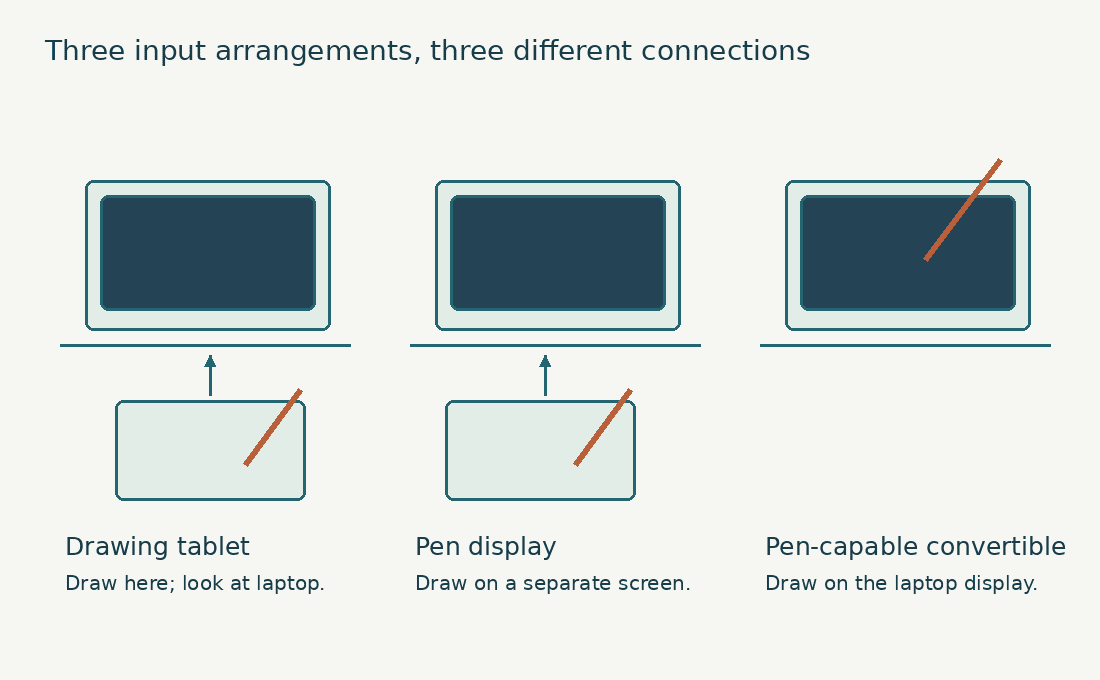
A screenless drawing tablet sends pen input while you look at the laptop or external monitor. It can fit a flexible desk arrangement and allows the display to sit higher, but the hand-eye mapping may take practice. Its active area and driver support matter more than a long list of sensitivity levels.
A pen display lets you draw on a separate screen while the laptop runs the application. It creates a direct visual relationship between hand and image, but adds a device, cables and possibly a power supply. Think about where your keyboard shortcuts will sit.
A convertible combines the computer and pen-enabled screen. It may suit mobile drawing, but check the exact pen technology and supported stylus. A touchscreen label does not prove pressure-sensitive pen input, tilt support or compatibility with the pen you already own. Compare these arrangements using our pen display, drawing tablet and 2-in-1 comparison. Keep the decision focused on input, posture, portability and application support instead of assuming drawing directly on the screen is always better.
Pen feel needs a practical trial. Inspect slow diagonal lines, light strokes, edge accuracy, palm rejection and the behavior of the brushes you use. A specification cannot tell you whether a particular application and driver combination feels right. Include replacement nibs, a suitable stand, cables and a comfortable shortcut arrangement in the budget. A complete drawing setup can cost more than the tablet itself. Reusing a compatible device may allow more of the budget to go toward the laptop display or memory.
| Input arrangement | Potential advantage | Check carefully |
|---|---|---|
| Screenless tablet | Flexible display placement and a separate drawing surface | Active area, mapping and driver support |
| Pen display | Drawing directly over the image | Video, USB, power and desk space |
| Convertible laptop | One portable device | Exact pen compatibility, posture and sustained comfort |
Check laptop pen drivers and drawing-device connections
Check the tablet manufacturer’s supported operating systems and driver requirements for the exact device. Older hardware may have different support from a current product with a similar name. Keep your art application’s tablet-input documentation alongside those requirements. Krita’s drawing-tablet documentation explains the role of tablet support and input systems. On Windows, driver and application choices can affect pressure behavior; a pen working as a mouse is not proof that pressure input is configured correctly.
Separate video, pen data and power when checking a pen display. A screen can show an image while pen input remains unavailable, or the pen can respond while the display has no video signal. Knowing which path serves each function makes troubleshooting easier. Wacom’s connection guidance for Cintiq Pro 17, 22 and 27 specifies DisplayPort Alternate Mode for the USB-C video connection and describes alternative video-plus-USB arrangements. Those details apply to the named products, not every pen display.
Do not infer capability from connector shape. A laptop’s USB-C port, the cable and the drawing device must support the required functions. A cable intended chiefly for charging may not provide the video path you expect. Test the actual combination during the return period. Install the supported driver, restart where instructed and use the application’s tablet tester if available. Keep changes controlled; swapping several settings and drivers at once makes it harder to identify what solved the problem.
Watch a drawing-tablet setup for graphic design
4 The Creatives demonstrates a Wacom tablet setup for graphic designers. Follow the workflow to see how a separate drawing tablet fits into a computer-based design setup, then check the drivers and connections for the tablet you intend to pair with your laptop.
Assess laptop display quality for digital art and graphic design
Resolution determines the number of addressable pixels, while size and scaling determine how large the interface appears. A high-resolution small screen can look crisp yet leave little comfortable room for tool panels. Inspect your application at the scaling you would actually use. Read our screen-resolution guide for artists when comparing workspace and detail. Zooming the canvas remains part of digital art; buying more pixels does not remove the need to inspect the work at appropriate magnifications.
Color gamut describes a range of reproducible colors, not accuracy by itself. A wide-gamut display can show more saturated colors while still needing appropriate management. Treat a gamut percentage as one part of the panel description. Check white uniformity, viewing angles, reflections and usable brightness. A visible tint across a blank canvas or distracting reflections can matter more than a small specification advantage. Evaluate the screen in lighting similar to your workspace.
Consider an external monitor if the laptop will spend much of its life at a desk. That can provide more room for artwork and palettes while preserving a portable computer for other tasks. Verify the output connection and supported resolution. If the laptop display will be your only color-decision surface, give it appropriate priority in the budget. A faster processor will not correct an unreliable view of the artwork. Conversely, paying for a premium panel you rarely use may not be the best allocation.
For a laptop that also handles long document sessions, the OLED vs IPS office comparison helps you test small text and reflections alongside the artwork.
Build a color-managed workflow on your art laptop
Calibration, profiling and choosing a document color space are related steps with different purposes. Adobe’s monitor calibration and profiling guidance explains how display settings and a profile support consistent viewing. A factory preset is not a universal match for every room or output.
Keep the document profile and display profile distinct. The document describes how color values should be interpreted; the monitor profile describes the display. Assigning a monitor profile as a general working color space is not a shortcut to accurate output.
Adobe’s color-management overview describes the use of profiles across devices. The practical implication is to preserve an intentional workflow instead of repeatedly adjusting a file to match every uncalibrated screen you encounter. For print work, obtain the printer or production service’s file and color requirements. Soft proofing can help within a managed workflow, but the printer, ink and paper combination still matters. Ask for an appropriate proof when the outcome is important.
For web delivery, use the export requirements of the destination and retain relevant profile information where supported. Keep an editable master separate from delivery copies. A compressed social-media export should not become the only surviving version of the artwork. Our photography and photo-editing guide covers a complementary display and storage workflow. Use the shared principles while keeping illustration, vector and print-specific requirements in your own brief.
Choose laptop RAM for large digital-art documents
Memory needs are influenced by the document, application and actions you perform. Pixel dimensions, bit depth, layers, history and open files can all affect a raster session. Vector effects and linked assets create a different workload, so file size alone is a weak guide. I would investigate 16 GB for a restrained art workflow and 32 GB for substantial layered work or several creative applications used together. Those are editorial starting points, not guarantees or replacements for current application requirements.
Adobe currently lists 8 GB minimum and 16 GB recommended for the cited Illustrator release. Check Illustrator’s technical requirements for the version and operating system you will use. That application recommendation does not budget for every other program in your session. Inspect memory pressure during a representative operation rather than only after opening a blank document. Try the transform, filter, brush or export that matters. Repeat with the reference material and background applications you normally keep open.
Check whether memory can be upgraded. Soldered capacity makes the initial choice more consequential. With replaceable modules, verify slot count, supported capacity and the cost of replacing the installed configuration. Do not assume adding RAM speeds every brush stroke. Once capacity is sufficient, a slow brush can reflect its design, canvas settings, processor load or application behavior. Identify the limiting step before spending money on the largest available memory option.
Match laptop CPU and GPU performance to your design software
Creative applications divide work between CPU and GPU in different ways. Some drawing and layout actions depend heavily on processor behavior; others use supported graphics acceleration. A large gaming GPU is not a universal requirement for 2D work. Check the application’s current GPU documentation, including supported APIs and driver requirements. Adobe’s Illustrator GPU-performance guidance describes its acceleration controls. A compatible feature must be enabled and functioning before you can judge its benefit.
Record the full processor model rather than a family badge. Compare evidence for the exact laptop under a sustained workload when exports or complex operations take time. A short burst result is less informative for a long batch. Integrated graphics may be appropriate for some 2D workflows, while a discrete GPU can be useful for supported effects, animation, 3D content or other applications. Match the decision to those actual tasks and avoid paying for an unused capability.
If your work expands into modeling, the CAD and 3D-modeling guide explains why viewport and rendering needs deserve separate treatment. A machine chosen for vector logos should not inherit the same graphics specification automatically. Keep thermal comfort in the comparison. A computer that exports quickly at a loud maximum-performance setting may be inconvenient in a studio or classroom. Assess the mode you would use, including whether the pen area and keyboard remain comfortable.
Plan art-laptop storage and scratch space
An SSD is the practical baseline for active projects and applications. Capacity planning should include editable masters, linked images, fonts, assets, exports and temporary working data. A drive sized only for final JPEGs underestimates the working library. Photoshop uses scratch storage as part of its working process. Adobe’s scratch-disk documentation explains its configuration. Sufficient free space matters even when the final document will be much smaller than the temporary data used during editing.
Separate a fast working drive from long-term recovery. An external SSD can hold projects or archives where the application and connection support the arrangement. Confirm that disconnecting it will not strand linked assets or interrupt active work. Use a folder structure that keeps the master, dependencies and delivery exports distinguishable. A client should not receive an accidental working copy, and you should not overwrite an editable master with a flattened export.
Keep recoverable copies and test a restore. Synchronization can help move files between devices, but it is not a complete answer to accidental edits or deletions. Check the service’s versioning and retention behavior instead of assuming it covers every failure. When evaluating upgradeability, verify the exact SSD form factor, available slots and service procedure. Do not assume every laptop in a product family has the same internal layout. Include the cost of migration and any necessary enclosure in the plan.
| File group | Working need | Recovery check |
|---|---|---|
| Editable masters | Enough capacity for layers and revisions | Restore a version and reopen it |
| Linked assets | Stable paths and organized folders | Verify references travel with the project |
| Scratch and temporary data | Free local space under application guidance | Do not mistake temporary data for a backup |
| Client exports | Separate, clearly named delivery copies | Keep the editable original elsewhere |
Estimate uncompressed canvas data for your digital-art laptop
Formula: Width x height x channels x (bits/8) x full-size buffers / 1,000,000.
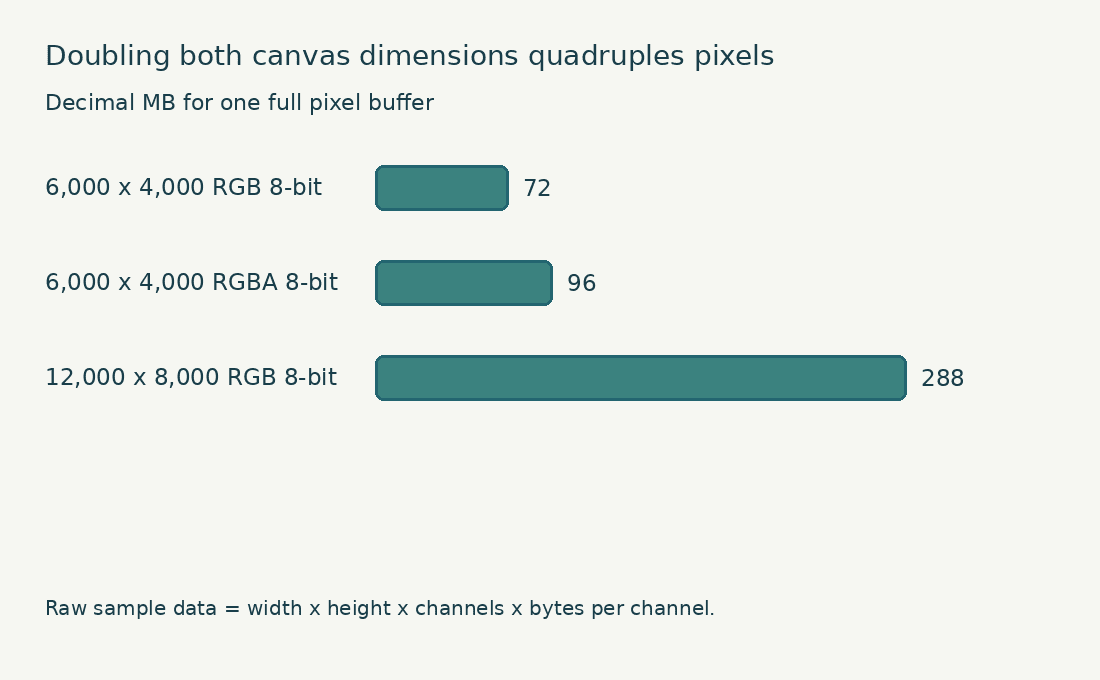
Worked example: 6,000 x 4,000 x 4 channels x 1 byte = 96 decimal MB for one full-size buffer.
The buffer count is a simplified model, not actual application allocation. Layers, masks, undo, tiles and overhead behave differently. This does not calculate required system RAM or compressed file size.
Estimate digital-art canvas data before choosing laptop RAM
A simple pixel calculation can help explain why document choices matter. A 6,000 by 4,000 image contains 24 million pixels. At eight bits per channel, three uncompressed color channels represent about 72 million bytes before layers, masks, history and application overhead.
Adding a fourth channel changes that simple base to about 96 million bytes. These are decimal byte calculations: width multiplied by height, channel count and bytes per channel. They describe raw sample data, not the saved file size or the amount of RAM an application will actually use.
Doubling both dimensions creates four times as many pixels. This is why a canvas chosen much larger than the intended output can make ordinary operations more demanding. Check output requirements before increasing dimensions just in case. Layers cannot be converted into a reliable system-memory recommendation with one universal multiplier. Different layer types, sparsity, effects and application implementations behave differently. Use the arithmetic as an explanation, then test real documents for purchasing decisions.
For example, a painter planning a large print should confirm the production dimensions and required resolution with the printer. A social-media illustration may need a different working size. Preserve enough detail for the purpose while avoiding a canvas that has no practical use. Keep this calculation separate from an installation requirement. An application may require a minimum amount of system memory even for small files, and the operating system plus other programs need capacity too. The document estimate is one part of the workflow.
| Illustrative uncompressed sample data | Calculation | Decimal result |
|---|---|---|
| 6,000 × 4,000, RGB, 8-bit | 6,000 × 4,000 × 3 × 1 byte | 72 MB |
| 6,000 × 4,000, four channels, 8-bit | 6,000 × 4,000 × 4 × 1 byte | 96 MB |
| 12,000 × 8,000, RGB, 8-bit | 12,000 × 8,000 × 3 × 1 byte | 288 MB |
Arrange your laptop for a comfortable drawing position
Think about the location of your hands, display and keyboard during a long session. A portable setup that works for a quick sketch may be uncomfortable for detailed production. Test the posture you will actually use. With a screenless tablet, the display can sit independently of the drawing surface. With a pen display or convertible, drawing and viewing positions are more closely linked. A stand, external keyboard or separate monitor may help create a more flexible arrangement.
Check shortcut access. If the keyboard is folded away or blocked by a display, you may need another input method. Decide how you will undo, change brush size, pan and zoom without repeatedly breaking the drawing position. Inspect the usable drawing area after application panels are visible. A nominal screen diagonal includes space that toolbars and palettes occupy. Test whether you can see reference material without making the canvas uncomfortably small.
Account for left- or right-handed cable placement and fan exhaust. A port in the wrong place can put a cable under the drawing hand or obstruct a mouse. These details are difficult to judge from a front-facing product photograph. Take the whole setup to a desk-size trial if possible. Lay out the laptop, tablet, keyboard and reference display using their actual dimensions. Check where charging cables run and whether the arrangement leaves space for ordinary paperwork.
Compare the complete portable digital-art laptop kit
Weigh the laptop, charger, drawing device, stand and necessary cables together. A light laptop can still produce a heavy art kit if the rest of the setup is ignored. A single-device arrangement may be simpler to move, but can involve compromises in posture or screen size. Decide which work must happen away from an outlet. Sketching and light revisions may have different power needs from long exports or GPU-heavy effects. A battery test for video playback does not establish drawing time in your application.
Check the pen’s storage and charging arrangement. A pen that is easy to misplace or unavailable when its battery is depleted creates a practical interruption. Verify what is included with the exact laptop configuration. If you regularly present to clients, test external-display output and common meeting arrangements. A small adapter can be essential, but it needs to support the required connection. Keep the presentation kit with the laptop rather than discovering the gap at a meeting.
Inspect case and sleeve fit with the accessories you carry. Avoid pressure against the screen from a loose charger or hard object. Follow the device manufacturer’s transport guidance, particularly for detachable pens and external displays. I would choose a slightly less compact setup when it substantially improves daily comfort and still fits the actual travel pattern. Portability has value when you use it; a smaller specification or form factor is not automatically the better art workspace.
Compare three laptop setups for artists and graphic designers
A beginner making web illustrations may start with a conventional laptop and a screenless tablet. The buying priorities can be a dependable display, enough memory for ordinary documents and a supported pen driver. A costly discrete GPU may add little if the applications and projects do not use it.
A print-focused designer may place more value on a color-managed external monitor, storage and memory for large documents. The laptop becomes part of a desk system. A premium built-in panel can still be useful for travel, but the main color-decision surface should be clear.
A mobile illustrator may prefer a pen-enabled convertible if the application, stylus and posture work well together. The trial should include palm rejection, light strokes, shortcut access and a realistic battery session. A touchscreen demonstration is too narrow. These are workflow examples, not product recommendations or reports of testing. Use them to identify what your budget must cover. Keep requirements written down so a promotional bundle does not decide the architecture of your workspace.
Where two setups both satisfy the brief, compare the ongoing costs: replacement nibs, pens, cables, service and storage. Also consider whether a failed accessory would stop work entirely or whether you have a compatible alternative. For a student, ask whether studio workstations or loan equipment are available. An established shared resource can change how much performance needs to travel in the laptop. Verify access, software and file-transfer arrangements before relying on it.
Leave room for learning. A first setup does not need to anticipate every professional specialty, but it should not block the applications you are required to use. Spend on the constraints you can identify and preserve an affordable upgrade path where possible.
Test your art laptop, pen and software during the return period
Install your required application and supported pen driver. Open a duplicate of a representative project and confirm pressure, tilt where supported, eraser behavior and shortcuts. Test after sleep and wake as well as immediately after installation.
Draw slow diagonal lines, light marks and long curves using familiar brushes. Compare the result at the zoom and canvas settings you normally use. If a particular brush is slow, try a simpler brush to separate document or brush complexity from general input behavior.
Use the demanding document for a longer session. Transform a large area, apply the effects you rely on, switch between open applications and export the required format. Keep a record of delays that repeat. Check the display with ordinary artwork and neutral test material. Inspect gradients, text, blank areas and reflections at a comfortable brightness. A vivid promotional animation is not a useful color-work test.
Connect the tablet, external display, storage and charger together. Confirm that ports and cable placement remain practical and that reconnecting devices behaves reliably. A setup should work as a complete system. If a required function fails, record the application version, driver and exact steps. Follow the relevant support guidance before changing many settings. Use the return or service process promptly when an essential supported workflow remains unreliable.
Digital-art laptop example: how larger canvases change the workload
A 6,000 by 4,000 canvas contains 24 million pixels. With four 8-bit channels, one full-size buffer represents 96 decimal MB of sample data. Increase the dimensions to 12,000 by 8,000 and there are 96 million pixels: four times as many, not twice as many.
This arithmetic helps explain why changing both dimensions can change the workload sharply. It does not predict the application’s total memory allocation. Layers may differ in size, and masks, undo history, caches and other application work add complexity. I would choose dimensions for the deliverable, keep an editable master, and test a representative document in the software I intend to use.
Choose a drawing arrangement for your art laptop
Open the situation closest to your own work.
I want to draw away from a desk.
Investigate a pen-capable convertible and confirm the exact active pen, supported applications and comfortable drawing posture. Ordinary touch support does not establish active-pen support.
I already draw comfortably while looking at a separate screen.
A drawing tablet may preserve that arrangement. Check drivers, mapped display area and the connection required by the tablet.
I want to draw directly on a separate display.
Investigate a pen display. Verify video, USB data and power as separate requirements, even when an approved single-cable arrangement can provide them.
Download the digital-art laptop planning worksheet
Download the digital-art laptop worksheet (fillable PDF, one page, 11 KB). Record the exact configuration, your workload, accessories and test results in one place. You can type into the fields and save your copy, or print the page.
Digital-art, drawing and graphic-design laptop FAQs
Does a digital-art laptop need a touchscreen?
No. Many artists use a separate drawing tablet or pen display. Choose the input method for the work and location; ordinary touch input does not guarantee active-pen support.
Is 16 GB of RAM enough for a digital-art and graphic-design laptop?
It can suit restrained work, but large layered documents and several applications may justify more. Check current application requirements, real project behavior and upgradeability. The compressed file size alone does not answer the question.
Does a graphic-design laptop need a discrete GPU?
Some workflows benefit from one, particularly supported effects or 3D work. Many 2D tasks have different priorities. Check application-specific acceleration and your actual workload before assigning a large part of the budget to graphics.
Is a wide-gamut laptop screen automatically accurate for digital art?
No. Gamut and accuracy describe different properties. A managed workflow includes an appropriate display profile and output requirements. Saturated color in a showroom is not evidence of dependable color decisions.
Can one laptop USB-C cable connect and power a pen display for drawing?
Sometimes, depending on the exact laptop port, cable, drawing device and power requirements. Read the device’s connection instructions. Do not assume every USB-C port carries video or sufficient power.
Should I use larger canvas dimensions for digital art on a laptop?
Choose canvas dimensions for the intended output and editing needs. Increasing both dimensions increases pixel count rapidly. Keep an editable master, but avoid a document size that adds processing cost without serving the deliverable.
Choosing a laptop for digital art, drawing and graphic design
I would choose an art laptop by matching the file workflow, pen setup and display to the finished work. Sufficient memory and storage keep that workspace practical, while processor and graphics spending should follow the operations you actually perform.
Test the complete drawing arrangement before committing. A well-supported pen, comfortable layout and trustworthy view of the artwork are central parts of the purchase, alongside the computer inside the chassis.