

Choosing a laptop for photography and photo editing starts with the photographs you make and the way you finish them. A travel kit for sorting a shoot has different demands from a desk setup handling large layered files and print output. I would put the display, working memory and storage plan on the buying brief before comparing processor badges.
This guide follows an editing session from import to delivery. It includes a color-management diagram, storage examples and a calculator so you can turn your own file sizes into a practical plan. The aim is a laptop and supporting setup that fit the work you repeat.
Photography laptop buying guide contents
Define your photography workload before choosing a laptop
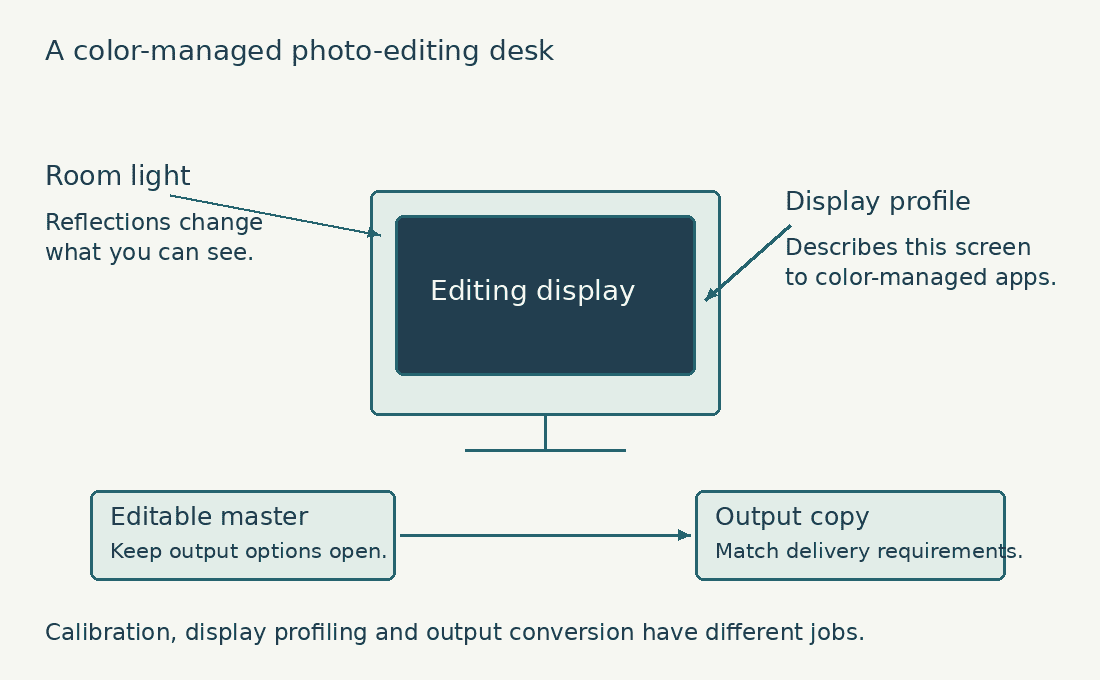
Write down the software you use, the camera files you open, and the most demanding job you expect to complete. Include the ordinary background applications: a browser with reference images, a gallery uploader, email, and perhaps a video call. A laptop that feels responsive with a single sample JPEG may behave differently when your normal workspace is open. The purpose of this exercise is to recreate your workload, not invent a stress test you will never perform.
Separate interactive work from unattended work. Interactive work includes moving an exposure slider, brushing a mask, comparing sharpness, and switching between photographs. Unattended work includes generating previews and exporting a batch while you make coffee. Both matter, but a photographer with long editing sessions may reasonably prefer smooth interaction over a small reduction in export time. A commercial editor delivering several jobs each day may weight batch throughput more heavily.
Camera resolution is useful context, but it is not a complete workload description. The number of open images, bit depth, layers, masks, panorama merges, and application combination can change the demands considerably. If you regularly move images between Lightroom and Photoshop, make that handoff part of your evaluation. Readers whose work includes motion should also consider the separate demands discussed in our guide to choosing a laptop for video editing rather than treating every creative workload as interchangeable.
Do not buy solely for a hypothetical future business. Allow sensible headroom, then decide which upgrades would produce a visible benefit now. If most of your photographs are adjusted individually and exported for the web, your priorities may differ from those of someone building large exhibition prints or advertising composites. Describing that distinction clearly makes it easier to reject unnecessary upgrades without underbuying essential memory or storage.
Check photo-editing software requirements for your laptop
Software requirements tell you whether a system is supported; they do not predict whether every part of your workflow will feel fast. Adobe’s Lightroom Classic requirements list 8 GB of RAM as the minimum and 16 GB or more as recommended. I would treat the minimum as a compatibility threshold, then compare memory configurations against the size and complexity of your actual projects.
Check the documentation for the application and version you intend to run. Lightroom Classic and Lightroom are related products with different workflows; Photoshop adds another set of requirements. Operating-system support, GPU acceleration, and architecture compatibility can also change between releases. A retailer’s phrase such as “great for Adobe” is too vague to establish those details. Keep the exact application requirements alongside each laptop configuration on your shortlist.
If photography is part of a broader design workload, identify the additional applications before committing. A buyer using CAD, illustration software, or livestreaming tools should compare the overlapping demands with our CAD and 3D modeling buying guide and livestreaming laptop guide. Those planned guides provide separate topic pathways; photography alone should not inherit every requirement from a different profession.
A sensible shortlist records the exact processor, memory, SSD capacity, display option, operating system, warranty, and seller. Model-family names are insufficient when the same family is offered with several screens and memory configurations. Save the listing or quotation you are evaluating, including its configuration identifier. This simple record prevents a cheaper variant from quietly replacing the version whose display or memory capacity originally made it attractive.
Choose a laptop display for photo editing
For photographic work, the screen influences the decisions you make about brightness, color, contrast, and detail. I would give its documentation the same attention as the processor specification. Look for information about color-space coverage, factory calibration, brightness behavior, surface finish, and the particular panel installed in the configuration you are buying. “IPS,” “OLED,” and “4K” describe different characteristics; none alone proves dependable color reproduction.
Start with your output. For photographs delivered mainly online, an accurately managed sRGB workflow can be more useful than simply choosing the widest advertised gamut. Print-oriented work may benefit from wider-gamut equipment, but that benefit depends on the editing, profiling, proofing, and output process. A wide-gamut display used carelessly can still lead to poor decisions. Our explanation of laptop display terminology helps separate gamut, resolution, contrast, and panel technology.
Screen size determines how much workspace is comfortable at the viewing distance you actually use. A compact laptop may be excellent for travel and difficult for prolonged retouching without an external monitor. A larger laptop provides more space but occupies more of a bag and may be awkward on a narrow desk. Try your application’s panels at your preferred scaling level before assuming a high-resolution screen automatically provides more usable room.
Check reflections in the environment where you edit. A bright showroom can disguise the difference between a screen’s apparent punch and its usability near a window. I would compare dark image areas, neutral grays, and fine detail while sitting in a realistic position. Do not judge color-critical work with adaptive brightness or automatic color-shifting modes changing the appearance during the comparison. Their convenience in everyday use is a separate consideration from a controlled editing session.
Inspect the display’s uniformity and comfort during your return window. Use neutral images and gradually changing tones, then move through the photographs you know well. The aim is to identify distracting tint variations, obvious defects, uncomfortable reflections, or scaling problems. This is a practical acceptance check, not a substitute for instrument measurement. When a laptop screen cannot meet your editing needs, an appropriate external monitor may be a better use of the remaining budget than a faster processor.
| Display question | What to inspect | What the answer does not prove |
|---|---|---|
| Color-space coverage | Exact panel documentation and intended output | Wide gamut alone does not establish accuracy |
| Resolution and scaling | Application panels at your viewing distance | 4K alone does not establish comfortable workspace |
| Surface and brightness | Reflections in a realistic editing environment | Showroom brightness is not a controlled editing setup |
| Calibration and profiling | Stable settings and an appropriate profile | Profiling cannot give a panel an unlimited gamut |
If the same laptop also produces illustrated layouts, the digital-art buying guide adds pen-input and large-canvas considerations. For a day split between photographs and spreadsheets, compare the reading and static-content trade-offs in the OLED versus IPS office-screen guide.

Manage color on a photo-editing laptop
Calibration and profiling are related steps, but they are not a guarantee that every screen can reproduce every color. Adobe explains the basic process in its monitor calibration and profiling guidance. Establish suitable display settings, create or use an appropriate profile, and ensure the editing application works with it. Treat color management as part of the workstation setup, not an optional decoration after the laptop arrives.
Keep a monitor profile distinct from an image’s working or embedded color profile. Adobe’s Photoshop color settings documentation describes working spaces and recommends sRGB for many web-oriented uses. The practical point is to maintain a deliberate workflow: know the image’s profile, preserve or convert it appropriately, and evaluate the exported result in the intended viewing context rather than making random profile changes until one preview looks pleasing.
For routine editing, I would create a stable workspace with reasonably consistent lighting and a repeatable screen brightness. Moving from a dim room to a sunny cafe makes a careful comparison harder, regardless of the laptop specification. Save the setup you intend to use for final decisions, and distinguish quick travel edits from final delivery checks. This can prevent a perfectly capable laptop from being blamed for an inconsistent viewing environment.
An external screen introduces another set of choices. Check its profile, connection, supported resolution, and behavior with the laptop. If you frequently disconnect it, decide whether final edits will be approved on the built-in display or postponed until you reconnect. Our OLED versus IPS comparison addresses panel trade-offs, but the complete color workflow still matters more than selecting a technology by name.
Watch a photo-editing display calibration workflow
BenQ North America demonstrates calibration and validation on a BenQ monitor using Palette Master Ultimate. Watch the measurement and report stages to see what a color-managed setup involves; the software and controls depend on your own display and calibrator.
Match laptop RAM to your largest photo-editing project
Memory capacity is one of the upgrades I would settle early, particularly when it cannot be changed later. My practical planning ranges are 16 GB for a restrained individual-photo workflow, 32 GB when heavier multitasking or layered work is common, and 64 GB when unusually large composites justify it. These are editorial starting points, not measured universal thresholds or promises that a particular capacity makes every task fast.
Think about what stays open together. Several ordinary applications can reduce the room available for a demanding edit. A large Photoshop document can also differ substantially from the original camera file once layers and other working data are involved. Check memory use during your representative project, watch whether the system becomes less responsive, and compare that observation with available upgrade options. Do not infer a project’s memory requirement from the RAW file size alone.
Memory and GPU memory are not interchangeable specifications. On systems with dedicated graphics, the advertised graphics memory describes a separate resource. On unified-memory systems, the application and graphics workloads draw from a shared pool. Avoid treating a dedicated GPU’s capacity as additional general-purpose RAM or comparing the two architectures with a simplistic addition. The useful question is whether the complete configuration handles the same representative tasks reliably.
Verify whether memory is soldered, socketed, or otherwise user-serviceable in the exact model. A listing that says “upgradable” should identify the limit and supported configuration, not merely use the word. If you are paying for permanent capacity, include the expected service life and cost of replacing the machine in the decision. The broader trade-offs in our refurbished versus new laptop guide can help when a stronger configuration is available within a fixed budget.
| Workflow | Memory planning starting point | Decision to check |
|---|---|---|
| Individual photographs with restrained multitasking | 16 GB | Test the heaviest normal edit, not only a sample JPEG |
| Frequent layered edits and several open applications | 32 GB | Check capacity options and observed memory pressure |
| Unusually large composites or demanding combined workflows | 64 GB when justified | Establish a real benefit before paying for permanent capacity |
Compare laptop processors using photo-editing tasks
Processor branding can narrow a search, but it cannot fully describe laptop performance. Power limits, cooling, the workload, and the exact chip influence the result. Compare reviews or documented tests that identify the tested configuration and use tasks reasonably close to yours. A quick synthetic score can be informative, but it should not outweigh repeated evidence about the operations you perform throughout an editing session.
I would prioritize a processor that keeps ordinary edits responsive, then investigate longer operations such as exports, preview generation, and merges. A photographer who rarely exports large batches may place a different value on sustained throughput than someone delivering events. Where possible, compare systems using the same source images, application version, settings, and power mode. Different test conditions can make two otherwise similar machines look much further apart than they really are.
Cooling deserves attention because photography work can include both short bursts and extended processing. Find out whether the laptop stays comfortable, becomes distracting, or slows noticeably during the kind of batch you expect. Do not assume that a thicker chassis guarantees better performance, or that a thin machine necessarily fails. Evaluate the implemented design and its documented behavior, including the fan profile you would actually use at home or on location.
Battery-powered results should be examined separately from plugged-in results. If you cull photographs on a train but complete exports at a desk, a machine that changes performance modes may still suit you. If you must finish a job away from outlets, the compromise becomes more important. Keep the charger in your practical comparison: its weight, charging options, and availability of a suitable replacement can affect how portable the entire setup feels.
Choose graphics performance for your photo-editing software
GPU acceleration matters for some editing features, but “more graphics” is not automatically the best allocation of a photography budget. Identify the accelerated tasks you use and consult the application’s guidance. Adobe’s Lightroom Classic requirements distinguish basic graphics support from recommendations for full acceleration and AI features. That distinction is useful when frequent denoising, masking, or similar operations are central to your workflow rather than occasional additions.
On a laptop with a dedicated GPU, compare the exact graphics configuration, cooling, and memory rather than the product-family label alone. If two systems have different power or thermal designs, the same broad graphics name does not establish equal behavior. I would look for relevant editing tests and avoid importing gaming frame-rate rankings directly into a photography decision. The separate gaming laptop buying guide covers a different primary workload.
An integrated or unified graphics design may be sufficient for an appropriate workload, but this should be established through software support and representative tasks. Conversely, a dedicated GPU can be worth its weight and power demands if it removes a frequent bottleneck. The choice should account for the screen, memory, and SSD you would otherwise give up. A balanced laptop can be more useful than a graphics-heavy configuration with inadequate capacity elsewhere.
Check the available troubleshooting information before purchase. Drivers, application preferences, display connections, and feature support can affect GPU behavior. During the return window, test the features you rely on rather than merely confirming that the graphics device appears in a system-information window. A successful batch export does not establish that every accelerated tool works correctly, and an isolated error should be investigated before you declare the whole laptop unsuitable.
Architectural photographers who also open client models should check the separate CAD and 3D workload requirements before buying. Those applications can change operating-system, memory and graphics priorities beyond the photography brief.
Estimate photograph storage for your editing laptop
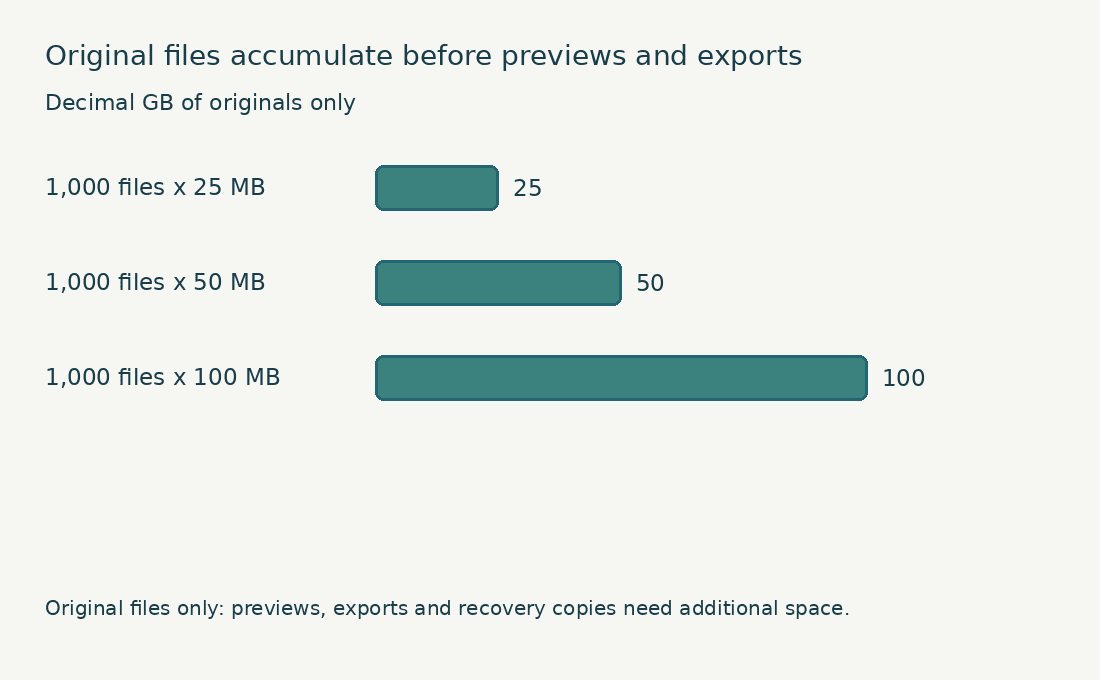
Formula: Files/month x MB/file x months x copies / 1,000, then multiply by (1 + headroom/100).
Worked example: 1,000 files x 50 MB x 12 months x 2 copies, plus 20% planning headroom = 1,440 decimal GB across destinations.
This is a planning sum, not a drive recommendation. Multiple folders on one drive do not create independent backups. Add previews, exports, application space and other files separately.
Plan laptop storage for photographs and active edits
An SSD is the sensible starting point for the operating system and active editing workspace. Adobe’s Lightroom performance guidance explains that SSD storage can help when used for catalogs, images, and previews. Capacity planning is equally important. A fast drive that is nearly full can leave you repeatedly moving files when you should be working through photographs.
List the space needed for applications, active originals, previews, project documents, temporary working space, and exported deliveries. These are separate categories, even when they occupy one internal drive. Do not estimate your working storage solely from the files copied off a memory card. For a transparent planning example, 2,000 photographs averaging 35 MB each represent about 70 GB of originals using decimal units. That arithmetic excludes previews, layered documents, exports, and backups.
I would choose capacity after estimating how many assignments or personal projects remain active together. A 1 TB drive can provide convenient working room for many photographers, while a smaller drive may be workable with a disciplined external-storage arrangement. Those are planning choices, not promises about a particular shoot. A high-volume editor should calculate the space needed for the real turnaround cycle rather than rely on the average capacity of a consumer laptop.
Photoshop also uses scratch storage when its working needs exceed available memory. Adobe’s scratch-disk guidance explains that temporary storage role. Keep working space available, understand which disk is assigned, and check demanding projects before the drive fills. Buying a larger SSD is useful only if the rest of the file-management plan keeps that space available for editing.
Separate storage convenience from backup protection. A second folder on the same drive is not an independent copy, and an external drive carrying your only originals is still a single point of failure. I would plan at least one additional independent copy and a recovery procedure appropriate to the value of the photographs. Decide what happens if the laptop is lost, a drive fails, or an accidental deletion synchronizes across devices.
Check laptop ports for photography accessories and displays
Make a list of every device you attach during a normal job. Include memory-card readers, backup drives, the display, a calibration device, and any tethering equipment. Then check whether the ports can handle those tasks simultaneously. A laptop that needs a hub can still be a good choice, but the hub’s cost, power delivery, bandwidth, and reliability belong in the budget and the return-window test.
A connector’s shape does not establish all of its capabilities. Check the documented USB, Thunderbolt, display-output, and charging support for the particular port. Compare the requirements of the equipment you already own instead of assuming that any USB-C cable will perform every job. Our guide to laptop ports provides the vocabulary needed to read those specifications more carefully.
An integrated card reader can reduce accessories, but its usefulness depends on the card formats and transfer behavior you need. If your cameras use different formats, an external reader may be unavoidable anyway. Measure the convenience of your entire import process: placing the laptop safely, connecting storage, copying files, and confirming another copy before you clear a card. A small reduction in laptop weight is less valuable if it creates an awkward field workflow.
Tethered shooting requires its own compatibility checks. Verify camera and application support, the connection, cable length requirements, and a safe physical setup. Do not assume that a laptop selected for general editing will automatically support every camera-control feature. On location, stability and predictable power can matter more than an exceptional export result obtained once in ideal conditions. Test the complete combination before relying on it for a paid job.
Choose Mac or Windows for your photography workflow
Either platform can support capable photo editing when the selected applications and equipment are compatible. I would start with the software, plugins, camera utilities, storage formats, and accessories already central to your work. Check current support explicitly, especially when moving between processor architectures or replacing an older workstation. A familiar operating system can reduce setup friction, but familiarity should not excuse a configuration with the wrong display or inadequate memory.
Do not turn the choice into a contest between brand identities. Compare complete configurations at the price you can actually obtain, then include the external monitor, adapters, storage, service, and warranty. A difference in the initial laptop price can disappear once necessary accessories are included. If illustration and layout are also part of your work, our digital art and graphic design buying guide provides another relevant comparison path.
Some laptops give you more opportunities to replace storage or memory; others require the capacity decision at purchase. Confirm the actual service arrangement rather than generalizing across an entire operating system. I would also consider local support and how long I can tolerate being without the machine. For a working photographer, a repair interruption may have a greater practical cost than a modest specification difference that rarely affects an assignment.
Budget for the complete photo-editing laptop setup
Begin with a maximum total expenditure, then allocate it to the laptop and the equipment that makes the laptop useful. This might include an external display, appropriate storage, a card reader, a dock, and a calibration device. Add software costs if you are changing applications or subscription arrangements. The point is to understand the complete working setup, not produce a deceptively attractive laptop-only price.
Protect the things that are difficult or impossible to change later. I would normally resolve built-in display suitability and permanent memory capacity before considering a smaller performance upgrade. Storage arrangements can sometimes be expanded externally, but that introduces its own compromises. If you intend to edit primarily on an external display, the built-in screen’s role changes; decide that deliberately rather than discovering the limitation after delivery.
Ask what the next upgrade actually saves. If a faster processor trims an operation you perform once a month, the benefit may be smaller than a more comfortable display used daily. If a GPU shortens a repeated editing step hundreds of times per job, the calculation changes. Estimate the value of time using your workload and deadlines. Avoid converting a manufacturer’s peak performance claim into an unsupported promise about your own work.
Test a photography laptop during its return window
Prepare a small, repeatable acceptance project before the laptop arrives. Include representative RAW files, a layered document, an export preset, and any accelerated features you use frequently. Keep a copy of the source material unchanged so you can repeat the comparison. Record the application version, power mode, whether the charger is connected, and the display arrangement. This gives you a useful baseline if a later update changes behavior.
Move through the entire workflow: import, view, adjust, open another application, save, export, and back up. Watch for unexpected stalls, connection dropouts, persistent display problems, or instability rather than simply waiting for one impressive result. Inspect the photographs at a sensible viewing scale, and compare the exported output in your ordinary delivery environment. A fast import is encouraging, but it cannot verify the rest of the process.
Check the physical experience too. Type captions, use keyboard shortcuts, move the cursor carefully, and work at a desk long enough to notice discomfort. Listen to the fans during an ordinary edit and a sustained task. Test the ports you plan to use together. Do not block cooling vents to imitate a convenient but unsuitable position; set up the laptop the way its documentation intends it to be used.
Finally, practice restoring a few files from your backup arrangement. The exercise is deliberately small, but it answers a question that performance tests cannot: can you recover the work you have entrusted to this workstation? Save the purchase details, configuration record, warranty information, and acceptance notes. Those records are useful if you need help from the seller and prevent memory from rewriting the conditions under which the laptop originally worked.
| Acceptance check | Representative task | Record |
|---|---|---|
| Editing responsiveness | Adjust and mask familiar RAW files | Application version and power mode |
| Layered work | Open, edit and save a normal large document | Memory behavior and available scratch space |
| Connections | Use card reader, drive and monitor together | Ports, hub and cables |
| Delivery | Run your normal export and inspect output | Preset and viewing context |
| Recovery | Restore a few files from an independent copy | Restore method and result |
Photo-storage example: a month of laptop editing
A month with 1,000 originals averaging 50 MB produces 50 decimal GB of originals. Keep twelve such months and the original files alone total 600 GB. A second independent copy brings the sum across destinations to 1,200 GB, before previews and exports. Adding a 20% planning allowance makes that illustrative total 1,440 GB. The allowance is a budgeting choice, not a software requirement.
That sum belongs across your storage plan. It is not a reason to keep every copy on the laptop, and it does not turn two folders on one drive into independent backups. I would separate the active editing space, archive and recovery copy on the worksheet, then test how I would retrieve an older project.
Choose a storage plan for your photography laptop
Open the situation closest to your own work.
I need space for the next few shoots.
Estimate originals for the active period, then add previews, exports and application workspace. Keep the working set separate from the long-term archive in your plan.
My external drive contains the only originals.
That drive is currently the primary copy. Plan another independent destination and a recovery check before treating the arrangement as a backup system.
I travel and finish edits at a desk.
Compare the complete travel kit with the desk setup: reader, cables, working storage, power and final editing display. Test the handoff between the two locations.
Download the photography laptop planning worksheet
Download the photo-editing laptop worksheet (fillable PDF, one page, 11 KB). Record the exact configuration, your workload, accessories and test results in one place. You can type into the fields and save your copy, or print the page.
Photography and photo-editing laptop FAQs
Is 16 GB of RAM enough for a photo-editing laptop?
It can be a reasonable starting point for a restrained workflow, and Adobe lists 16 GB or more as recommended for Lightroom Classic. Large layered documents, intensive multitasking, and demanding accelerated operations may justify more. I would test the heaviest normal project and check upgradeability before treating 16 GB as a permanent answer for every photographer.
Does a photo-editing laptop need a dedicated graphics card?
Not automatically. The answer depends on application support and the accelerated features you use. Investigate relevant tests for your software rather than buying graphics performance because it ranks well in games. Frequent GPU-heavy operations can justify dedicated graphics; another workflow may benefit more from memory, display quality, or storage capacity.
Is a 4K laptop screen necessary for photo editing?
No. Resolution affects detail and workspace, but color handling, comfort, scaling, and reflections also matter. A suitable lower-resolution display can be useful, especially when you finish edits on an external monitor. Evaluate the complete screen at your preferred viewing distance instead of assuming the pixel count decides everything.
Can I edit photographs from an external SSD connected to my laptop?
A supported, reliable external arrangement can be useful, but check application requirements, connection behavior, and your backup plan. An external SSD is not automatically a backup if it contains your only originals. Keep cables and power arrangements stable, and test import, editing, and recovery before depending on the setup for important work.
Should I buy a gaming laptop for photography and photo editing?
Consider it as a configuration, not a category recommendation. It may provide useful graphics performance, but verify the screen, memory, storage, cooling behavior, and portability. A graphics-heavy laptop with an unsuitable panel may be less convenient for your editing process than a more balanced machine with a suitable external monitor.
What should I prioritize when buying a photography laptop on a limited budget?
Define the workload, protect display suitability and sufficient memory, and arrange usable SSD capacity with independent backups. Spend further only on a bottleneck you can identify. The best compromise is the one whose limitations you understand before purchase, including how you will handle larger projects or final color checks later.
Choosing a laptop for photography and photo editing
I would choose a photography laptop by tracing the complete journey of an image: import, selection, adjustment, retouching, delivery, and recovery. That makes the purchase more concrete than a processor badge or a broad creative-laptop label. Establish a dependable viewing setup, select memory for the hardest normal session, and plan storage and backups before paying for performance that may have little effect on your everyday work.
Build a shortlist of exact configurations, check their software and hardware compatibility, and use a representative project during the return window. A balanced workstation should make editing decisions easier and the file workflow more dependable. When the display, memory, processing, and storage choices all support the way you actually work, the laptop becomes a practical photography tool rather than an expensive collection of attractive specifications.