
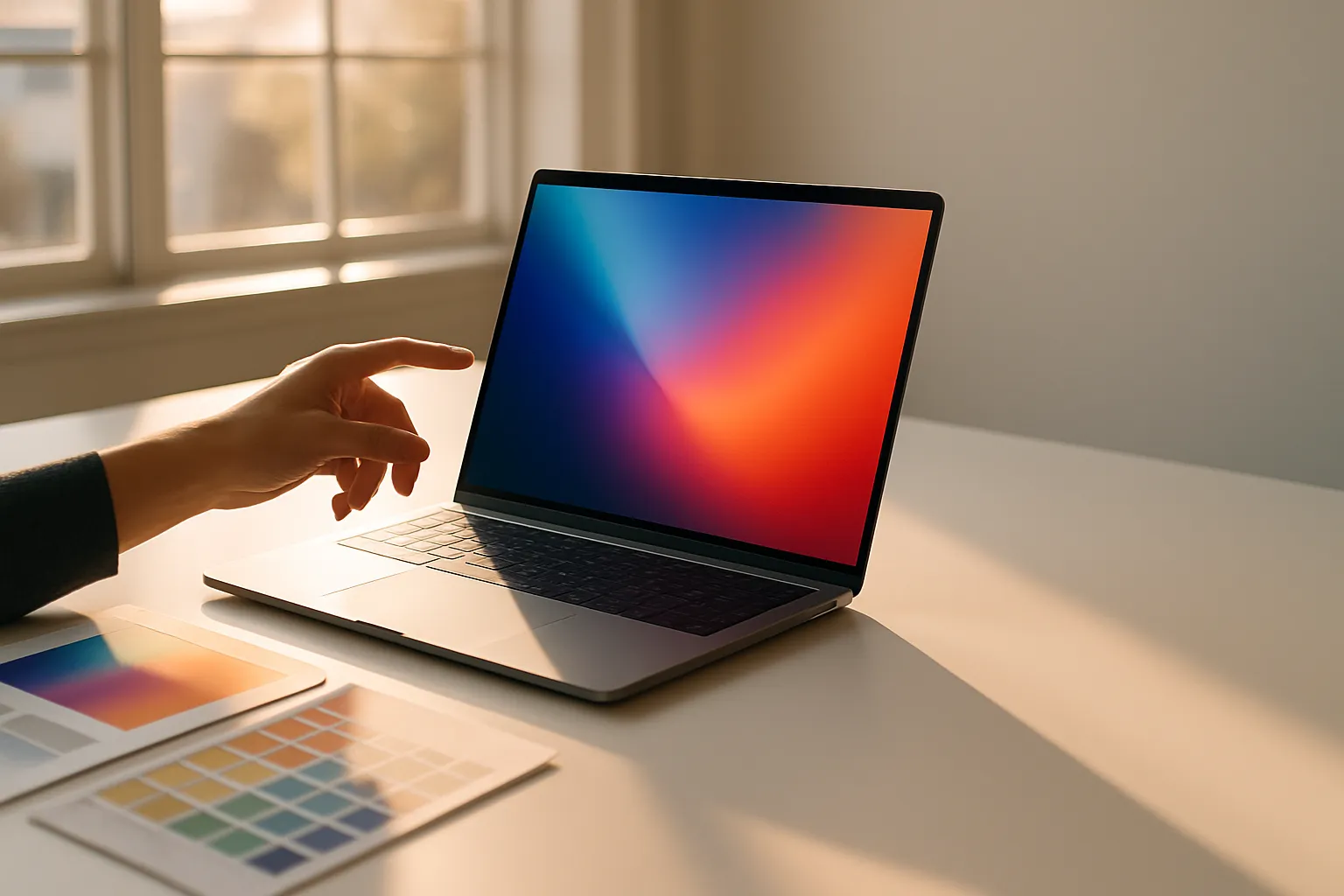
Every time I sit down to evaluate a new machine, laptop display terms explained in marketing sheets are what trip up most buyers before they even open the box. Words like “nits,” “refresh rate,” and “color gamut” appear on spec pages as if everyone already knows what they mean. Most people do not. That is a problem worth fixing.
I have spent years staring at panels in controlled lighting, comparing screens side by side, and logging what actually matters in day-to-day use versus what is just a numbers game. Some specs move the needle on your experience. Others exist mostly to inflate a bullet point list. Knowing the difference saves real money and prevents genuine regret at checkout.
Panel vocabulary is power. A buyer who understands what a 400-nit panel means in a bright office is far better equipped than one who only reads “vibrant display” in a product description. This guide translates the technical language into something you can actually use when comparing machines.
The terms below are organized by theme, not by difficulty. Work through them in order and by the end you will have a complete picture of what every number and acronym on a laptop display spec sheet is actually telling you.
What a 120Hz Laptop Display Is Actually Good For?
Refresh rate is the number of times per second a display redraws the image on screen. At 60Hz, that happens sixty times per second. At 120Hz, it doubles. The result is not simply a sharper image but a noticeably smoother one, particularly when scrolling through long documents, swiping between windows, or moving a cursor quickly across the screen.
The benefit shows up most clearly in motion. A 60Hz panel produces subtle blur during fast movement because each frame lingers slightly longer than your eye expects. At 120Hz, that blur shrinks. Everyday tasks like reading web pages feel more responsive, even if you are not doing anything that sounds remotely demanding or gaming-related.
Where 120Hz Makes a Real Difference
For video editors and animators, a higher refresh rate makes timeline scrubbing feel tighter and more controlled. Scrolling through dense timelines at 120Hz versus 60Hz is one of those comparisons that is hard to unsee once you have experienced it. The gap between the two feels wider than the numbers suggest.
Competitive gaming is the most obvious use case. Frame rates above 60fps are wasted on a 60Hz panel because the display cannot keep up with what the GPU renders. A 120Hz screen lets those extra frames actually reach your eyes, which translates to a real advantage in fast-paced titles where reaction time is everything.
Where 120Hz Is Not Worth the Trade-Off?
Higher refresh rates draw more power. On thin-and-light laptops with modest batteries, enabling 120Hz can trim runtime by anywhere from thirty minutes to over an hour depending on the workload and the panel’s efficiency. Some laptops let you toggle between 60Hz and 120Hz in their display settings, which is a smart middle ground for anyone who needs battery life to last through a full workday without a charger nearby.
If your primary tasks are spreadsheets, email, and browser tabs, a high-quality 60Hz panel with excellent color accuracy will serve you better than a mediocre 120Hz one. The refresh rate number is only worth chasing when the rest of the display’s qualities are already solid.
Also Read: Best Laptop For Daily Use
Laptop Brightness in Nits and How Much You Need
Nits measure luminance, which is the amount of light a display emits per unit of area. One nit is technically one candela per square meter, but the practical meaning is straightforward. A higher nit count means a brighter screen, and a brighter screen holds up better against ambient light sources like windows or overhead office lighting.
Here is a quick reference for how brightness levels map to real environments, based on what I have observed across dozens of tested machines.
| Brightness Level | Typical Environment Fit | Notes |
|---|---|---|
| Under 250 nits | Dim indoor rooms only | Struggles near windows |
| 250 to 350 nits | Standard indoor use | Fine for most offices |
| 400 to 600 nits | Bright offices, mixed light | Recommended baseline |
| 800 nits and above | Direct sunlight or outdoors | HDR content also benefits |
Most mainstream laptops ship with panels in the 250 to 350 nit range. That is workable in a dim room but genuinely stressful in a sunlit cafe or near a large window. Professionals who work outdoors or in variable environments should target at least 400 nits, ideally more.
HDR support is closely tied to peak brightness. A display labeled HDR400 must hit at least 400 nits at peak output. True HDR experiences, where highlights in a film or photo pop against deep blacks, typically require 600 nits or higher to produce a result that looks meaningfully different from standard dynamic range content.
Panel Types and What They Mean for Color and Viewing Angle
Not all laptop screens are built the same way at the hardware level. Three panel technologies dominate the market, and each involves real trade-offs that affect both color quality and how the image looks when you are not sitting directly in front of the screen.
IPS Panels
IPS stands for In-Plane Switching. These panels produce accurate, consistent color across wide viewing angles, making them a reliable choice for photo editors, designers, and anyone who shares their screen regularly. Color shift at off-angles is minimal compared to older TN panels. IPS is the most common type in mid-range and professional laptops.
OLED Panels
OLED displays generate light at the pixel level rather than using a backlight behind the whole screen. That means black pixels are truly off, producing contrast ratios that IPS cannot approach. Colors are vivid and the response time is extremely fast. The trade-offs include potential burn-in over time and slightly lower peak brightness in some configurations compared to high-end IPS competitors.
TN and VA Panels
TN panels are fast and cheap, which is why they still appear in budget gaming laptops. Viewing angles are poor and color accuracy is below IPS, but the response times can be very low, which some competitive gamers prioritize above everything else. VA panels sit between IPS and TN on most metrics, offering better contrast than IPS but with slower pixel transitions that can create ghosting in fast motion.
Color Gamut Coverage and Why Percentages Matter
Color gamut refers to the range of colors a display can reproduce. Laptop specs express this as a percentage of a standard color space, with sRGB, DCI-P3, and Adobe RGB being the most common reference points. A panel covering 100% sRGB can show every color within that space, but sRGB itself is narrower than DCI-P3, which is why two 100% figures from different color spaces are not equal.
For general use, 100% sRGB coverage is a solid target and more than enough for office work, streaming, and casual photo browsing. Content creators working with video destined for cinema or professional photography workflows need wider gamut panels, typically those covering 90% DCI-P3 or higher, because the source material contains colors that a narrow-gamut panel will simply compress or shift without warning.
The percentage listed in a spec sheet tells you the ceiling, not the accuracy. A panel can technically cover 95% of DCI-P3 and still render colors poorly if its calibration is off from the factory. Delta E is the metric that measures color accuracy, where a score below 2 is considered visually accurate to the human eye and scores above 4 start to look noticeably wrong on skin tones and gradients.
Resolution, Pixel Density, and the PPI Number Nobody Talks About Enough
Resolution describes the number of pixels arranged across and down the screen. A 1920 by 1080 display has roughly two million pixels total. A 2560 by 1600 display has more than four million. More pixels means finer detail, but only when the screen is small enough that those pixels actually contribute visible sharpness at a normal viewing distance.
Pixel density, measured in pixels per inch or PPI, is the number that ties resolution to physical screen size in a meaningful way. A 1080p image on a 13-inch screen looks sharp because the pixels are densely packed. The same resolution stretched across a 17-inch panel can look noticeably soft, especially in text rendering, because each pixel is physically larger and gaps between them become visible. Most professionals working on a 15-inch or larger laptop benefit from at least a 2560 by 1600 panel for comfortable extended reading.
Manufacturers sometimes use “QHD” and “2K” interchangeably, but those terms are not always identical. QHD specifically means 2560 by 1440 pixels. The label “2K” has no standardized definition and is used loosely across marketing materials, so reading the actual pixel count rather than the marketing shorthand is always the safer approach.
Frequently Asked Questions
What does “response time” mean on a laptop display spec?
Response time measures how quickly a pixel transitions from one color to another, usually expressed in milliseconds. Lower numbers reduce motion blur and ghosting during fast movement. A 1ms response time is ideal for gaming, while 5 to 10ms is typical for IPS panels and is unnoticeable in everyday non-gaming tasks.
Is a higher color gamut always better?
Not for every user. Wide gamut panels can make colors look oversaturated in applications that do not manage color profiles correctly, which produces unrealistic skin tones and inaccurate design previews. Creatives who need wide gamut should pair it with proper color management software and a factory-calibrated panel.
Can I improve my laptop display’s color accuracy after buying it?
Yes. Software calibration tools and a hardware colorimeter can bring a mediocre panel closer to accurate output. The improvement is real but limited by the panel’s physical ceiling. A display with poor gamut coverage cannot be calibrated beyond its hardware limits, only corrected within them.
What is the difference between matte and glossy screens?
Glossy screens produce more vibrant colors and deeper perceived blacks because nothing scatters the light before it reaches your eye. Matte screens use an anti-glare coating that diffuses reflections, which is far more comfortable in bright environments. The trade-off is a slight softening of the image that bothers some users and goes unnoticed by others.
Does a higher nit rating mean better image quality overall?
Brightness alone does not determine image quality. A 600-nit panel with poor color accuracy and weak contrast will look worse than a 400-nit panel with excellent calibration and high contrast. Nits matter most for outdoor legibility, while color accuracy, contrast ratio, and panel type determine the overall quality of the image.
Wrapping Up
Picture yourself editing client photos in a cafe with afternoon sun hitting the screen. You need at least 400 nits to stay comfortable, solid DCI-P3 coverage for accurate skin tones, and a calibrated IPS or OLED panel where delta E stays below 2. A 120Hz refresh rate is a bonus at that point, not the priority. If that scenario matches your daily reality, let those three specs lead your decision rather than the resolution headline or the marketing label printed on the box lid.