
Choosing a laptop for live streaming starts with the show: where the picture and sound come from, what has to run at the same time and where the output will go. A presentation broadcast and a demanding game streamed from the same laptop are different workloads. The encoder is one part of that production.
I would map the inputs and outputs before buying the computer or adapters. The signal-flow diagram, recording-storage chart and capture-path checks below help expose missing connections and plan a rehearsal. The goal is a setup you can operate through a complete session, including monitoring and recovery when something fails.
Live-streaming laptop buying guide contents
Define your live show before choosing a streaming laptop
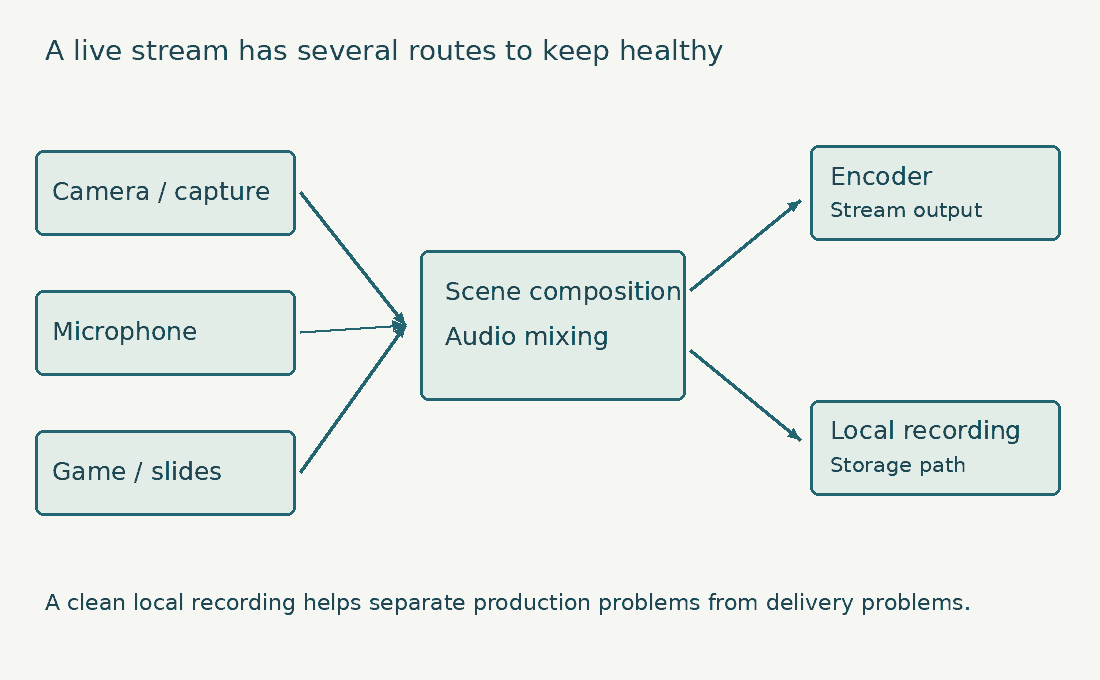
Write a short production brief. Include the destination platform, output resolution, frame rate, number of cameras, screen captures, remote guests and whether you need a local recording. List any game or demonstration software running at the same time. A talking-head broadcast with slides is different from a high-motion game stream. A multi-camera event adds connection, switching and monitoring needs. The phrase streaming laptop is too broad to select hardware until those differences are clear.
Identify who operates the show. A solo presenter needs controls and monitoring that can be managed while speaking. A separate operator may use another screen and a different desk arrangement. The computer should support that workflow without forcing you to improvise during the event. Record which equipment you already own. Check its operating-system support, driver requirements and connection types. A camera, capture device or audio interface that works with one system is not automatically compatible with every new laptop.
Set the reliability target in practical terms. A weekly classroom presentation may tolerate a simpler setup than a paid live production, but both benefit from rehearsal. For a high-stakes event, a tested fallback arrangement matters as much as more processor performance. Use our 1080p60 streaming requirements guide for the narrower output question. Keep the complete buying brief broader: inputs, audio, storage, networking, monitoring and the ability to run the entire show for its full length.
Choose one-laptop game streaming or a dedicated streaming laptop
If the laptop runs the game and broadcast together, it must support both workloads at once. Performance measured while gaming alone does not establish enough room for scene composition, capture and recording. Our gaming laptop buying guide explains how to set a game-performance target. For streaming, I would deliberately test below the machine’s absolute gaming limit so the production remains stable when the game becomes more demanding.
A dedicated streaming laptop receives video from another device. That can reduce the game workload on the laptop, but it introduces a capture path and additional cables. The capture device’s supported input and output formats become part of the specification. Many laptop HDMI ports are outputs, not video inputs. Do not assume you can connect a console directly and capture it. Verify the laptop documentation and use a supported capture arrangement where required.
A two-computer setup is not automatically simpler or more reliable. Audio routing, display modes, capture latency and control can require more planning. Choose it because it solves a defined workload or operational problem. For a screen-based tutorial, test the actual application you demonstrate. A browser lesson, a software-development session and a 3D application impose different loads. Include the resolution and scaling that keep text legible for viewers.
Once the production brief is fixed, the OBS-focused laptop shortlist is the appropriate place to compare named configurations. Keep this guide as the requirements worksheet so product selection stays tied to the show.
Check live-streaming encoder and codec support on your laptop
Encoding converts the composed video into a stream the destination can accept. A hardware encoder uses dedicated capability in supported hardware, while software encoding uses CPU resources. Compatibility depends on the hardware, software, operating system and destination.
OBS’s hardware-encoding guide describes the supported encoder families. Use it to identify the available path, then verify current codec support for the exact GPU and platform. A GPU brand name alone is not a complete encoder specification.
Do not assume the newest codec is accepted everywhere. Check the destination’s current ingest guidance and the options exposed in your broadcasting software. A supported H.264 workflow may be more practical than an unverified feature you cannot use for the intended show. Keep streaming and local-recording choices separate. The platform may require one output, while an editor or archive workflow favors another. Confirm that the laptop can handle both if you need simultaneous outputs.
Use YouTube’s live-encoder guidance for its current accepted settings. The page separates codec, resolution and frame-rate considerations. Avoid copying one platform’s bitrate recommendation into another service without checking. I would begin with a supported, reproducible configuration and improve it after a test. Changing the encoder, preset, resolution and bitrate together can make an apparent improvement impossible to explain.
Allow laptop headroom for live-streaming scenes and controls
A dedicated video encoder does not perform every part of a broadcast. Sources still need to be captured, arranged and rendered. The laptop also runs the operating system, controls, browser dashboards and any application being demonstrated. OBS’s performance-troubleshooting guidance explains why a game can appear fine while the broadcast struggles. Its discussion of GPU load supports leaving resources available for composition, rather than treating hardware encoding as zero-cost streaming.
Build the scene collection around the show. An opening card, camera view, presentation view and closing card may be enough for one production. A large collection of unused animated sources can complicate both performance and operation. Use source sizes appropriate to their visible role. A tiny on-screen element does not need the same input detail as a full-frame camera. Test the result at the actual output resolution so optimization does not make important material unreadable.
Keep essential controls accessible. If the laptop screen is filled by a game or presentation, consider how you will see audio meters, stream health and chat. An external display may solve a real operating need more effectively than a decorative hardware upgrade. Plan transitions and recovery actions. You should be able to move to a simple standby scene, mute a source or stop a faulty input quickly. A production that is difficult to operate can fail even on very powerful hardware.
Choose laptop CPU and RAM for the full live-streaming session
The CPU handles application work, control tasks and any software encoding you select. Record the exact processor rather than relying on a family label. Sustained performance and cooling matter for a show that lasts much longer than a short benchmark.
For a restrained single-camera production, I would investigate 16 GB of RAM as a starting point, then check real use. For game streaming, several applications or more complex production, 32 GB may be a more comfortable shortlist target. These are editorial planning ranges, not a platform requirement.
Open the full session when testing: broadcasting software, presentation or game, browser dashboards, communications and the recording path. A clean desktop with one test source understates the workload. Check memory pressure during scene changes and the most demanding segment. If resources are already exhausted in rehearsal, the broadcast has little room for an unexpected task. A late file download or extra application should not be the first time you discover the limit.
Verify upgradeability before treating memory as an inexpensive later fix. Soldered RAM, occupied slots and supported capacities vary. Include the cost of replacing existing modules where necessary. Do not buy the strongest CPU automatically if a supported hardware encoder serves the output well. A balanced machine with adequate memory, reliable ports and good cooling can be a better fit. Conversely, do not assume a lightweight CPU is sufficient when your production depends on software encoding.

Check streaming laptop connections for cameras, capture devices and USB
Create a connection inventory with one row per device. Note the required port, cable, power source, operating-system support and any manufacturer bandwidth guidance. Include the webcam, capture device, microphone, interface, control device and external storage. Connector shape is only one detail. A device may need a particular USB data mode, while another connection carries video or charging. Read the exact laptop and device specifications rather than assuming every port supports every function.
Elgato’s Facecam Pro setup instructions, for example, specify the connection used by that camera. This is a useful reminder to check each device’s instructions; it is not a universal requirement for all webcams. Multiple ports can share internal resources. If the manufacturer provides controller or hub guidance, follow it. Test simultaneous camera capture and recording with the real cables and hub instead of assuming individual device tests establish combined reliability.
Keep adapters and docks in the trial. A camera that works directly may behave differently through an unsuitable hub. Confirm the power and data arrangement under the full session and after reconnecting devices. Label important cables and prepare spares for a production that matters. A spare is useful only when it supports the needed function. A charging cable that fits the socket is not automatically a replacement for a high-bandwidth video or capture connection.
| Device | Record before purchase | Rehearsal check |
|---|---|---|
| Camera or capture input | Format, driver, data mode and power | Stable image and audio for a full session |
| Microphone or interface | Driver, channels and monitoring | Correct source, level and routing |
| External storage | Connection and sustained write needs | Recording completes and reopens |
| Dock and display | Supported outputs and shared connections | All devices work together |
Plan microphone input and audio monitoring for laptop live streaming
Viewers may tolerate a modest picture more readily than speech they cannot understand. Budget for microphone placement, a quiet enough room and monitoring before assuming a sharper webcam will solve the production. Check the signal path from the microphone to the output. A meter moving in one application does not establish that the intended audio reaches the broadcast. Name sources clearly and remove accidental duplicates.
The OBS Audio Mixer Guide explains source controls and monitoring. Use a short recording to check the result, including ordinary speech, louder passages and any media audio you plan to play. Avoid monitoring the live platform output through speakers near the microphone. The delayed sound can create confusion or feedback. Use an appropriate headphone and monitoring arrangement for your setup.
Test synchronization using visible and audible actions, then inspect the recording. If video and audio arrive through different devices, their timing may need adjustment. Keep the correction tied to a measured test rather than an arbitrary number. Check fan noise from the microphone’s actual position. A laptop that is tolerable to the operator may be prominent in the captured audio. Moving equipment or choosing a different power mode can be worth testing, provided the production remains stable.
Check upload stability for laptop live streaming
The stream must reach the service consistently. A fast download figure does not describe upload capability, and one speed-test peak does not prove that a connection will remain stable throughout a show. Use the destination’s current bitrate guidance and leave practical room for audio, protocol overhead and other network activity. Avoid running the stream at the absolute observed upload ceiling. The exact margin depends on the connection and production.
Where feasible, test wired Ethernet. If the laptop needs an adapter, include it in the equipment trial. Wi-Fi can work, but router placement, interference and other users become part of the reliability assessment. OBS’s stream-connection troubleshooting guide distinguishes connection problems from local production work. A faster GPU cannot repair an unstable network path.
Test at the time and location of the intended broadcast where possible. A quiet network in an empty room can behave differently during a busy event. Confirm venue access, authentication and any restrictions on streaming. Keep a documented fallback that matches the importance of the show. It might be a second tested connection, a lower-bandwidth scene or a recording for later delivery. Do not rely on an untested mobile hotspot as though it guarantees continuity.
Estimate laptop recording storage for a live stream
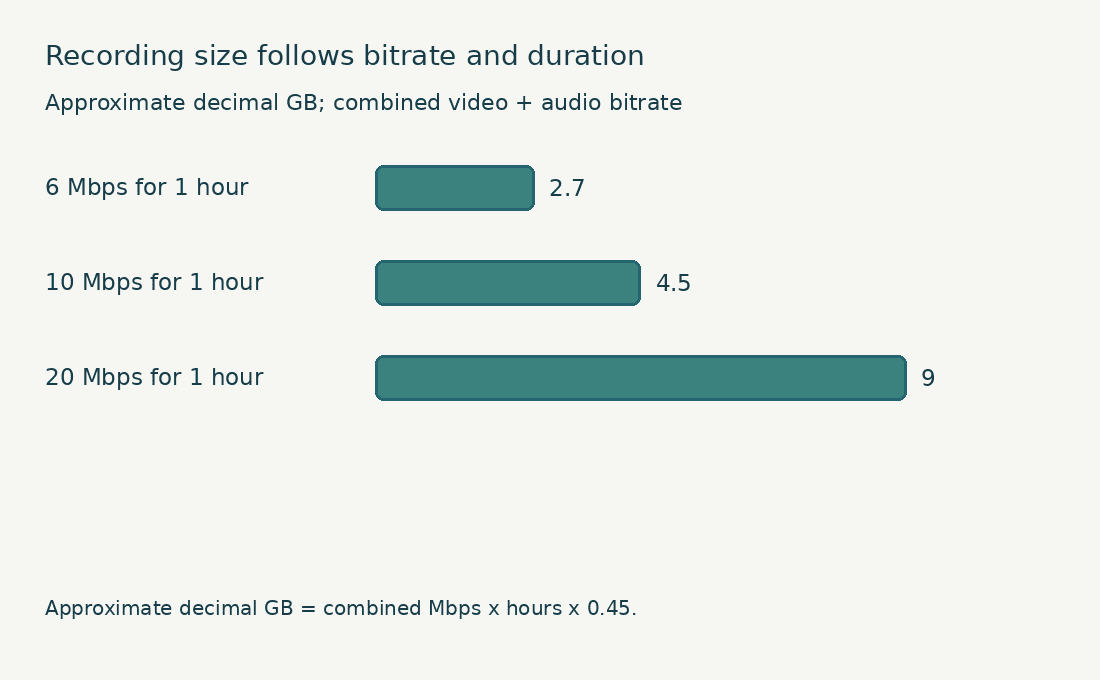
Formula: Combined Mbps x hours x 0.45 x copies.
Worked example: 10 Mbps x 2 hours x 0.45 = approximately 9 decimal GB for one copy.
Include all recorded tracks in the bitrate. Variable bitrate, overhead and separate files can change the result. This does not choose a platform bitrate or estimate reliable upload capacity.
Calculate laptop recording capacity for live-streaming sessions
If you record locally, estimate capacity before the event. At a constant combined bitrate, decimal gigabytes per hour equal megabits per second multiplied by 0.45. This follows from 3,600 seconds per hour and eight bits per byte. For an illustrative combined audio-and-video rate of 10 Mb/s, one hour is about 4.5 GB before container overhead and other variation. At 20 Mb/s, the same calculation gives about 9 GB. These are examples, not recommended platform bitrates.
A quality-based variable-bitrate recording does not have one fixed storage rate. Motion and scene detail can change file size. Measure a representative recording and keep additional free capacity instead of using the example arithmetic as a guarantee. Check the recording format and recovery behavior. OBS’s standard recording guide discusses recording containers and remuxing. Choose an arrangement that suits your software version and editing workflow, then test that the saved file opens.
Keep the recording destination clear and visible. An accidentally selected small system drive can fill while a larger external drive sits unused. Verify the path, available capacity and write reliability during rehearsal. After a test, reopen the file in the tool you will use next. Check the beginning, scene changes and end, plus every required audio track. A large file existing on disk is not evidence that the usable recording contains the show.
| Illustrative combined bitrate | One hour, decimal estimate | Two hours, decimal estimate |
|---|---|---|
| 6 Mb/s | 2.7 GB | 5.4 GB |
| 10 Mb/s | 4.5 GB | 9 GB |
| 20 Mb/s | 9 GB | 18 GB |
Choose a laptop display and control layout for live streaming
The operator needs to see sources, meters and health information without hiding the work being presented. A larger or higher-resolution display may help, but interface scaling and eyesight determine usable space. An external monitor can provide a dedicated production view. Verify the laptop output, cable and desk space. If the display shares a dock with capture devices, test that complete arrangement.
Keep private material out of the captured area. A dedicated presentation window or controlled scene can reduce accidental exposure of notifications or unrelated documents. Rehearse the actual capture method before the event. Use the monitor layout you will have on location. Moving a window to a screen that is absent at the venue can make controls difficult to reach. Keep a simple recovery procedure for a disconnected display.
For illustrated tutorials, the drawing setup becomes another input requirement. Our digital-art laptop guide explains pen connections and posture; verify that arrangement together with capture and audio. If you show photographs or edited images, the photo-editing guide covers display decisions. Still judge the stream at viewer size, because a detailed local canvas can become unreadable after output scaling.
Test laptop graphics routing and game capture for live streaming
Some laptops use integrated and discrete graphics for different tasks. Capture behavior can depend on which GPU runs the application and broadcasting software. A black capture view does not automatically mean the laptop is too slow. OBS’s GPU-selection guide describes multi-GPU capture issues. Follow the guidance appropriate to your software and operating-system version instead of applying an old workaround without checking.
Test every capture method you plan to use. Game capture, window capture, display capture and camera capture can behave differently. Keep the final method documented so a last-minute change does not introduce a new problem. Check what happens when the application changes display mode, resolution or monitor. Games and presentation tools may alter their output when going full screen. Rehearse those transitions rather than testing only the opening screen.
Verify performance with the exact laptop power profile and charger. Battery mode may change both performance and device behavior. A production that assumes plugged-in performance needs a suitable, reliable power arrangement. Keep a simple scene available while diagnosing a problem. If one camera and a static background work but the full production does not, add sources back systematically. This produces more useful evidence than replacing hardware based on a vague lag complaint.
Rehearse a laptop live stream to isolate production and connection faults
Start with a local recording of the complete show layout. This tests capture, composition, audio and storage without making the internet connection the first variable. Use motion and speech similar to the real event. Then run a private or otherwise appropriately restricted platform test using the intended output settings. Confirm the platform’s privacy and test options before starting. Check stream health and view playback on another device.
Record whether the problem appears in the local file, the platform output or both. That distinction helps narrow the path. A clean local recording with poor online delivery suggests a different investigation from a damaged local recording. Do not rely only on the laptop preview. A viewer-side device reveals audio routing, readability and playback behavior. Keep its audio from feeding back into the production microphone.
Change one variable at a time and retain the result. Reduce an output setting, simplify a scene or test another connection, then repeat the same segment. Without controlled changes, a successful test is hard to reproduce. Rehearse for the expected duration, including the most demanding segment and normal transitions. Check storage, heat, power and device reliability. A five-minute opening test cannot establish a two-hour event.
Make a short pre-show checklist from the successful configuration: power, cables, devices, audio, scene, recording path and destination. Keep passwords and stream keys private. Operational clarity is part of the system you are buying.
Watch an OBS recording rehearsal before live streaming
Kevin Stratvert walks through screen recording in OBS Studio. Use a local recording rehearsal to practise capture and audio setup before taking your laptop live. A successful recording is one check; you still need a private stream test to assess your upload connection and streaming destination.
Budget for the complete laptop live-streaming setup
Set a total production budget before the laptop budget. Include capture hardware where needed, microphone, headphones, storage, networking adapters, display and essential cables. A computer with no money left for reliable audio can be a poor allocation.
Spend on the limiting requirement. A single-camera teaching stream may benefit more from audio and a dependable connection than a stronger discrete GPU. A same-machine game broadcast may need significantly more graphics and cooling capacity.
Check service and return arrangements. If the laptop is essential to scheduled work, repair turnaround and a practical backup plan deserve attention. A small benchmark difference may matter less than losing the production computer for an extended period. Compare exact configurations and keep the purchase record. Similar laptop names can hide different ports, memory layouts and graphics. A review of one version does not establish that another version supports the same setup.
If a remote guest or specialist application is essential, test it before committing to the hardware. Operating-system compatibility, permissions and device support can change the result independently of performance. I would prefer a reproducible production that meets the output goal over a theoretically stronger machine with an untested chain of adapters and devices. Simplicity has value when it reduces real operating steps, but every required function still needs to work.
Compare three laptop live-streaming production briefs
Imagine a weekly lesson using one camera, a microphone and screen sharing. The content is mostly speech and readable slides. I would start by testing the existing supported computer, then allocate money to audio, lighting, connection reliability and a clear operating layout before assuming a gaming-class laptop is necessary.
For that lesson, the acceptance test is practical: text stays legible at viewer size, the microphone is clear, scene switching works and the session records successfully. The laptop must meet the software requirements, but a large unused graphics specification does not improve those outcomes by itself.
Now consider a game stream from the same laptop. The game may run well alone while the combined production becomes unstable. The brief should include the most demanding ordinary game segment, voice chat, overlays and simultaneous recording if required. In that case, test an intentional game frame-rate limit and the desired visual settings alongside the broadcast. The purchase must support the combined experience at a tolerable noise level. A result obtained with the game closed cannot establish suitability.
A third production captures an external camera and console for a long event. The laptop’s port arrangement and capture compatibility become central. Rehearse the exact video format, audio route, display arrangement and recording destination with the cables that will be used on site.
That event also needs operational resilience. Decide what the audience sees if the camera disconnects, what happens if the connection degrades and who can operate the fallback. A standby scene and a documented recording path can be more useful than an untested extra feature.
These examples are planning scenarios, not tested hardware recommendations. They show why one minimum streaming specification is inadequate. The right system is the one that supports the required show, with enough capacity and a workable response to predictable problems. For each brief, separate essential requirements from preferences. Essential might mean a supported capture format, a complete local recording or a particular application. A preferred screen size or cosmetic feature should not displace those conditions.
Keep the successful rehearsal configuration in a short production note. Record application version, selected devices, output settings and cable arrangement without including secrets. If a later update changes behavior, that record gives you a reference for support and testing.
After the event, inspect the recording and note any recurring issue before buying an upgrade. If the real problem was a loose cable or an incorrect audio route, more CPU power will not address it. Evidence from your own production is more useful than a generic recommendation to buy a higher tier.
Live-streaming laptop example: trace a stuttering broadcast
Rehearse the same show as a local recording and as a platform broadcast. If the local file is clean while the broadcast loses frames, the result gives you a reason to investigate delivery and connection behavior. It does not prove every production setting is correct or that buying a faster processor will solve the problem.
If the local recording also stutters, inspect the composition and encoding statistics with the actual inputs running. Keep the game, camera, microphone and ordinary controls in the rehearsal. For storage planning, a combined 10 Mbps recording lasting two hours is approximately 9 decimal GB before differences from variable bitrate, overhead or extra tracks. Use a recorded sample to compare the estimate with your own output.
Audit a streaming laptop’s capture path before buying adapters
Open the situation closest to your own work.
I want to capture a console over HDMI.
Verify an appropriate capture device and its supported formats. Do not assume a laptop HDMI connector accepts video input; most are outputs.
The local recording is clean but the stream drops frames.
Investigate the delivery connection and platform statistics alongside the production settings. A clean recording helps narrow the question without proving that the network is healthy.
The game and the recording both stutter.
Investigate the shared production load, rendering and encoding statistics. Rehearse the complete show before buying an upgrade based on one symptom.
Download the live-streaming laptop planning worksheet
Download the streaming laptop worksheet (fillable PDF, one page, 11 KB). Record the exact configuration, your workload, accessories and test results in one place. You can type into the fields and save your copy, or print the page.
Live-streaming laptop buying FAQs
Does a live-streaming laptop need a powerful gaming GPU?
Not for every show. A talking-head or presentation broadcast can have much lighter demands than playing and streaming a demanding game on the same machine. Verify the encoder, scene workload and input devices.
Does hardware encoding guarantee a smooth laptop live stream?
No. Capture, composition, memory, audio, storage and networking remain part of the production. A supported encoder is one requirement in the complete path.
How much RAM should a laptop have for live streaming?
I would investigate 16 GB for a restrained setup and 32 GB for heavier multitasking or game streaming, then test real use. Application and device requirements take precedence over a generic capacity recommendation.
Can a laptop’s HDMI port capture a console for live streaming?
Do not assume so. Most laptop HDMI connections are outputs. A supported capture device may be required; verify the exact hardware and formats.
Why does a laptop live stream stutter when the game runs smoothly?
The local game and broadcast can fail at different stages. Check production statistics, a local recording, GPU load and connection health before deciding which component needs attention.
Does a live-streaming laptop need to produce 4K output?
Choose output for the content and audience. Readability, motion, platform support, upload stability and viewer access matter. A well-made lower-resolution show can be more useful than a fragile high-resolution configuration.
Choosing a laptop for a reliable live-streaming workflow
I would choose a streaming laptop by building the production brief first, then checking the encoder, inputs, monitoring, storage and connection as one system. For same-machine game streaming, include enough headroom for the game and broadcast together.
Use a local recording and a full-duration platform rehearsal to validate the purchase. The best evidence is a clean, repeatable show with intelligible audio and stable delivery, not a processor badge or an encoder option appearing in a menu.