

Choosing a laptop for gaming starts with the games, output resolution and frame-rate target you actually want. A competitive game at modest settings and a demanding single-player game with advanced effects can lead to very different purchases. I would write that target down before deciding how much of the budget belongs to the GPU.
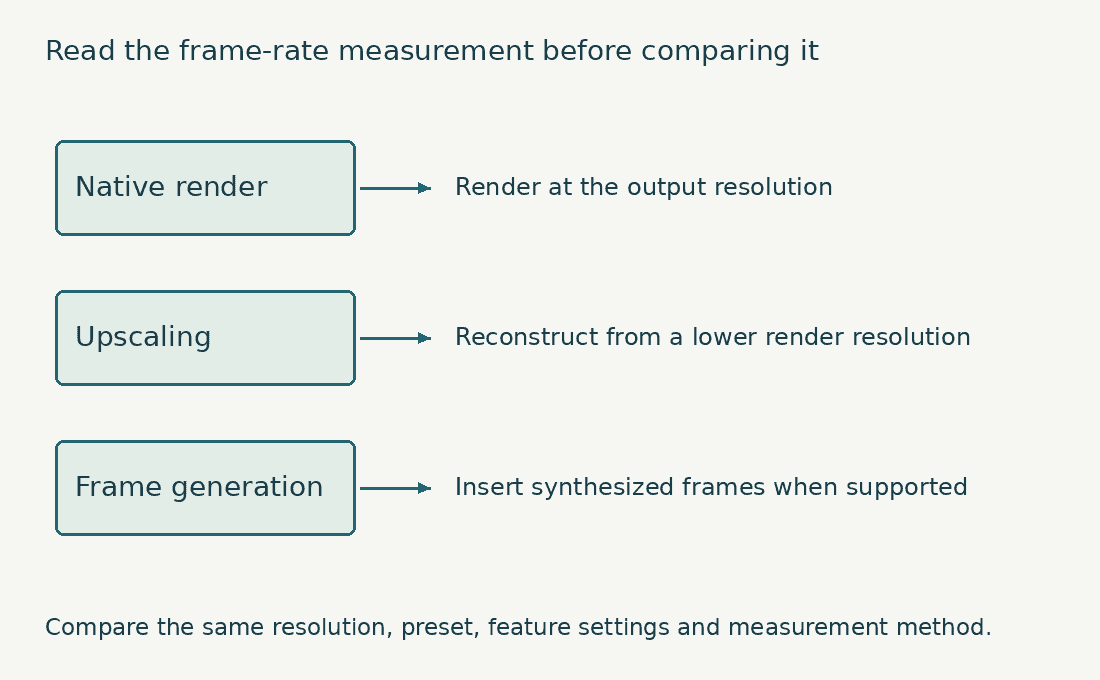
This guide explains how to compare exact configurations, read performance claims and test a purchase. The rendering diagram and frame-time calculator help separate native rendering, upscaling and generated-frame figures, while the setup examples keep screen quality, cooling and the complete desk in the decision.
Gaming laptop buying guide contents
Set your gaming targets before choosing a laptop
List the five games you expect to play most. Beside each, record whether you care more about responsiveness, visual detail, simulation complexity or mods. Then choose an output resolution and a realistic frame-rate goal. These are buying priorities, not a guarantee that one setting will suit every game. Competitive players may prefer reduced visual settings and a high-refresh display. Someone exploring a slower single-player world may value image quality and quieter operation more. Neither preference requires buying the most expensive hardware by default.
Write down what you are willing to reduce. Turning down a costly lighting feature may be acceptable; dropping texture quality until important objects look poor may not be. If you cannot describe the compromises you accept, every sales page can make a more expensive configuration seem necessary.
Use official requirements to establish compatibility, then seek evidence for the exact settings you want. The developer’s Cyberpunk 2077 store listing, for example, separates operating systems and hardware requirements. A requirements list is not a benchmark for your laptop or a promise about maximum settings.
Keep extra workloads visible. Recording, streaming, voice chat and a browser can change the session. If you want to broadcast while playing, include the capture and encoding setup in the purchase brief instead of treating streaming as free background work. Specialist games deserve separate checks. The demands described in our X-Plane 12 requirements guide differ from a basic esports workload, while Minecraft with shaders introduces a different combination of game, mod and graphics settings.

Compare complete gaming laptop GPU configurations
A laptop GPU name is the start of the comparison. Power allocation, cooling, memory and manufacturer settings affect how the complete machine performs. A desktop card with a similar name is not a reliable substitute for laptop-specific evidence. Check the manufacturer’s stated graphics configuration for the exact model. NVIDIA’s laptop specifications show power ranges within its mobile graphics line. That is a reason to investigate the laptop implementation; it is not a formula that lets you predict frame rates from watts alone.
Two systems with the same graphics processor can differ in sustained behavior. One may allocate more power under a graphics-heavy load, while another prioritizes size or quieter operation. The result also depends on what the CPU is doing and how the system manages shared limits. Do not assume a higher power figure guarantees proportionally higher performance. Hardware reaches efficiency limits, and different games stress components differently. A well-controlled benchmark of the exact machine is more useful than multiplying the wattage difference.
Record graphics memory separately. VRAM can influence which textures, resolutions and effects remain practical, but a larger capacity does not automatically make a slower graphics processor faster. The right question is whether the chosen games exceed the available working capacity at your settings. I would keep the exact configuration identifier with every shortlisted laptop. Broad family pages may offer several GPUs and displays. A review of the strongest option cannot establish the performance of the lower-cost configuration beside it.
Understand native rendering, upscaling and frame generation in laptop games
Performance charts can describe different work. Native rendering draws at the selected output resolution. Upscaling starts from a lower internal resolution and reconstructs a higher-resolution output. Frame generation adds frames using supported technologies. Compare like with like before treating one frame-rate number as a hardware advantage. AMD’s FSR technology overview distinguishes upscaling from frame generation. Those features can be useful, but game support, hardware compatibility and settings must be checked individually.
Keep the underlying rendered frame rate visible in your notes where it is available. A generated-frame total should not be read as identical to the same native rendered frame rate. Responsiveness and image quality need their own assessment. For competitive play, inspect latency as well as visual smoothness. NVIDIA describes DLSS technologies and Reflex integration as parts of its rendering system. A technology name on a laptop box still does not establish that your game implements every feature.
Look at difficult image content when testing reconstruction: fine wires, foliage, rapid camera movement, particles and interface elements. An attractive still screenshot can hide motion artifacts. Decide whether the trade-off is acceptable in the actual game. Use reconstruction features as options in your buying plan. I would avoid choosing a configuration that only approaches the desired experience under an unexplained maximum multiplier. Ask for the resolution, preset, reconstruction mode and frame-generation state behind every impressive claim.
| Claim shown in a chart | Question to ask | Why it matters |
|---|---|---|
| Frames per second | Native, upscaled or generated? | The workloads and responsiveness are not identical |
| Maximum settings | Which preset and ray-tracing options? | Preset labels differ between games |
| Laptop GPU name | Which exact laptop and power mode? | Implementation changes sustained behavior |
| Fast display | Refresh rate and measured pixel behavior? | A headline refresh rate is incomplete evidence |
Watch a gaming upscaling comparison
NVIDIA GeForce compares DLSS 4.5 with DLSS off in Cyberpunk 2077. Look at fine detail and image stability in motion alongside the performance overlay. This manufacturer demonstration illustrates the feature; compare independent results for the exact laptop and settings you plan to use.
Choose a gaming laptop CPU for your games and GPU
Game engines use processors differently. Simulation, world updates, draw-call preparation and background tasks can all expose CPU limitations. A graphics upgrade does little for a scene whose limiting work remains on the processor. Record the full CPU model and generation. Family labels cover chips designed for different power and thermal envelopes. A flagship badge in an older or restricted configuration does not settle a comparison with a newer, more balanced system.
Watch for benchmark conditions that remove the GPU bottleneck to expose CPU differences. Those results can be informative, but the difference may shrink when you play at a higher resolution or enable more expensive graphics. Your intended settings should stay central. I would prioritize a balanced configuration over a top-tier CPU paired with graphics that miss the target. The opposite imbalance can also disappoint, especially in games with complex simulation or very high frame-rate goals.
Background recording and streaming change the calculation. A supported hardware encoder may reduce the need to perform video encoding on CPU cores, but the game and broadcasting software still need resources. Our live-streaming laptop guide addresses that combined workload. Do not buy around core count alone. Look for actual game behavior, consistent frame delivery and the way the machine performs after a long session. A short benchmark win is less useful if it comes with noise or heat you will not tolerate.
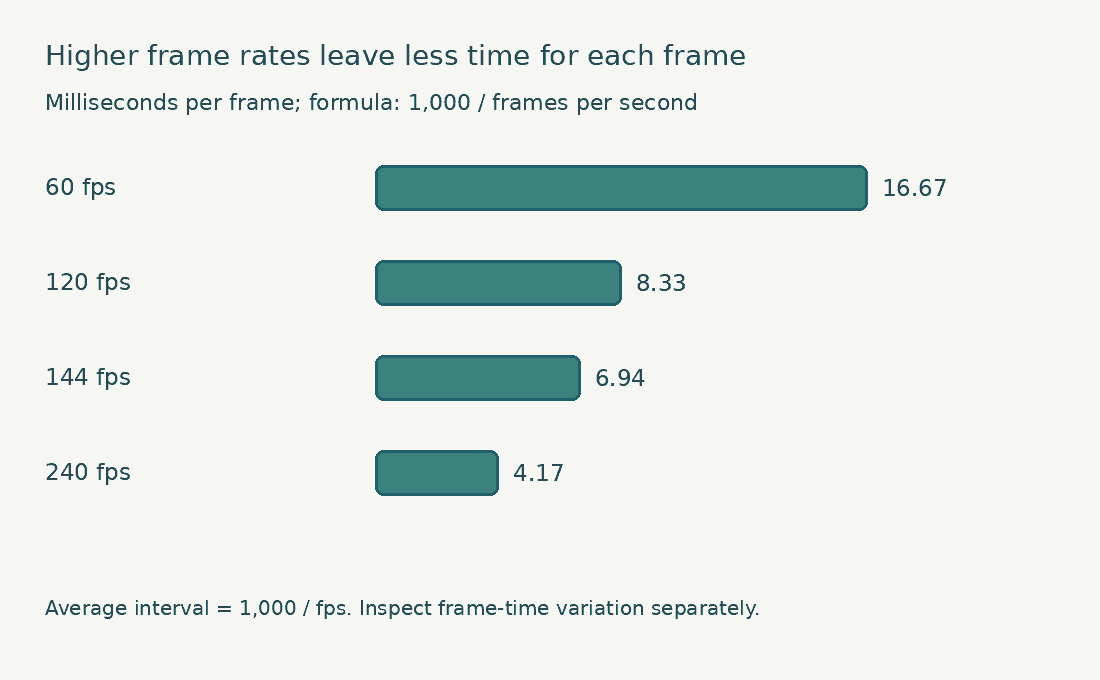
Convert gaming laptop frame rates to average frame intervals
Formula: 1,000 / frames per second.
Worked example: 120 fps corresponds to an average 8.33 ms per frame; 60 fps corresponds to 16.67 ms.
An average frame interval does not show frame-time spikes or equal input latency. Keep rendering, generated frames, panel response and end-to-end latency separate.

Match a gaming laptop display to delivered frame rates
Resolution changes the number of pixels the graphics system must process. A higher-resolution panel can make text and game detail look sharper, but running demanding games at its native resolution may require more graphics capability or adjusted settings. Refresh rate describes how often the display can update. It does not force the GPU to produce that many new frames. A high-refresh panel can still be useful below its maximum, particularly with compatible variable-refresh behavior, but the target should fit the games.
Frame time makes the relationship easier to understand. At 60 frames per second, one frame lasts about 16.7 milliseconds; at 120 it lasts about 8.3 milliseconds; at 144 it lasts about 6.9 milliseconds. These are simple time conversions, not measured input-latency claims. Pixel response, overshoot and display processing also affect motion clarity. A large refresh-rate number alone cannot establish clean movement. Look for evidence at the refresh range you will use, not only at the panel’s highest setting.
Consider brightness, reflections and viewing angles in your room. A panel that looks impressive in darkness may be uncomfortable beside a window. If the laptop doubles as a work computer, inspect ordinary text and spreadsheet use as well as a game.
If you will mostly use an external display, verify the port’s supported output and the monitor combination. Do not pay for a premium built-in panel solely because a product tier bundles it, unless that panel will improve the time you actually spend on the laptop.
| Rate | Approximate time per frame | Interpretation |
|---|---|---|
| 60 fps | 16.7 ms | A practical example of steady motion timing |
| 120 fps | 8.3 ms | Half the frame interval of 60 fps |
| 144 fps | 6.9 ms | Needs suitable game performance to deliver new frames this often |
| 240 fps | 4.2 ms | A demanding target; panel rate alone does not supply it |
Balance gaming laptop RAM and game-storage capacity
System RAM and graphics memory serve different roles. A listing with a large system-memory figure does not turn a limited graphics configuration into a stronger one. Keep both capacities visible in the shortlist. For a new general gaming purchase, I would investigate 16 GB as a constrained starting point and 32 GB when multitasking, modding or content creation makes the extra capacity useful. These are buying judgments; each game’s current requirements and your actual workload remain the test.
Check the memory arrangement and upgrade path. Some machines provide replaceable modules, others soldered memory, and some mix the two. The maximum supported capacity and the cost of replacing existing modules matter if you plan to upgrade. An SSD makes sense for the active game library. Check the current storage requirements of your largest titles and leave room for updates, captures and other applications. The installed size can change, so a capacity estimate should include breathing room.
Add up the games you want installed at the same time instead of multiplying one familiar game’s size. Mods, texture packs and recorded footage can dominate storage. A large library that you rarely touch may belong on a different storage arrangement. Before assuming a second SSD solves capacity later, verify the slot, compatible form factor and service procedure for the exact model. An external drive can also work for appropriate uses, but connection reliability, speed and portability become part of the setup.
Evaluate cooling, noise and power in a gaming laptop
A gaming laptop manages heat and power in a small enclosure. Fans, air paths, heat exchangers and firmware settings help determine how long it can sustain performance. A high component specification cannot describe that whole system. Compare the mode you expect to use. A maximum-performance profile may be louder than you want, while a balanced profile may deliver a more acceptable compromise. Keep performance and noise observations paired; a result without its operating mode is incomplete.
Check longer sessions, including the games you play most. A brief load may end before temperatures stabilize. Record whether frame delivery changes and whether the keyboard, palm rests or nearby desk area remain comfortable. Keep air inlets and exhausts clear in normal use. Follow the manufacturer’s placement and cleaning guidance rather than assuming a soft surface is suitable. Avoid treating a third-party cooling accessory as proof that a poorly matched laptop will become comfortable.
Charger size belongs in the portability calculation. The laptop alone may look easy to carry while its power supply and accessories change the bag considerably. If smaller USB-C charging is supported, verify its limits; it may not provide the same performance as the main adapter. I would not select a machine using a universal safe-temperature number from an unrelated product. Components and control policies differ. Use the manufacturer’s guidance and investigate repeated throttling, shutdowns or unusual behavior through supported diagnostics and service.
Compare gaming laptop battery life and unplugged performance
Battery life measured during video playback or light work does not describe heavy gaming. The display, CPU and graphics system operate under very different loads. A claim about all-day productivity should stay attached to its stated test. Gaming on battery may use different power limits and deliver lower performance. That can be an acceptable compromise for a short casual session, but it should not be the untested basis of a demanding gaming purchase.
Define what you need away from an outlet. If travel mostly means documents and browsing followed by plugged-in play at a destination, prioritize a good light-work mode and manageable charger. If you genuinely need long unplugged gaming, test that requirement directly. Screen brightness, refresh settings, background activity and graphics mode can influence battery behavior. Use a consistent setup when comparing results. A single surprising session is weaker evidence than repeatable tests under known conditions.
Read our discussion of gaming-laptop battery life before equating a larger battery with a particular number of hours. Capacity is one input; workload and power management determine how quickly that energy is used. Keep battery service and warranty in view for a machine you plan to own for several years. Ask about authorized replacement options and follow the manufacturer’s charging guidance. A future replacement should be a service question, not an assumption based on a generic battery listing.
Check gaming laptop ports, networking and desk accessories
List the devices you will connect simultaneously. A mouse, headset, controller, external SSD, monitor and capture device can exceed the useful port arrangement even when the total port count looks adequate. Check port capabilities individually. The USB-C shape does not guarantee a particular display output, charging level or transfer speed. Manufacturer documentation should identify what the exact port supports.
For online games, connection consistency matters alongside bandwidth. Wi-Fi performance depends on the router, placement, congestion and laptop hardware. Where practical, compare a wired connection during troubleshooting so you can separate local wireless issues from the game server or internet path. An external monitor can change the way a laptop fits your needs. You might accept a smaller built-in screen for travel, then use a larger display at home. Verify resolution, refresh rate and cable requirements before ordering the monitor.
Include peripherals in the budget. A comfortable mouse and headset may improve everyday use more than a decorative upgrade to the laptop. Reuse existing accessories when their connections and condition fit the new setup. If the same computer will support editing or design, compare the priorities in our gaming-versus-creator laptop guide. A gaming specification can be useful for creative tasks, but display accuracy, application support and quieter operation may change the balance.
Read gaming laptop benchmarks against your performance target
Use benchmarks for the exact laptop configuration whenever possible. A graphics-card name shared with another chassis cannot establish the same result. Note the processor, memory configuration, graphics mode and power profile. Check game version, output resolution and settings. A result from an older patch or a different preset can still provide background, but it should not be treated as directly comparable. Generated frames and upscaling must be identified.
Average frame rate is useful, but it can hide interruptions. Look for frame-time information or lower-percentile results and consider whether the test represents ordinary play. A benchmark sequence may avoid the busiest city, largest battle or heavily modded area you care about. Keep multiplayer variability in mind. Network conditions, player count and server behavior complicate controlled comparisons. A repeatable built-in benchmark helps isolate hardware, while real play tests the experience; neither replaces the other.
Read performance alongside noise and power mode. A laptop winning by a small margin at a much louder setting may be a poor fit for your room. Decide what difference you would actually notice and value. Do not turn a benchmark into a promise about every future game. Software changes and preferences differ. Buy adequate headroom for a reasonable ownership period while accepting that settings may need adjustment as the library changes.
Budget for a gaming laptop and its first-month essentials
Separate the purchase ceiling from the laptop-only ceiling. Add tax, essential accessories, storage needs and any required software before deciding what the machine itself can cost. Keep some room for an item you discover during setup. Prioritize hard-to-change components. The CPU, GPU and panel are usually much less practical to upgrade than accessible memory or storage, although every exact model needs checking. Do not assume any component is replaceable because another laptop in the range allows it.
Compare the cost of a needed upgrade with buying the right configuration initially. A low-priced option can lose its advantage if you must replace all the memory, buy a larger SSD and add a dock immediately. A discount on the wrong configuration is still the wrong purchase. Check the delivered display, GPU, memory and warranty against your shortlist. Similar names and product photographs can hide material differences.
If you are comparing new, refurbished and used machines, inspect warranty, return rights, condition and the exact seller’s terms. Battery wear, missing chargers and prior repairs can change the total cost. Avoid assuming a refurbished label has one universal meaning. I would keep a short decision record: required games, target settings, exact configuration and accepted compromises. It makes the purchase easier to evaluate and gives you a fair test during the return period instead of moving the goalposts after every new review.
Compare three gaming laptop buying scenarios
Consider a student who plays competitive games at home and carries the same laptop to class. The brief might prioritize stable frame delivery at reduced settings, an acceptable keyboard and a manageable bag. A large high-resolution panel and the strongest graphics tier may consume money without improving the main requirement.
For that student, I would compare exact-model results at the intended competitive settings, then inspect light-work battery behavior and charger weight. A slightly lower maximum frame rate can be an acceptable trade if the machine is easier to carry and the display still handles motion well.
Now consider a player who mostly enjoys visually demanding single-player games at a desk. Higher image quality may matter more than reaching an extreme frame rate. The shortlist can give more weight to graphics capability, VRAM, display contrast and the noise produced during a long session.
That buyer should define which expensive effects are essential. Compare the same game with and without those effects, and inspect the upscaling mode used in each result. A pleasing 60-frame-per-second experience at chosen settings may be a better target than a much larger number produced under settings the buyer dislikes.
A third buyer plays simulation games and edits recorded sessions afterward. This brief includes CPU behavior in complex scenes, enough memory for the editing workflow and storage for recordings. It also needs software compatibility and a useful display for the editing portion of the day.
For that workflow, compare a demanding simulation scenario and a representative export separately. A laptop that wins in a graphics-heavy action game may not be the best fit. Our photo-editing guide helps assess the display side when still images are part of the output.
These examples are decision exercises, not tested configurations or product recommendations. The important step is to make the workload specific enough that a compromise can be judged. A machine is good value when it satisfies the chosen brief at a sensible total cost.
If two options both satisfy the essential tasks, use the remaining differences to decide: warranty, noise, keyboard, portability or price. Do not manufacture an urgent performance need merely because one specification is larger. Equally, do not excuse a missing essential feature because the rest of the specification looks generous.
Write down the lowest acceptable outcome before looking at offers. That might be a chosen resolution and preset, reliable external-monitor support, sufficient capacity for your installed library or a maximum carrying weight. When a discounted configuration fails one of those conditions, eliminate it.
Finally, ask whether portability is used often enough to justify a laptop. A desktop and a simpler portable computer can be a legitimate comparison where budget and space allow. Intel compares the customization and portability trade-offs; the right form factor depends on how you actually move between work and play.
Test a gaming laptop before its return period closes
Begin by confirming the hardware you received. Check the exact processor, graphics device, installed memory, SSD capacity and display mode. Save the order details so you can resolve a mismatch promptly. Install updates through supported manufacturer and operating-system channels. Then establish a baseline before experimenting with tuning tools. Keep notes of changes so a later problem can be reproduced.
Test the games in your original brief at the settings you chose. Run a longer session after the initial benchmark, and check the display, controls and noise from your normal seating position. A machine can meet a frame-rate target and still be uncomfortable to use. Try the real multitasking setup. If you use chat, recording or streaming, test those together with the game. For broadcasting, OBS’s encoding-performance troubleshooting guide explains why several tasks can compete for resources.
Check sleep, wake, external monitors, audio and networking as well as gaming. These ordinary interactions can cause more daily frustration than a modest performance difference. Test the ports you actually rely on with your own cables and peripherals. Keep the result tied to your needs. If the laptop performs as expected and the compromises remain acceptable, stop chasing every benchmark. If an essential task fails, gather a reproducible example and use the seller or manufacturer’s support process while your options remain open.
Gaming laptop example: compare two frame-rate results fairly
Suppose one chart shows a game at native output resolution and another uses upscaling plus generated frames. The larger frame-rate figure cannot establish a like-for-like advantage. Record the resolution, preset and rendering features before using the result in your shortlist.
For a 120 fps target, the average interval is about 8.33 milliseconds per frame. That arithmetic gives the target a useful scale, but an average does not show individual stalls. Look for consistent frame-time evidence alongside the average, and keep input latency separate from the frame interval. I would prefer a comparison that answers my actual game-and-settings question over a larger unexplained number.
Check your gaming laptop benchmark-reading skills
Three questions about the measurements used in this guide. This is a learning exercise, not a laptop performance test.
Read the answers and explanations
1. Compare the same game, settings and rendering method. 2. 1,000 / 120 gives about 8.33 ms. 3. A refresh-rate capability does not establish delivered game performance.
Download the gaming laptop planning worksheet
Download the gaming laptop worksheet (fillable PDF, one page, 11 KB). Record the exact configuration, your workload, accessories and test results in one place. You can type into the fields and save your copy, or print the page.
Gaming laptop buying FAQs
How much RAM should a gaming laptop have?
Check the games and background tasks first. I would investigate 16 GB for a constrained setup and 32 GB where mods, multitasking or creation justify it. More capacity does not automatically raise frame rates when memory is already sufficient.
Is a high-refresh laptop display worthwhile for gaming?
It can be useful when the game and hardware deliver suitable frame rates and the panel handles motion well. Match the rate to your priorities. A 240 Hz label does not guarantee 240 newly rendered frames each second.
Should I buy the highest gaming laptop GPU tier I can afford?
Only after checking the complete configuration. A stronger GPU may be valuable, but insufficient memory, a poor panel, excessive noise or an unusable port arrangement can undermine the purchase.
Can a thin laptop deliver suitable gaming performance?
Some can meet particular targets, but inspect exact-model results and sustained operating conditions. Thinness alone proves neither poor performance nor excellent engineering. Carrying weight and acoustic comfort should remain part of the comparison.
Do generated frames make a weaker gaming laptop GPU equivalent to a stronger one?
No simple equivalence follows. Compare base rendering, supported features, latency and image quality in the games you play. Treat generated-frame totals as a different measurement from native rendering.
Can I replace a gaming laptop’s GPU later?
Do not assume so. Internal laptop GPU upgrades are generally impractical, and external graphics support depends on the machine and connection. Buy the required graphics configuration with the laptop unless a specific supported alternative has been verified.
Choosing a laptop for your games and performance target
I would buy a gaming laptop by choosing the games, resolution and frame-rate goal first, then comparing exact configurations under clear test conditions. Graphics capability matters, but a usable display, balanced memory, tolerable cooling and a realistic power arrangement determine the whole experience.
Keep your original buying brief through the return period. Test the machine against that brief, including the accessories and background tasks you use. That gives you a defensible purchase decision without relying on a single GPU badge or unexplained frame-rate claim.