
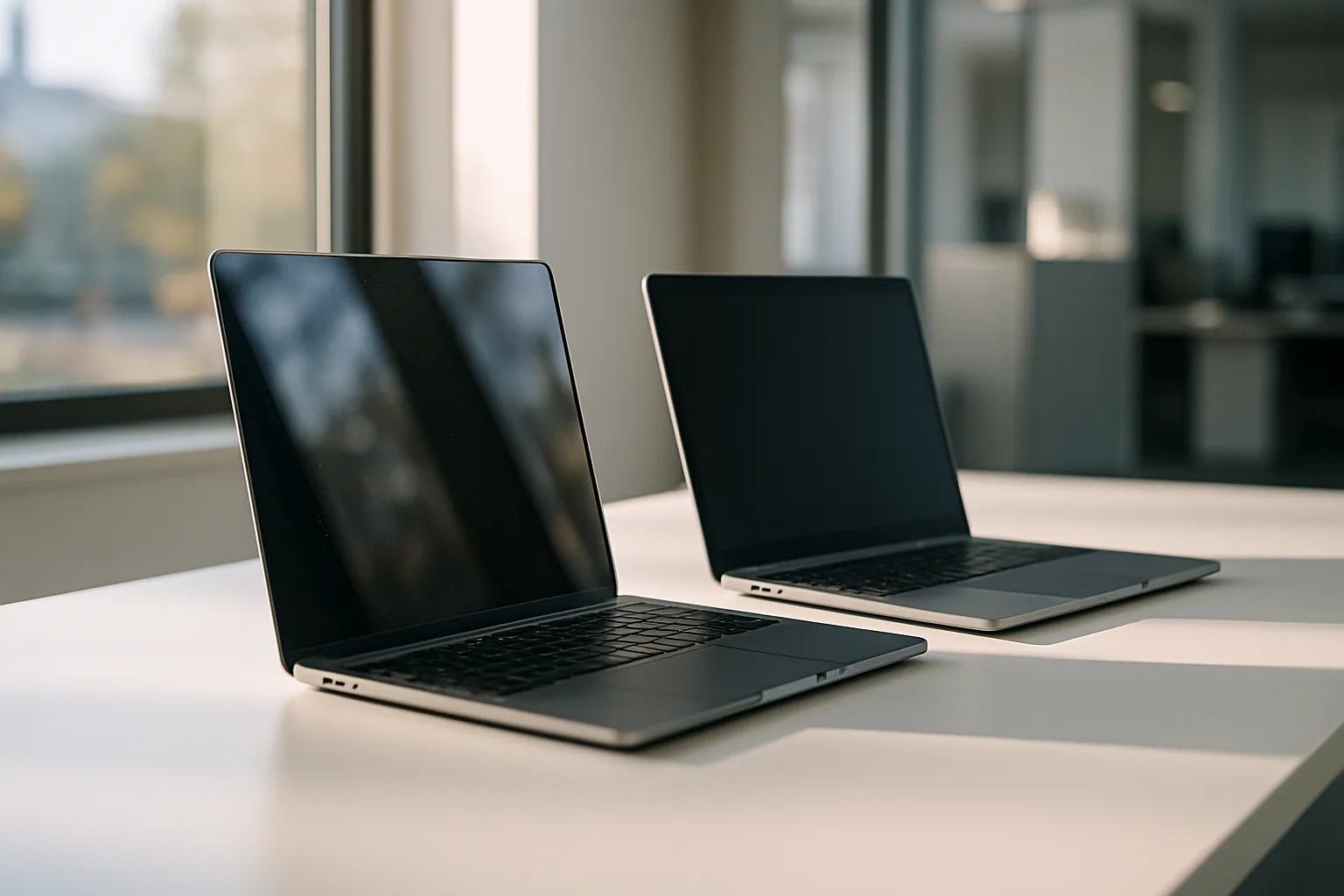
Every laptop purchase forces a choice most buyers underestimate until they are already frustrated with their decision. The touchscreen vs non touch laptops debate hits hardest when you realize that the wrong call affects every single hour you spend at your desk. I have watched colleagues choose glossy touchscreens only to squint through fingerprints during outdoor presentations. That frustration is real, and it is avoidable.
Touchscreens add weight, cost, and glare. Those trade-offs are not abstract. A glossy panel in a bright room can make reading documentation genuinely painful, and the toll adds up across long workdays. The better path forward is understanding what each type actually gives you before you spend a dollar.
Non-touch displays typically use matte coatings that cut reflections and reduce eye strain over long sessions. Touch panels almost always ship with glossy glass, which punches up colors but invites mirror-like reflections. Neither is universally better. The decision depends entirely on how and where you work.
Your workflow is the real deciding factor. Designers sketching UI mockups, students annotating PDFs, and engineers pulling up schematics all benefit from different setups. The sections below break down each scenario so you can land on the right machine without second-guessing yourself six months later.
Do You Need a Touchscreen Laptop for Programming?
Most programmers spend their day inside a terminal, an IDE, or a browser. None of those tools require a finger on the glass. Reaching up to tap a screen while your other hand stays on the keyboard breaks rhythm in a way that slows you down over hours.
That said, touch does have edge cases that matter. If you write front-end code and want to test tap targets on the device you are building on, having a touchscreen removes one step from your testing loop. Responsive design work benefits from being able to pinch and scroll the way a phone user would.
When Touch Helps in Development
Web developers building mobile-first interfaces get real value from a touchscreen because they can verify touch targets without switching to a separate device. That tactile feedback loop between writing a button and immediately tapping it to check sizing is surprisingly efficient when you are deep in iteration mode.
When Touch Gets in the Way
Long coding sessions in IDEs like VS Code or IntelliJ rely entirely on keyboard shortcuts and mouse precision. Touching the screen adds smudges to a surface you already stare at for eight or more hours, and cleaning it repeatedly is an irritating interruption. Battery life also takes a small but consistent hit because touch digitizers draw continuous power even when idle.
For most programmers, a non-touch matte display is the better daily driver. The exception is a developer who also does UI or UX prototyping and values a 2-in-1 form factor for meetings or sketching flows.
Also Read: Best Laptop For Interior Designers
Weight and Battery Trade-Offs
Touch panels add a digitizer layer between the display glass and the LCD or OLED panel beneath it. That layer contributes real weight. On a 14-inch machine, the difference typically lands between 150 and 300 grams, which matters when a bag is on your shoulder for a full commute.
Battery life is the sharper penalty. The digitizer draws power continuously regardless of whether you are actively touching anything. Users who work away from outlets for stretches of five or more hours often notice the gap. A non-touch machine of identical spec will routinely outlast its touch sibling by 45 minutes to over an hour in real use.
The weight question becomes especially pointed if portability is your primary reason for buying a laptop at all. A machine you carry every day should be as light as reasonable. Adding a touch layer for a feature you use occasionally is a poor exchange.
Here is a comparison of the key practical differences between the two display types across several dimensions that affect daily use.
| Factor | Touchscreen | Non-Touch |
|---|---|---|
| Panel coating | Glossy (usually) | Matte (usually) |
| Weight impact | Adds 150-300g | No added layer |
| Battery drain | Higher (digitizer on) | Lower |
| Fingerprint buildup | Frequent | Rare |
| Best use case | Design, annotation | Coding, writing |
Display Quality and Eye Strain
Glossy touch panels reflect ambient light back at your eyes. In a home office near a window, or in any space with overhead fluorescents, that reflection competes with the content on screen. You compensate by cranking brightness, which shortens battery life and increases eye fatigue over a full workday.
Matte non-touch panels scatter reflections rather than bouncing them directly at you. The trade-off is a slight reduction in color pop and contrast. For most productivity tasks, that reduction is invisible. For photo editing or video color grading, it can matter more, though professional color-accurate matte panels exist and are worth seeking out.
Color Accuracy Across Panel Types
Touch panels do not automatically mean better color. Many mid-range touchscreen laptops ship with sRGB coverage around 60 to 70 percent, which is mediocre for any creative work. High-quality matte displays routinely hit 100 percent sRGB and 80 to 90 percent DCI-P3, making them a stronger choice for designers who need accurate color reproduction without the glare penalty.
Resolution and Sharpness
The digitizer layer in a touchscreen sits on top of the actual display, which can introduce a faint reduction in perceived sharpness, sometimes called “air gap” softness. Bonded displays close this gap by laminating the layers together, but bonded touchscreens cost more and are less common below the premium tier. A well-made non-touch panel with direct bonding offers clean, crisp text that is easier to read during long writing or coding sessions.
Use Cases That Favor Touch
Designers sketching wireframes directly on screen, students annotating lecture slides with a stylus, and executives marking up contracts mid-meeting all have genuine reasons to pay for a digitizer. The stylus experience on a modern 2-in-1 like a Surface Pro or a high-end Lenovo Yoga is fluid enough to replace a physical notebook for meeting notes and quick diagrams.
Artists and illustrators represent the strongest argument for touch. Pressure-sensitive stylus input on a convertible laptop lets them work anywhere without carrying a separate drawing tablet. For someone whose job is visual creation, the glare penalty and extra weight are reasonable costs compared to the flexibility gained when a client meeting turns into a spontaneous sketching session.
Medical, field service, and retail professionals also rely on touch for workflows built around tapping forms, confirming orders, or navigating software designed with large touch targets. If the software you use every day was designed with touch in mind, a touch panel makes the whole experience feel native rather than retrofitted.
Use Cases That Favor Non-Touch
Writers, programmers, analysts, and anyone who lives inside spreadsheets or terminals rarely reach for the screen. Their work is keyboard-first, and a non-touch matte display serves them without compromise. The absence of a glossy coating means less eye strain, and the lower weight means the machine is more comfortable during long travel days or commutes where the laptop rides in a bag for hours.
Finance professionals running complex Excel models across multiple monitors benefit from non-touch panels with wide color gamuts and high resolution for dense data visibility, without sacrificing the battery longevity needed during back-to-back meetings away from a desk. The matte surface also makes the screen readable in conference rooms with harsh overhead lighting, which is a detail that sounds minor until you are squinting through glare during a critical presentation.
Non-touch machines also tend to age better in terms of panel hygiene. A screen you never touch stays cleaner and requires less maintenance over the life of the device, which matters more than most buyers expect when they first open the box.
Frequently Asked Questions
Can you add touch capability to a non-touch laptop?
No reliable consumer method exists for retrofitting touch input to a standard display. External touch overlays exist but perform poorly and alter the viewing experience. If touch matters to your workflow, the right move is to select a machine with a built-in digitizer from the start rather than trying to add it later.
Do touchscreen laptops cost more than non-touch models?
Yes, in most cases. The digitizer layer, lamination process, and glossy glass add to manufacturing cost, and manufacturers typically pass that cost on. The premium varies by brand and tier, but you will generally pay more for a touch panel at equivalent spec levels.
Is a touchscreen useful for students?
It depends on the coursework. Students who annotate PDFs, sketch diagrams, or take handwritten notes digitally benefit from touch, especially with a stylus. Students who primarily type essays and browse research databases may never use the touch layer and would be better served by a lighter, longer-lasting non-touch machine.
Does a touchscreen drain battery faster?
Yes. The digitizer layer draws continuous power even when you are not touching the screen. In side-by-side testing of otherwise identical machines, the touch model typically runs out of charge sooner. For users who frequently work away from outlets, this is a meaningful real-world difference worth factoring into the decision.
Are there touchscreen laptops with matte displays?
A few exist, mainly at the premium end of the market. Some Lenovo ThinkPad models offer matte touch panels. They are less common because manufacturers assume buyers who want touch also want the vivid look of glossy glass. If glare is a concern but you still need touch, searching specifically for matte-touch configurations will narrow the field considerably.
Closing Thoughts
If portability and long battery life top your list, I would buy a non-touch matte panel without hesitation. The weight savings alone are worth it, and the glare-free surface pays dividends during every hour at a bright desk. If I were a designer sketching wireframes or annotating client work mid-meeting, the stylus input on a quality 2-in-1 would justify every trade-off. The digitizer drain noted in the battery table is real, but a designer who bills creative hours can absorb it. My choice comes down to whether the software I use every day was built for fingers or for keyboards.