
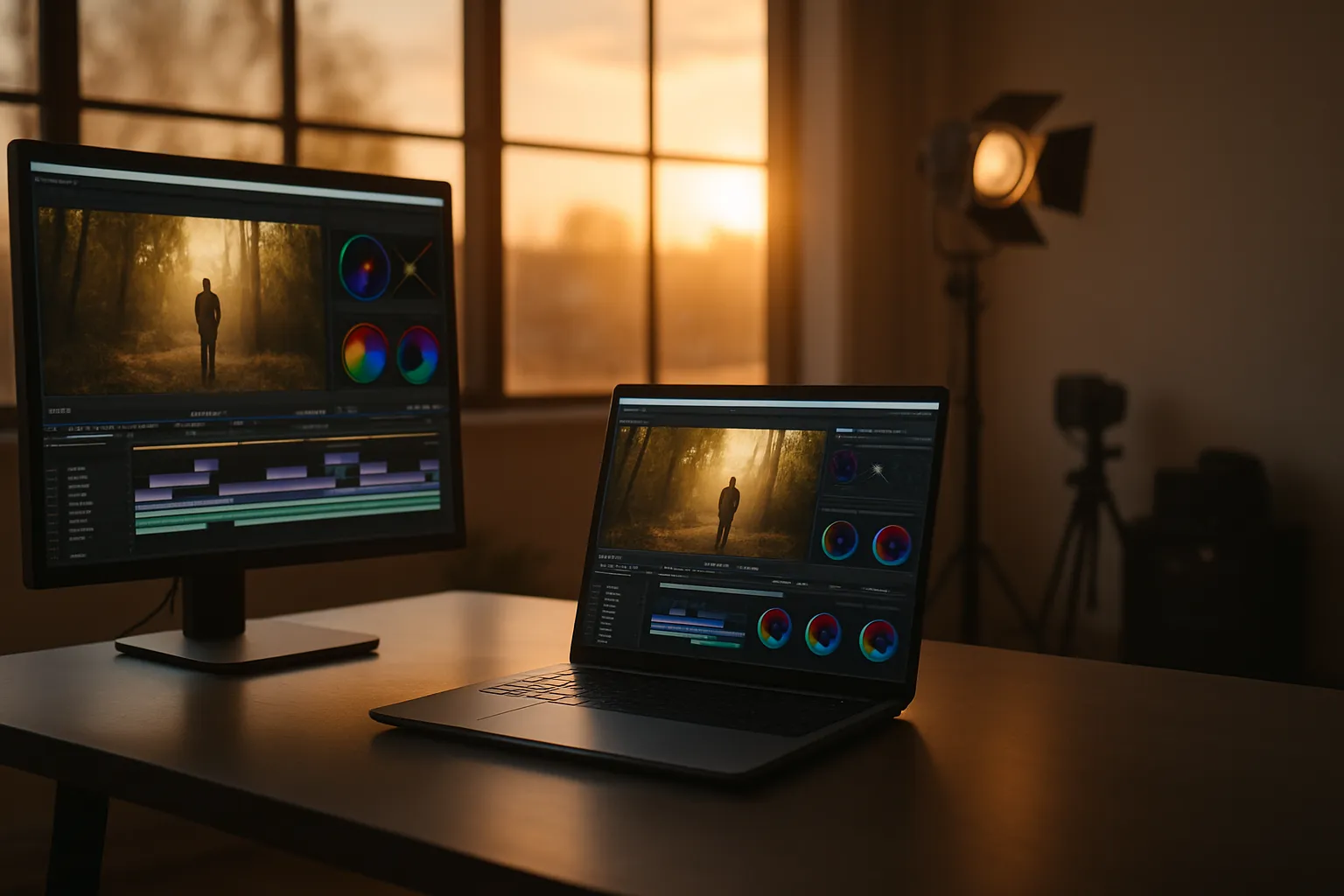
Every editor who has switched from a cramped 13-inch display to something roomier knows the answer to what screen size is best for video editing before they even finish the transition. The jump changes everything. Timeline density, color accuracy, and panel real estate all shift in ways that feel less like an upgrade and more like finally working in the right room.
I have spent years editing on everything from ultrabooks to desktop-replacement panels, and the differences are not subtle. A 15-inch display lets you keep your timeline visible while a preview window stays large enough to catch motion artifacts. A 17-inch panel lets you go further, opening secondary panels without constantly shuffling tabs.
Screen size does not work alone. Resolution, pixel density, and color gamut coverage all interact with the physical dimensions in ways that determine whether footage looks the way it should. A 15.6-inch FHD display can feel tighter than a 14-inch QHD panel because the pixel density on the latter keeps things sharper at closer viewing distances.
Real workflow impact comes down to how much information you can hold on screen at a single glance without scrolling, tabbing, or squinting. That is the practical test worth running before any purchase.
Screen Size and the Video Editing Workflow
Starting with the basics helps. Most professional editors gravitate toward screens in the 15-inch to 17-inch range, and that range exists for concrete reasons tied to how editing software is structured. Applications like DaVinci Resolve, Premiere Pro, and Final Cut Pro are built around multiple panels running simultaneously, and each panel needs breathing room to be usable.
A 15.6-inch screen at 1080p is the minimum most working editors tolerate long-term. That size keeps a usable timeline, a preview window, and at least one panel open without everything shrinking to the point of strain. It is a functional floor, not a recommendation.
At 16 inches or larger, the layout genuinely opens up. You can expand your color grading panel, keep a full-width timeline, and still have a preview window that fills enough space to judge motion and focus pull accurately. For anyone cutting longer-form content, that difference in workspace density reduces the number of times you have to interrupt your editing rhythm to navigate the interface.
Why 17 Inches Earns Its Weight
A 17-inch laptop is heavy. That is the trade-off editors have always known. However, when your work demands simultaneous access to a node-based color panel, a multi-track audio mixer, and a high-resolution preview, that screen delivers all three without compromise. Reviewers who move from a 15-inch machine to a 17-inch one rarely go back voluntarily.
The Case for 14 and 15 Inch Portability
Editors who travel frequently often settle at 14 or 15 inches and use an external monitor when they are docked. This pairing gives you portability on the road without sacrificing workspace at the desk, and it is a strategy many professional colorists and documentary editors rely on rather than carrying a larger machine full-time.
Also Read: Best Convertible Laptop For Video Editing
Resolution Matters as Much as Physical Size
Physical dimensions tell only half the story. A 17-inch screen running at 1080p delivers fewer usable pixels per inch than a 15-inch panel running at 2560×1600, which directly affects how sharp your preview image appears and how much interface detail the display can render cleanly. Editors who are serious about judging sharpness, compression artifacts, and fine texture in footage need resolution high enough to evaluate those details without the display itself softening them.
QHD sits in the most productive zone for most editors working on a laptop. It provides enough pixels to render timeline text, waveforms, and node graphs crisply without scaling penalties that sometimes accompany ultra-high-density panels when running Windows or Linux. The screen at that resolution on a 15 or 16-inch chassis hits a pixel density that rewards close working distances typical of laptop editing sessions.
OLED panels at 2.8K or 4K resolution introduce another consideration: color accuracy. These displays can cover a wide color gamut while maintaining sharpness that lets you judge chroma detail in footage with more confidence than a standard IPS panel of the same physical size allows. That added accuracy is worth the trade-off in battery life for editors who prioritize colorwork.
Here is a comparison of common screen configurations and how they behave under real editing conditions:
| Screen Size | Resolution | Best Use Case | Portability |
|---|---|---|---|
| 14 inch | QHD (2560×1600) | Travel editing, docked setups | Excellent |
| 15.6 inch | FHD (1920×1080) | Budget editing workflow | Good |
| 16 inch | QHD (2560×1600) | Balanced daily editing | Good |
| 17.3 inch | QHD or 4K | Full-panel professional work | Limited |
Color Accuracy and Panel Technology
Size and resolution bring editors to the panel, but panel technology determines whether the colors they are grading are what the audience will actually see. An editor working in a P3 color space on a display that only covers sRGB is making grading decisions based on inaccurate feedback, and those decisions compound across every scene.
IPS panels remain the most common technology in the 15 to 17-inch range. Good IPS displays can achieve close to 100 percent sRGB and 90 percent or better of the DCI-P3 gamut, which covers most professional delivery requirements for streaming and broadcast. The viewing angles on IPS also hold color consistency well when you shift your head position slightly during long sessions.
OLED for Color Work
OLED screens offer per-pixel contrast and a wider achievable gamut that flat-panel IPS displays cannot match. For editors grading HDR content or working on projects destined for theatrical delivery, the depth of black an OLED panel produces changes how shadow detail reads in a meaningful way. The catch is longevity: OLED panels carry a burn-in risk with static interface elements like timeline bars and panel headers that stay in fixed positions for hours at a time.
Anti-Glare vs. Glossy Surfaces
Glossy displays intensify color saturation visually, which can lead editors to underestimate saturation in their grades if the environment is controlled for that effect. Anti-glare surfaces reduce reflections in varied lighting environments but introduce a slight diffusion that softens the image. Most professional-grade laptop displays now use matte coatings that strike a balance, and editors who work in mixed lighting environments generally fare better with them.
Aspect Ratio and Timeline Layout
The standard 16:9 aspect ratio still dominates laptop screens, but 16:10 has made a strong return in professional machines. The additional vertical height in a 16:10 panel is modest in raw measurement but the effect on timeline density in DaVinci Resolve or Premiere Pro is noticeable once you work on it daily. More rows of tracks become visible without scrolling, which keeps your editing attention on the cut rather than on navigation.
Ultrawide aspect ratios rarely appear in laptop form, but a small number of 21:9 machines exist and attract editors who want a single screen that mimics the dual-monitor feel. The reality is that software scaling support for ultrawide laptop displays is inconsistent across editing applications, and the physical footprint of those machines limits where they can realistically be used.
For most editors, a 16:10 panel at 16 inches or 17 inches delivers the best combination of vertical timeline space and physical portability that the laptop category currently offers, especially when paired with a high-resolution external monitor for dedicated colorwork at a fixed workstation.
External Monitor Integration
No laptop screen replaces a properly calibrated external display for final color work. Even the best laptop panel reflects ambient light differently across the day, and the viewer’s distance from a 15-inch laptop versus a 27-inch reference monitor changes how color relationships appear. Editors who deliver to broadcast or cinema standards almost always grade on a reference monitor connected through a calibrated signal chain.
That said, the laptop screen remains the primary workspace for cutting, audio mixing, effects work, and client review sessions. Choosing a laptop with Thunderbolt output allows connection to high-bandwidth monitors at 4K resolution without compression, which matters when the external display needs to show footage at native quality. A laptop screen in the 15 to 16-inch range paired with a 24 to 27-inch external reference monitor covers nearly every professional editing scenario without requiring a full desktop setup.
Frequently Asked Questions
Is a 15-inch laptop screen large enough for professional video editing?
A 15-inch panel is workable for professional editing, particularly at QHD resolution, but it limits how many panels you can keep open simultaneously. Many professionals use a 15-inch laptop paired with an external reference monitor to compensate, giving them a mobile machine that scales up at their main desk without sacrificing portability.
Does screen resolution affect editing performance?
Rendering the display itself at higher resolutions uses a small amount of GPU resources, but modern dedicated graphics cards handle this without meaningful impact on editing performance. Resolution primarily affects how sharply your preview image and interface elements render, which influences how accurately you judge focus, sharpness, and compression artifacts in your footage.
What color gamut coverage should a video editing laptop have?
At minimum, look for coverage close to 100 percent sRGB for web and social delivery. For streaming platforms and cinema work, aim for 90 percent DCI-P3 or better. Editors grading HDR content should prioritize OLED panels or high-quality IPS displays with hardware calibration support and reported gamut coverage backed by independent testing.
Should I choose a 16:9 or 16:10 aspect ratio for video editing?
A 16:10 display adds usable vertical space that benefits timeline-heavy applications like Premiere Pro and DaVinci Resolve. The extra height lets you keep more audio and video tracks visible at once, reducing how often you scroll during a long edit. For that reason, 16:10 has become the preferred aspect ratio among many professional laptop editors.
Can I edit 4K footage on a 1080p laptop screen?
Yes. Editing applications proxy and scale 4K footage for timeline playback regardless of the display resolution. However, your ability to judge sharpness, fine texture, and compression quality at a pixel level is limited on a 1080p panel, which is one reason editors who work heavily with 4K material often prefer QHD or higher-resolution displays.
Key Takeaways
For most editors, a 16-inch QHD panel is the strongest choice available right now. It keeps DaVinci Resolve’s color panel and timeline open without crowding, it hits a pixel density that makes 4K footage evaluation meaningful, and it stays portable enough to travel with when a project demands it. The 16:10 aspect ratio found on many machines in this category adds the vertical timeline space that a standard 16:9 screen at the same size cannot match. Pair it with a calibrated external monitor for final grading sessions, and that combination covers broadcast, streaming, and cinema delivery.