
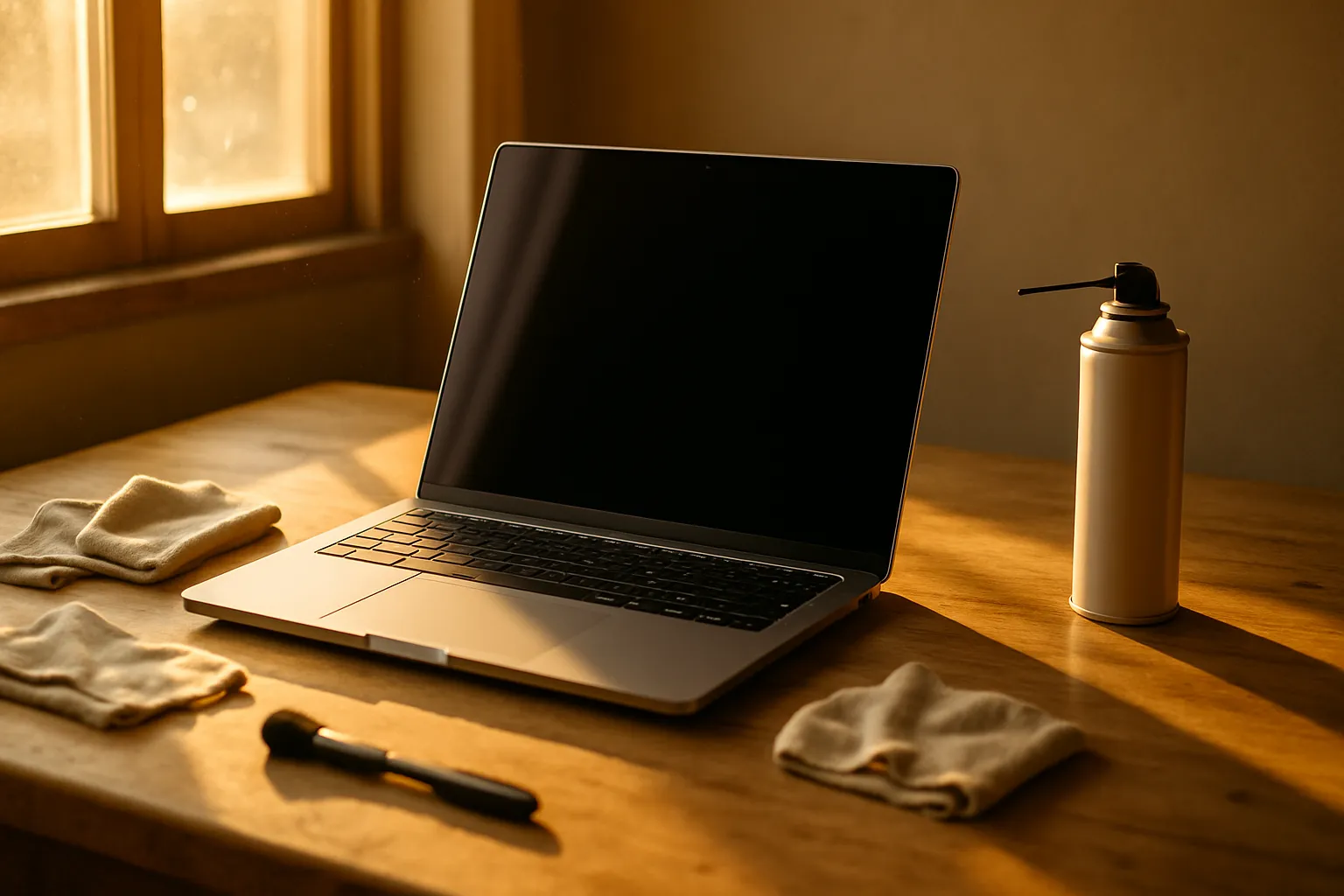
Every laptop maintenance guide I have ever put together starts with the same uncomfortable truth: most users do not touch their machine until something breaks. I know this from years of watching otherwise smart people run systems clogged with startup bloat, thermal paste dried to powder, and SSDs sitting at 97 percent capacity. The damage is quiet and cumulative. By the time performance tanks, the window for easy fixes has usually closed.
My workflow with any new machine is to establish baselines before a single app is installed. That means checking temperatures at idle, logging startup times, and confirming storage health. Fifteen minutes upfront saves hours of troubleshooting later. A clean baseline tells you immediately when something drifts.
Maintenance is not dramatic. It is mostly small, repeatable habits layered over months. Dusting vents, auditing background processes, validating backup schedules, monitoring battery cycle counts. None of it is glamorous, and all of it compounds. The machines I keep running fastest are the ones I check most routinely, not the ones with the best specs.
I want this guide to be honest about effort too. Some steps take thirty seconds. Others require patience. A few require you to sit with a screwdriver and compressed air, which some people avoid indefinitely. Skip the physical steps long enough and no software fix will compensate for a machine throttling at 95 degrees Celsius.
—
Why a New Laptop Feels Slow Out of the Box
Fresh from the box, a new laptop carries hidden weight. Manufacturers pre-load software agreements, trial antivirus suites, driver updater utilities, and vendor companion apps that chew through RAM and CPU cycles before you open a single browser tab. On some consumer machines, I have counted over twenty startup entries on an otherwise untouched system.
The culprit is almost always startup impact. Open Task Manager, navigate to the Startup tab, and sort entries by “Startup impact.” High-impact items that you do not recognize or actively use should be disabled immediately. This single step routinely cuts boot times by forty to sixty seconds on bloated systems, though your mileage will depend on the manufacturer.
Disabling Bloatware Without Breaking Drivers
Not every pre-installed app is expendable. GPU drivers, touchpad utilities, and firmware management tools often arrive bundled with vendor software that looks optional but is not. Before disabling anything, search the process name. Realtek audio managers, Intel Management Engine components, and manufacturer BIOS update utilities are worth keeping. Everything else is fair game.
Windows 11 makes this slightly easier with the Apps section under Settings, which now flags rarely used applications automatically. On a fresh machine, I cross-reference every unfamiliar app against its publisher before uninstalling. It takes twenty minutes and almost always reclaims noticeable resources.
Adjusting Power Plans and Background App Permissions
A new laptop often ships in a balanced or power-saver mode to protect battery life during retail display. Switching to a high-performance plan or, on modern systems, enabling the manufacturer’s performance mode can free up CPU headroom that background tasks were hogging. Background app permissions in Windows Settings also deserve a pass. Many apps refresh content constantly even when you are not using them, and revoking that permission costs nothing.
The combination of a cleared startup list, disabled background refresh, and an adjusted power plan transforms how a new machine actually feels under load. These are not hardware upgrades. They are configuration corrections that the factory should have made before shipping.
Also Read: Best Dell Laptops For Video Editing
—
Why a Laptop Screen Flickers During Video Editing
Screen flicker during a video editing session is one of the more disorienting problems I have diagnosed, because it almost always has more than one possible cause running simultaneously. Refresh rate conflicts, driver version mismatches, GPU switching behavior, and power delivery inconsistencies can all produce nearly identical symptoms. Isolating the actual source takes patience and a methodical process of elimination.
The first thing I check is whether the flicker appears in the timeline preview, the full program monitor, or across the entire desktop. Flicker confined to the editing application usually points to GPU acceleration settings inside the software itself. Adobe Premiere Pro and DaVinci Resolve both allow you to toggle hardware rendering off, which immediately narrows the suspect list if the flicker stops.
Refresh Rate and Driver Conflicts
On laptops with high-refresh displays, the panel and the GPU must agree on refresh rate at all times. A mismatch, often introduced after a driver update, causes the display controller to re-negotiate timing mid-frame, which produces visible tearing or flicker. Setting a fixed refresh rate through Display Settings rather than leaving it on “Dynamic” eliminates this negotiation. I have resolved flicker on at least six machines this way without touching a single driver.
Driver rollback is the next step if a fixed refresh rate does not help. Windows Update silently pushes GPU driver updates that are not always stable on every panel combination. Device Manager allows you to roll back to a previous driver version in two clicks, and that older version is often the last stable build your specific display was validated against.
Hybrid Graphics and Power Source Behavior
Most thin-and-light laptops use hybrid graphics, switching between integrated Intel or AMD graphics and a discrete GPU depending on load. Video editing software often forces the discrete GPU on constantly, and if the power delivery from the adapter cannot keep pace, voltage sag causes the panel to flicker. The fix is sometimes as straightforward as using the original charger and confirming it is properly seated. A worn charging port delivering inconsistent wattage will produce flicker that no driver update will ever resolve.
Here is a quick reference for diagnosing flicker based on where and when it occurs. This table is a starting point, not an exhaustive diagnostic tree.
| Flicker Location | When It Occurs | Likely Cause | First Fix to Try |
|---|---|---|---|
| Full desktop | Always | Driver or refresh rate conflict | Set fixed refresh rate |
| App window only | During playback | GPU acceleration setting | Disable hardware rendering |
| Full desktop | On battery only | Power delivery issue | Test with original charger |
| App window only | During export | Discrete GPU switch | Force GPU in app settings |
| Edges or corners | Randomly | Panel cable or backlight | Physical inspection needed |
—
Keeping Your Storage Healthy Long-Term
Storage health is the maintenance category most users ignore until data disappears. SSDs do not show obvious warning signs the way spinning drives did. No clicking, no grinding. The failure mode is quiet and, without monitoring, invisible until a drive simply stops mounting.
CrystalDiskInfo is the tool I return to most consistently. It reads SMART data directly from the drive and translates it into a health status. The values to watch are reallocated sector counts, uncorrectable error counts, and for SSDs specifically, available spare capacity. A drive showing available spare below ten percent is already compensating for failed cells, and that machine needs a backup run today, not next month.
Maintaining Free Space and Write Endurance
SSDs rely on free space to perform wear leveling efficiently. When a drive sits above eighty-five percent capacity, the controller struggles to distribute writes evenly, which accelerates cell degradation and slows sustained write speeds noticeably. My personal threshold is keeping any primary drive below seventy-five percent. Offloading large project archives, video exports, and old downloads to external storage is the simplest way to maintain that margin without deleting anything.
Running Scheduled Maintenance Without Interrupting Work
Windows includes a built-in Storage Sense feature under Settings that automatically clears temporary files, empties the recycle bin on a schedule, and flags redundant downloads. Enabling it costs nothing and removes the need to remember manual cleanup. I pair Storage Sense with a monthly CrystalDiskInfo check, which together take under five minutes and keep storage health visible without interrupting the actual workday.
—
Thermal Management and Physical Cleaning
Heat is the most consistent enemy of laptop longevity, and it is also the most preventable. A machine running consistently above 90 degrees Celsius under moderate load is not working hard. It is failing to shed heat fast enough, and every hour at that temperature shortens the lifespan of the CPU, GPU, and surrounding capacitors.
Physical cleaning is non-negotiable. Most laptops accumulate enough dust in their heat pipes and fan assemblies within twelve to eighteen months to raise idle temperatures by eight to twelve degrees. The fix is compressed air through the exhaust vents, which takes three minutes and costs almost nothing. If temperatures remain elevated after cleaning, the thermal paste between the CPU and heatsink is likely dried out and needs replacement, which is a more involved repair but a permanent fix.
I use HWMonitor to watch CPU and GPU temperatures under real workloads rather than synthetic benchmarks, because real-world tasks tell me more about sustained thermal performance than a ten-second stress test does. Watching temperatures during a long video export, for instance, shows whether the cooling system maintains control or gradually loses ground over time. A well-maintained machine holds steady. A thermally compromised one climbs the entire session and eventually throttles, cutting clock speeds to protect itself.
—
Battery Health and Charging Habits
Lithium-ion batteries degrade with every charge cycle, and that degradation is not linear. The steepest decline happens when a battery is kept at maximum charge for extended periods or regularly discharged below twenty percent. Both extremes stress the chemistry in ways that accumulate faster than most people expect, especially in laptops used while plugged in continuously.
Most modern laptops include a battery charge limiter in their firmware or companion software. Dell’s BIOSConnect, Lenovo’s Vantage app, and ASUS’s MyASUS all offer a setting that caps charging at around eighty percent. Using this cap when the laptop is primarily plugged into a desk setup significantly extends cycle life without meaningfully affecting unplugged runtime for the majority of use cases. The difference in battery health after two years of use, with and without this cap, is measurable and substantial.
Windows Battery Report, generated by running “powercfg /batteryreport” in an elevated command prompt, shows full charge capacity versus the original design capacity. When full charge capacity drops below eighty percent of design capacity, the battery is aging visibly. That report also logs usage history and charge cycles, which makes it far more useful than any third-party app I have tested for ongoing battery monitoring.
—
Frequently Asked Questions
How often should I clean my laptop physically?
Every six to twelve months for most users, and every three to four months if the laptop sits on fabric surfaces like beds or couches, which block vents and accelerate dust accumulation. High-output creative workstations used daily benefit from cleaning closer to the four-month mark, particularly around active fan exhaust vents.
Is it safe to use a laptop while it charges?
Yes, in most cases. Modern battery management prevents overcharging. The concern is not simultaneous use and charging but rather keeping the battery at one hundred percent for days continuously. Enabling a charge limiter through your manufacturer’s software addresses this without requiring you to unplug during work sessions.
What does SMART data actually tell me about my drive?
SMART stands for Self-Monitoring, Analysis, and Reporting Technology. It logs internal drive metrics like error rates, spin-up times, and reallocated sectors. Tools like CrystalDiskInfo translate raw SMART values into readable health indicators. A Caution or Bad status in that tool means the drive needs immediate backup and likely replacement within weeks.
Can I update my laptop BIOS myself safely?
Yes, if you follow the manufacturer’s process precisely. Download the update only from the official support page, ensure the laptop is plugged in, and do not interrupt the process. A failed BIOS update from a power cut can brick a motherboard, so this is the one maintenance task where cutting corners has severe consequences.
Why does my laptop run hot even when idle?
Idle heat almost always points to background processes consuming CPU resources. Open Task Manager and sort by CPU usage. Browser extensions, antivirus scans running in the background, and Windows Update processes are common culprits. If CPU usage is low but temperatures are still high, the thermal paste or fan assembly likely needs attention.
—
Final Thoughts
The single mistake to avoid across everything covered here is treating maintenance as something you do once after a problem appears. CrystalDiskInfo takes two minutes to open, and the monthly check it enables is what catches a failing drive before the data is gone. Setting a fixed refresh rate the first time screen flicker appears, rather than waiting through weeks of worsening symptoms, is the difference between a five-minute fix and a service center visit. Run the battery report with powercfg, check your startup impact entries quarterly, and keep that primary drive below seventy-five percent capacity.