
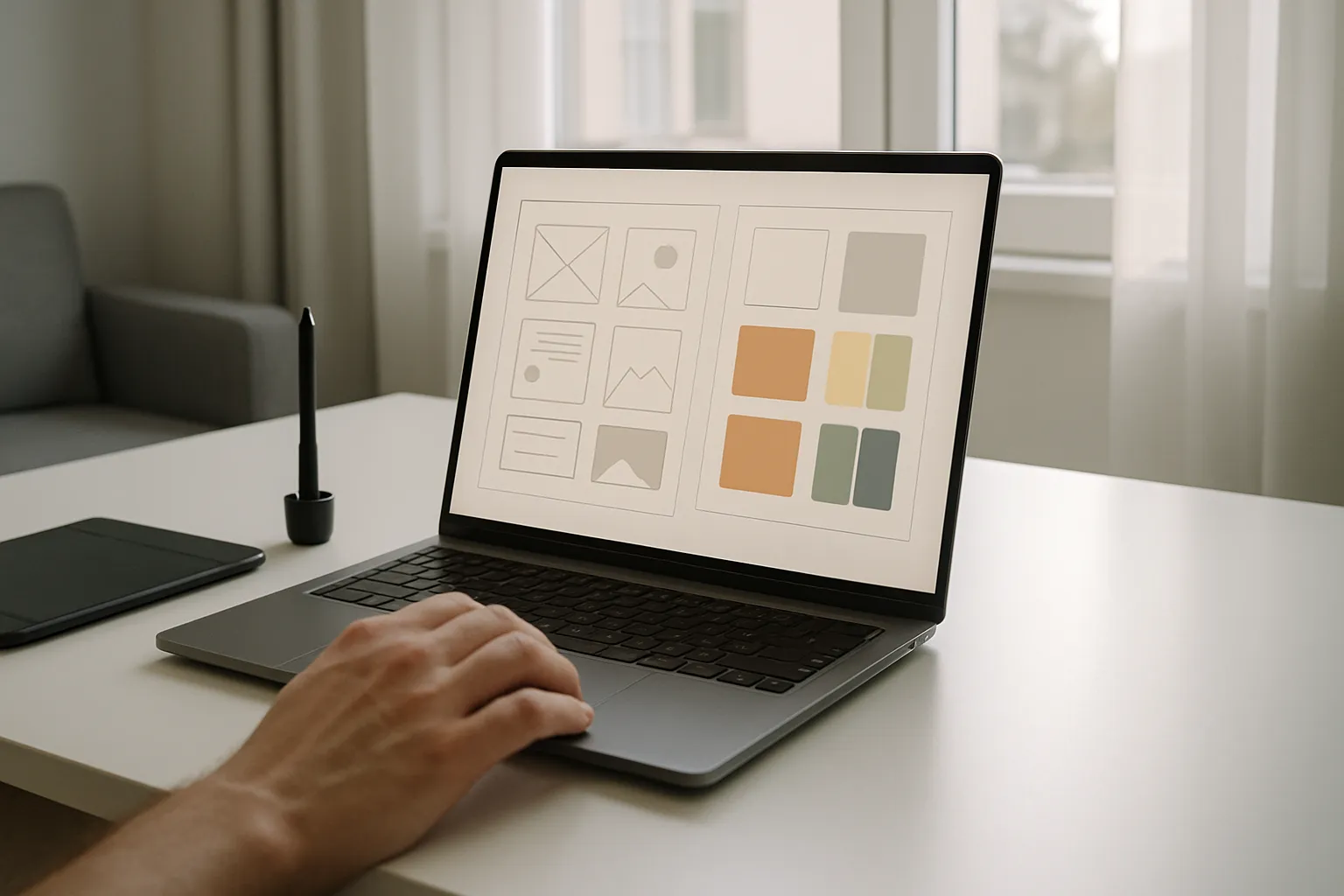
Every laptop buying guide for UI designers I have tested against real project deadlines tells the same story: the wrong screen ruins more designs than the wrong processor does. I have watched talented designers ship work with color banding, washed-out whites, and misaligned grids, all because their display lied to them throughout the entire project. The machine sitting under the screen matters, but the screen is the lens through which every decision is made.
Comparing a budget consumer laptop against a professional-grade workstation laptop is not a simple spec contest. A budget machine might run Figma without crashing, yet fail to display the difference between two adjacent gray values that your client’s brand guidelines treat as completely separate colors. That gap costs real revision cycles. Color accuracy is currency for anyone working in interface design.
The right tools do not compensate for the wrong foundation. A designer who invests in the correct laptop from the start spends less time second-guessing outputs and more time iterating on ideas. This guide covers the decisions that matter most, in the order you should think about them.
—
Laptop Screen Size and Resolution for UX Designers
Screen real estate shapes how designers think. Working in Figma or Sketch on a cramped 13-inch display forces constant zooming, hiding toolbars, and context-switching that breaks creative flow in ways that are hard to quantify but easy to feel after a long session. I tested a 13-inch ultrabook against a 16-inch workstation-class machine running the same Figma project, and the difference in usability was immediate.
Resolution matters as much as physical size, though the two are linked. A 15.6-inch panel at 1920×1080 gives you fewer pixels per inch than a 14-inch panel at 2560×1600, and that pixel density difference shows up in icon sharpness, text rendering, and edge quality on vector shapes. For UI designers, working on a low-density panel means your exported assets look sharper than what you see on screen, which invites guesswork.
Minimum Resolution Targets
For a 14-inch or 15-inch display, I would set 1920×1200 as the floor, not 1920×1080. That extra vertical space keeps more of your layers panel visible without scrolling. A 2560×1600 or 2880×1800 panel at 15 to 16 inches is the sweet spot where you gain density without needing aggressive scaling that re-introduces blur.
Color Gamut Requirements
sRGB coverage is the baseline for screen-focused UI work, and you need full 100% sRGB, not the 72% that most budget panels deliver. Displays covering a portion of DCI-P3 are increasingly relevant because mobile device screens and modern monitors are calibrated closer to P3 than to sRGB. A panel covering 90% or more of DCI-P3 gives you room to work accurately for both audiences.
Panel type changes everything too. IPS and OLED panels both render color more accurately than TN panels, and OLED adds perfect blacks that help when reviewing dark mode UI designs. The tradeoff is that OLED screens can burn in over time if static UI elements sit on them all day, which is worth factoring in for a machine you will use heavily.
Also Read: Best Hp Laptop For Programming And Graphic Design
—
Choosing an External Monitor for UI Designers
Most professional designers eventually run a dual-monitor setup, and your laptop’s display becomes a secondary palette while the external monitor carries the main canvas. That shift changes which laptop you should buy, because a machine with a Thunderbolt 4 port and decent onboard graphics can drive a 4K monitor reliably, even without a dedicated GPU. Port selection becomes a critical spec, not an afterthought.
The external monitor you pair with your laptop deserves as much scrutiny as the laptop itself. Here is how common monitor types compare across the attributes UI designers care about most.
| Monitor Type | Color Gamut | Resolution Options | Best Use Case |
|---|---|---|---|
| IPS LED | 95-100% sRGB | 1440p to 4K | Everyday UI design |
| OLED | Wide P3 coverage | 4K | Dark UI and motion work |
| Nano IPS | 98% DCI-P3 | 1440p to 4K | Color-critical workflows |
| VA Panel | 85-90% sRGB | 1080p to 4K | Budget secondary display |
Connectivity is where many designers make an expensive mistake. A laptop with only USB-A ports cannot drive a 4K monitor at 60Hz without an adapter chain that introduces latency and instability. Thunderbolt 4 or USB4 ports handle 4K at 60Hz natively over a single cable, and some configurations support dual 4K output, which is useful for a three-screen setup.
Calibration and Color Profiles
An external monitor is only as accurate as its calibration. Most monitors ship with a factory calibration that drifts within months of use, especially under heavy workloads. Pairing your monitor with a hardware colorimeter like the X-Rite i1Display Pro and recalibrating every 6 to 8 weeks keeps your colors honest. Without hardware calibration, you are trusting the monitor manufacturer’s defaults, which vary significantly across units even from the same production batch.
Refresh Rate Considerations
UI designers often dismiss refresh rate as a gaming concern. For design work, a 60Hz display is fine for static UI review, but 120Hz or higher makes a real difference when scrolling through long prototypes or reviewing micro-animations in tools like ProtoPie or After Effects. The smoothness of motion at higher refresh rates changes how well you can evaluate timing and easing curves.
—
Do UI and UX Designers Need a Dedicated GPU for their Laptops?
The GPU question comes up in almost every conversation I have with designers shopping for a new machine. For pure UI design in tools like Figma, Adobe XD, or Sketch, a modern integrated GPU handles the workload well, especially on Apple Silicon machines where the unified memory architecture makes the distinction between integrated and dedicated less meaningful than it sounds on paper. The honest answer is that it depends on what sits alongside your UI work.
When a Dedicated GPU Is Worth It?
If your workflow includes motion design, video editing, 3D mockup rendering in Cinema 4D or Blender, or any AI-assisted image generation tool, a dedicated GPU starts paying for itself quickly because those tasks are genuinely GPU-bound and will saturate integrated graphics within minutes of serious use. Tools like Adobe Dimension, which UI designers increasingly use for realistic product mockups, push integrated graphics to their limits even on mid-range tasks.
Prototyping tools are also growing more GPU-dependent as they add real-time blur, gradient mesh animations, and physics-based motion. A designer who uses Framer for high-fidelity prototypes with complex interactions will notice frame rate drops on integrated graphics during presentation mode, exactly when the work needs to look its best in front of a client or stakeholder.
Recommended GPU Tiers for UI Design Laptops
Entry-level discrete GPUs, like NVIDIA’s 40-series mobile options at the lower wattage configurations, handle most design-adjacent tasks without the weight and battery drain of full-power workstation cards. AMD integrated graphics in the Ryzen 7000 series is strong enough for core UI work and light 3D. Matching GPU tier to actual workflow prevents overspending on performance that never gets used.
—
RAM and Storage: What UI Designers Actually Need
RAM is the spec most designers underestimate. Running Figma, a browser with 15 reference tabs, Slack, and Spotify simultaneously can push memory usage past 16GB on a busy workday, which means 16GB is a floor for professional UI work, not a comfortable target. A machine with 32GB future-proofs you as design tools grow more memory-hungry with each major release, and integrated GPU systems draw from that same pool.
Storage speed changes how fast your design assets load and how quickly large exports complete. An NVMe SSD reads at roughly 3 to 7 times the speed of a SATA SSD, and that difference shows up every time you open a file packed with high-resolution images or linked components. Aim for at least 512GB of NVMe storage, and treat 1TB as the practical minimum if you store project files locally rather than relying on cloud sync.
Thermal management is the invisible RAM and storage limiter that spec sheets ignore entirely. A laptop that throttles aggressively under sustained load will underperform its rated specs for long rendering or export tasks that any serious UI designer runs regularly throughout the day.
—
Battery Life and Portability Trade-offs
Working from client sites, coffee shops, or coworking spaces means battery life is a genuine performance metric, not just a convenience figure. A machine that dies after four hours on design work forces you to hunt for outlets instead of focusing on problems, and that interruption is more disruptive than a slower processor would be. Target a minimum of eight hours of real-world use under moderate design load, not the manufacturer’s video-playback estimate.
Portability and performance often sit at opposite ends of the weight spectrum. A 14-inch ultrabook at 2.8 pounds travels well but may throttle under sustained loads. A 16-inch workstation laptop at 5+ pounds delivers consistent performance but gets heavy by afternoon on days that involve public transit or walking between meetings. Neither is wrong. The right choice depends on how often you move versus how long your render queues run.
—
Frequently Asked Questions
Is 8GB of RAM enough for UI design work?
For a light workflow running only one design tool and minimal background apps, 8GB can function, but it leaves almost no headroom. Most designers working professionally in Figma with browser tabs, communication apps, and asset libraries open simultaneously will experience slowdowns and application memory warnings with only 8GB available.
Does macOS or Windows matter for UI designers?
Both platforms run the major design tools. macOS offers tighter hardware integration on Apple Silicon and better color management out of the box. Windows gives you more hardware choices and price flexibility. The choice often comes down to which tools your team uses and whether you need iOS device previewing during testing.
What screen calibration setting should I use for UI design?
Start with the sRGB color profile in your operating system’s display settings to keep your colors consistent with how most web content is rendered. If your monitor supports hardware calibration, use a colorimeter to build a custom ICC profile rather than relying on the factory preset, which may have drifted.
Can I do UI design on a gaming laptop?
A gaming laptop can run every major UI design tool without issue, and many offer strong color-accurate panels today. The tradeoff is battery life, fan noise, and weight. Gaming laptops optimized for sustained GPU performance often drain in four hours or fewer under design workloads, which limits portability significantly.
How much storage do I need as a UI designer?
512GB NVMe is the minimum for a working designer who uses cloud storage for archiving. If you store large asset libraries, icon packs, font collections, and past project files locally, 1TB is more realistic. Video-heavy workflows or 3D mockup libraries can push requirements toward 2TB depending on project volume.
—
Final Thoughts
The single mistake to avoid is optimizing for the wrong spec. Designers routinely overspend on a dedicated GPU while accepting a panel that barely covers 72% sRGB, and the result is a fast machine producing inaccurate work. Everything in this guide points back to display quality first. Prioritize full sRGB coverage and at least 1920×1200 resolution before anything else. Get the screen right, then use the remaining budget to add RAM toward 32GB or upgrade to NVMe storage. A Thunderbolt 4 port keeps your external monitor options open as your workflow scales.