
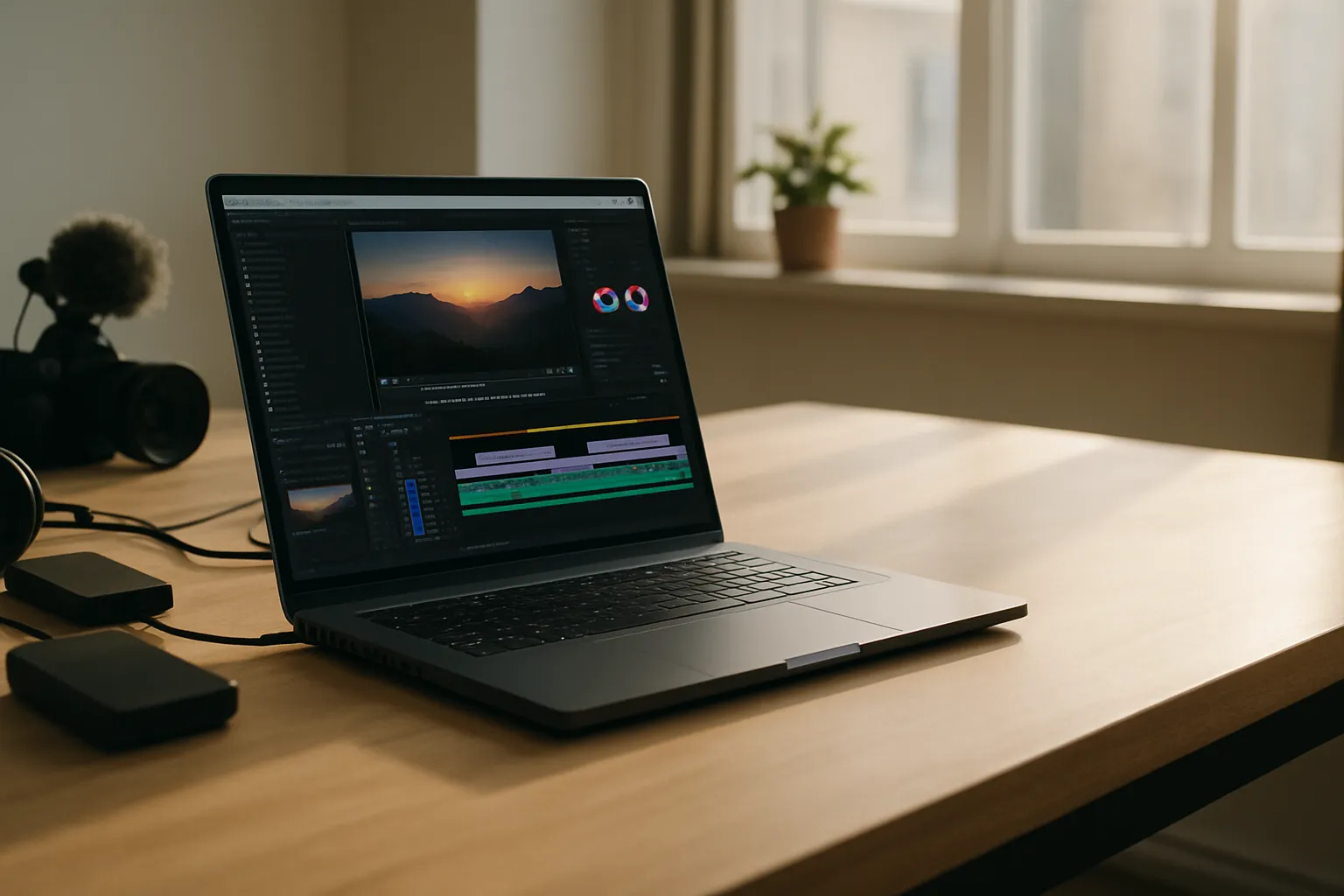
Every video editor hits that wall eventually. You are deep into a project, scrubbing through beautiful 4K clips, and suddenly the playback stutters, the timeline freezes, and you wonder why does my laptop lag when editing 4k footage. The answer is not a simple one, but it almost always comes down to the same handful of hardware and software bottlenecks that even experienced editors overlook.
4K footage is enormous. A single minute of raw 4K at 60 frames per second can push past 10 gigabytes. Your laptop has to decode that data, move it through memory, process effects layers, and push a preview to your screen, all in real time. Most consumer laptops were never built to handle that pipeline at full speed.
The bottlenecks usually stack on top of each other. A slow processor might be fine on its own, but pair it with a weak GPU and a traditional hard drive instead of an SSD, and the lag becomes brutal. Every component matters when 4K is involved.
There is also a software side to this. NLEs like DaVinci Resolve and Premiere Pro each manage hardware resources differently, and your project settings can amplify or reduce the load your hardware carries. Knowing what causes the lag is the first step toward fixing it without spending money you may not have.
Proxy Editing Explained for Slower Laptops
Proxy editing is the most practical solution for editors working on underpowered machines, and it works by replacing your heavy 4K source files with small, lightweight copies called proxies. You edit using those proxies at reduced resolution, and then the software swaps back to the originals only when you export. The performance difference can feel immediate and dramatic on machines that were previously borderline unusable for 4K work.
DaVinci Resolve handles this with its optimized media workflow, while Premiere Pro calls them proxies directly and lets you toggle between them with a single button in the timeline panel. Both approaches protect the quality of your final export. Your edit stays clean even though the preview looks softer during the editing session.
Choosing the Right Proxy Format
H.264 proxies are small and compatible, but they still require decoding work from your CPU because they use interframe compression. Apple ProRes Proxy and DNxHR LB are better options when your drive has space to spare, since they use intraframe compression that your hardware can decode far more easily. The playback smoothness improvement going from H.264 proxies to ProRes proxies is noticeable on almost any laptop.
Resolution Settings That Actually Help
Dropping your playback resolution inside Premiere Pro to one-quarter or one-half is a quick fix that does not require you to generate proxies at all. DaVinci Resolve has a similar option called Optimized Media. These settings reduce the decoding load on your CPU without changing a single frame of your actual edit, and they cost you nothing in export quality.
Setting up proxies does take time upfront. You are waiting for your NLE to transcode every clip before you can work freely. On a slower machine, that transcoding step can itself take a while, especially for long recordings. The tradeoff is almost always worth it, though, because the editing session that follows runs at a completely different level of smoothness.
Also Read: Best Laptop For Online Classes
How to Tell If Your Laptop Can Handle Video Editing?
Before you change any settings, it helps to know exactly which part of your machine is failing under load. Task Manager on Windows and Activity Monitor on macOS will both show you CPU, GPU, RAM, and disk usage while your timeline is playing back. If your CPU is pegged at 100% while your GPU sits at 20%, that tells you something specific about where the problem lives.
RAM is another clear indicator. 4K editing in Premiere Pro or Resolve benefits from at least 16 gigabytes, and 32 is more comfortable when you are working with multiple streams or heavy color grades. Running at 8 gigabytes while editing 4K is asking your system to constantly swap data to disk, which will tank performance immediately.
Reading GPU Limitations
Most budget laptops ship with integrated graphics rather than a discrete GPU. Integrated graphics share system RAM and lack the dedicated video memory that NLEs use for GPU-accelerated effects and rendering. If your GPU shows a memory usage ceiling during playback, that is your signal that the integrated solution is the weak link in your setup.
Storage Speed Matters More Than People Think
A traditional spinning hard drive reads data at roughly 100 to 150 megabytes per second. Raw 4K footage can demand sustained reads well above that. An NVMe SSD, by contrast, can sustain reads above 3,000 megabytes per second, which is a completely different experience for timeline playback involving large files.
Here is a quick look at how common laptop specs stack up against the demands of 4K editing:
| Component | Minimum for 4K | Comfortable for 4K | Notes |
|---|---|---|---|
| RAM | 16 GB | 32 GB | More needed for multicam |
| Storage | SATA SSD | NVMe SSD | HDD causes serious lag |
| GPU | Dedicated 4 GB VRAM | Dedicated 8 GB VRAM | Integrated struggles badly |
| CPU | 6-core modern chip | 8-core or higher | Clock speed still matters |
The table above is a honest baseline, not a guarantee. Codec choice, color grade complexity, and effect layers all shift what your system needs in practice.
Proxy Editing Explained… How to Optimize a Budget Laptop for Heavy Rendering
Thermal throttling is a silent killer on budget laptops. When the processor gets too hot, your machine automatically reduces its clock speed to protect itself, and your render times balloon. Keeping your laptop on a flat hard surface, or better yet on a stand with airflow underneath, can reduce throttling meaningfully during long renders.
Closing background applications before a render session matters more than most people realize. Browsers with multiple open tabs, cloud sync services, and antivirus scans running during a render steal CPU cycles that your NLE needs. I typically close everything except the NLE and a system monitor before I start any export over ten minutes long.
Inside DaVinci Resolve, setting the cache to your fastest drive rather than the default system drive can reduce the strain on slower storage. Resolve also lets you render in place for complex sections of the timeline, baking effects into cached files so the playback engine does not have to calculate them live during scrubbing.
Updating your GPU driver is a step many editors skip, but it matters for GPU-accelerated encoding in tools like Premiere Pro, which uses NVENC on NVIDIA cards and AMF on AMD cards. A stale driver can prevent hardware encoding from activating, leaving your CPU to do work the GPU was built to handle faster and at a lower thermal cost. Checking for driver updates takes under five minutes and occasionally unlocks encoding performance that has been sitting unused on your machine.
How to Speed Up Render Times on a Laptop
Export codec selection has an enormous impact on how long a laptop takes to finish a render. H.264 with hardware encoding enabled in Premiere Pro can finish three to four times faster than software-only encoding, because the process moves off your CPU and onto a dedicated encoder block inside your GPU. The catch is that hardware encoding is only available when your driver and software settings are configured correctly to enable it.
Resolution scaling is another lever worth pulling. If your deliverable allows it, exporting at 1080p instead of 4K is not always a creative compromise. Many platforms like YouTube and social media compress 4K footage anyway, and a clean 1080p export from a well-edited timeline often looks better in the final stream than a blocky 4K upload.
DaVinci Resolve’s render cache, when set to smart mode, automatically identifies the most demanding sections of your timeline and pre-renders them in the background as you work, so that by the time you sit down to export, much of the heavy lifting is already done. This is one of the most underused features on laptops where real-time playback is otherwise choppy. Getting familiar with that setting early in a project saves significant time later, especially when your timeline involves layered grades and multiple video tracks running simultaneously.
Chunking your export into shorter segments and then stitching them in a lightweight tool is a workaround some editors use when a single long-form export keeps failing or overheating the machine. It is not elegant, but it works in a pinch.
Frequently Asked Questions
Does more RAM always fix 4K lag?
Not always. RAM helps when the bottleneck is memory, but if your CPU or storage is the weak point, adding RAM will not change the experience much. Run Task Manager or Activity Monitor first to find the actual limit. Target the real problem rather than the easiest upgrade.
Is an external SSD good enough for editing 4K footage?
A USB 3.1 or Thunderbolt-connected external SSD can work well for 4K editing, provided the connection is fast enough. USB 2.0 drives are far too slow. Thunderbolt SSDs approach internal NVMe speeds. The interface matters as much as the drive itself.
Why does DaVinci Resolve lag more than Premiere Pro on the same machine?
Resolve’s full-featured color engine puts heavier demands on GPU memory than Premiere Pro does in a basic edit. On integrated graphics systems, Resolve often struggles more by default because it relies on GPU acceleration more aggressively across more features.
Can I edit 4K on a laptop with integrated graphics?
Yes, but you will need proxies and lower playback resolution settings to do it reliably. Integrated graphics can handle basic 4K cuts with smart settings, but color grading, multi-layer compositing, and GPU-accelerated effects will push it past its limits without those workarounds in place.
Does the editing software I choose affect how much my laptop lags?
Software choice matters a lot. Premiere Pro tends to be more forgiving on lower-end systems with integrated graphics. DaVinci Resolve performs best with a strong discrete GPU. Final Cut Pro is highly optimized for Apple Silicon chips, making M-series Macs unusually capable relative to their price point.
Key Takeaways
If I were buying a laptop specifically for 4K editing today, I would prioritize an NVMe SSD and at least 16 gigabytes of RAM before worrying about the GPU. Those two components address the most common lag sources this article covers. Start with storage. A machine with a fast NVMe drive and proxy editing enabled in DaVinci Resolve’s smart cache mode will outperform a spec-heavy laptop still running a SATA SSD with no cache settings configured. The 3,000 megabytes-per-second read speed difference between NVMe and a spinning drive is not a minor upgrade; it changes how the entire editing session feels from the first clip you load.