
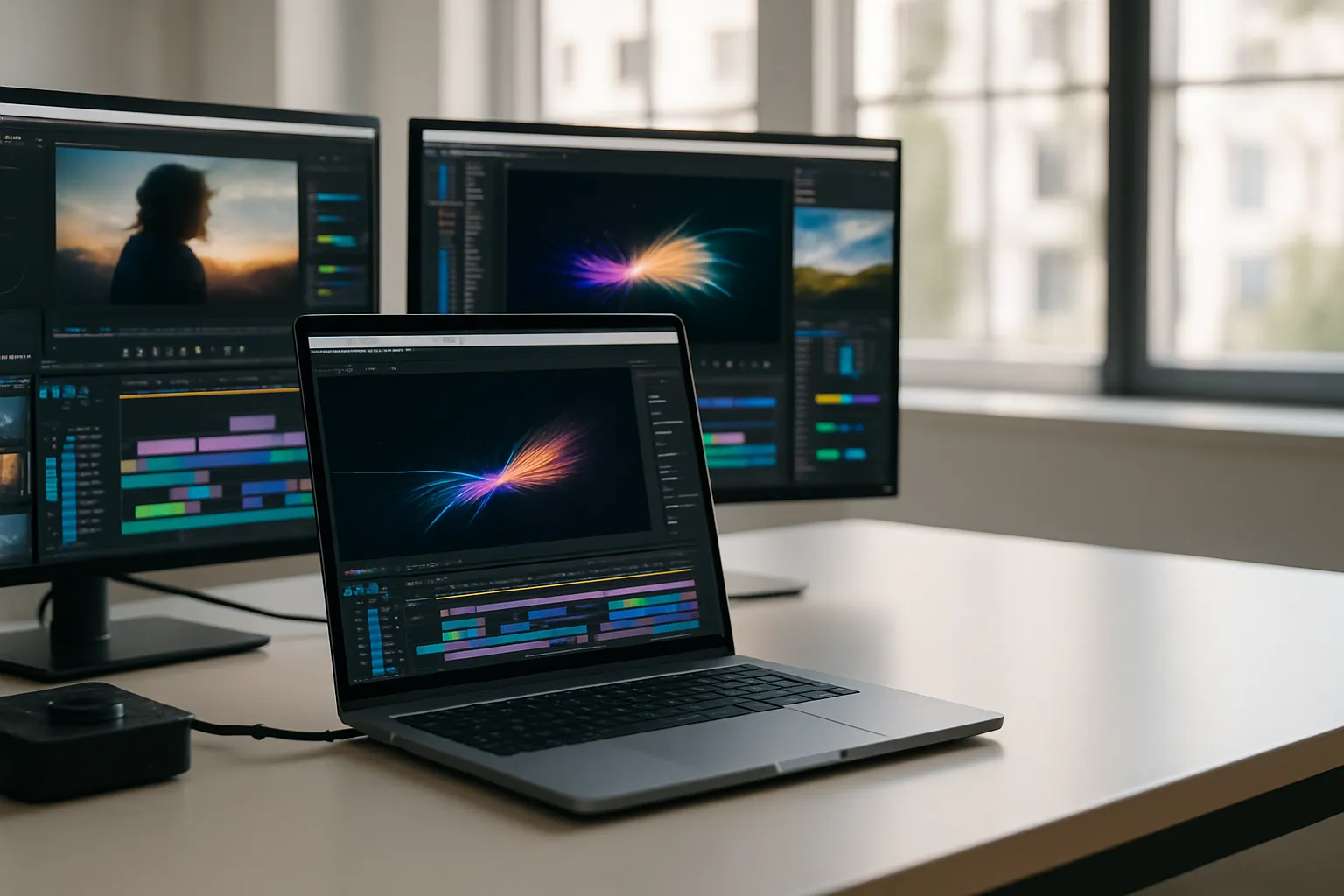
Video production pipelines have shifted hard toward motion graphics, and after effects ram requirements sit at the center of every honest hardware conversation I have with fellow creators. More studios are hiring remote compositors, more freelancers are building their own rigs, and nearly every one of them asks the same first question: how much memory do I actually need? The answer depends on more than a spec sheet suggests.
Adobe publishes a minimum of 16 GB, but I have watched that figure mislead people into builds they regret within six months. Real-world compositing on modern footage tells a much more demanding story. Cache-hungry previews, multi-layer timelines, and background rendering all compete for the same pool of memory at once.
At the professional end, 64 GB has become the new floor for anyone handling 4K or above. That is not the ceiling. Plenty of working editors with complex particle simulations and 3D renders push well past that.
Understanding where the numbers come from, and why they move, protects your budget far better than any single spec recommendation ever will.
What Adobe Actually Says About RAM
Adobe’s official guidance breaks down into two clear tiers: 16 GB for basic use and 32 GB as a recommended minimum for serious work. Those numbers have not kept pace with what modern projects actually demand. I treat the official minimums as a starting floor, not a target.
The application itself reserves a portion of RAM before a single frame renders. After Effects allocates a fixed percentage to the RAM preview cache, and that percentage is adjustable in Preferences under Memory and Performance. If your total system RAM is low, that cache stays small, and your previews stall constantly while the program re-renders frames you already waited for once.
Why the Cache Eats So Much
RAM preview works by storing rendered frames in memory so playback runs at full frame rate. A single frame of 4K footage at a standard color depth can consume dozens of megabytes. Multiply that across a ten-second preview at 24 frames per second, and you are looking at several gigabytes just for a short clip. Long sequences with effects applied to every layer demand far more.
Background Rendering Changes the Equation
After Effects uses background processes to render compositions while you keep working. Those processes do not share the same memory pool your preview cache uses. They draw additional RAM from the system, which means a 16 GB machine running background rendering, a preview cache, and the operating system simultaneously runs into contention almost immediately on any meaningful project.
Adobe’s stated requirements also do not account for other applications running alongside After Effects. Media Encoder queuing exports, Premiere Pro open in the background, and a browser with reference tabs all chip away at available memory before After Effects touches a single layer.
Also Read: Best Laptop For Digital Marketing
How Project Complexity Drives RAM Usage
Motion graphics with flat shapes and simple transitions sit at one end of the spectrum. On the other end, you have multi-camera composites with tracked footage, particle systems, 3D camera solves, and plugin effects layered across dozens of pre-compositions. The gap in RAM demand between those two scenarios is enormous, often ten times greater or more when you measure peak usage honestly.
Resolution is the most obvious multiplier, but bit depth compounds it further. A 4K composition in 32-bit float mode uses four times the memory per frame that the same comp at 8-bit uses. Color science workflows and HDR deliverables push many studios into that 32-bit territory whether they prefer it or not, which makes the bit depth setting one of the most impactful choices you make before a single effect gets applied.
Third-party plugins deserve attention here as well. Tools like Trapcode Particular, Video Copilot’s Element 3D, and heavy optical flow effects from plugins such as RSMB carry their own memory overhead beyond what the base application uses, and that overhead scales with complexity in ways that are difficult to predict without testing your specific combination of effects.
Frame Size and Length Combined
Longer timelines accumulate cache demand quickly. A 30-second composition requires holding thirty times the frames in memory compared to a one-second test clip. When clients request full-length broadcast pieces at high resolution, that duration becomes a major pressure point even on machines with generous RAM.
Recommended RAM at Every Tier
No single number fits every user, so matching memory to workflow saves both money and frustration. The table below maps common After Effects use cases to realistic RAM targets based on my testing across multiple project types.
| Use Case | Minimum RAM | Recommended RAM |
|---|---|---|
| Basic motion graphics, 1080p | 16 GB | 32 GB |
| Complex compositing, 1080p | 32 GB | 64 GB |
| 4K footage with heavy effects | 64 GB | 128 GB |
| 8K or multi-stream workflows | 128 GB | 256 GB |
These are working targets, not marketing figures. The minimum column represents the point at which the application stays usable without constant dropped frames or disk cache thrashing. The recommended column represents the point at which previews feel smooth and background rendering does not interrupt creative flow.
Professionals working on broadcast or streaming deliverables usually land in the 64 GB to 128 GB range. That window covers the majority of client work without requiring workstation-class hardware in every situation.
RAM Speed and Type: Does It Matter?
Capacity gets most of the attention, but memory speed plays a real supporting role in After Effects performance. The application transfers large frames between RAM and the processor repeatedly during preview builds, and faster memory reduces how long each transfer takes when you are cycling through complex compositions.
DDR5 memory, now common in newer platforms, offers meaningful bandwidth improvements over DDR4 at equivalent capacities. For After Effects specifically, that bandwidth translates to slightly faster preview cache writes and reads, which shortens the pause between hitting spacebar and seeing smooth playback begin. The difference is not the same magnitude as doubling your total RAM, but it is measurable on large compositions with many cached frames.
Dual-Channel and ECC Considerations
Running memory in dual-channel configuration doubles the available bandwidth compared to a single stick. Always populate matching pairs of sticks rather than a single module, even if the total capacity is the same. A single 64 GB stick performs noticeably worse for memory-intensive applications than two 32 GB sticks working in tandem.
ECC memory, which corrects single-bit errors in real time, appears on workstation platforms like AMD Threadripper and Intel Xeon. After Effects does not require ECC, but long rendering sessions on high-value client projects benefit from the stability it provides. For most freelancers on consumer platforms, ECC is a bonus rather than a necessity.
Managing RAM Inside After Effects
Hardware sets the ceiling, but software settings determine how close you get to it. After Effects gives users direct control over how much RAM the application is allowed to claim. The Memory and Performance section in Preferences lets you set a RAM reservation for other applications, effectively telling After Effects to leave a portion untouched.
On a 32 GB machine, reserving 6 GB to 8 GB for the system and other processes leaves After Effects with roughly 24 GB of usable pool. Purging the RAM cache manually through the Edit menu clears stored frames when you switch to a radically different composition, freeing memory rather than letting old cached frames crowd out new ones. That one habit alone reduces stall frequency on mid-tier machines.
Disk Cache as a Fallback
After Effects writes frames to a disk cache when RAM fills up. Solid-state storage handles that gracefully, but a spinning hard drive turns it into a serious bottleneck. Pointing the disk cache to a fast NVMe drive, separate from the system drive when possible, keeps the fallback from becoming a creative obstacle. The disk cache location setting lives in the same Preferences panel as the RAM allocation controls.
Closing Other Applications
Background processes from browsers, communication tools, and media players consume RAM that After Effects could use for preview frames. Closing non-essential applications before a heavy preview or render session consistently recovers between 2 GB and 6 GB on a typical workstation, enough to hold several additional seconds of 4K frames in the live cache.
Frequently Asked Questions
Can After Effects run on 8 GB of RAM?
After Effects will open on 8 GB, but the experience is painful in practice. Preview frames drop constantly, the disk cache works overtime, and anything above simple 1080p motion graphics becomes nearly unusable. Adobe does not officially support 8 GB for production work, and upgrading to at least 16 GB is a prerequisite for functional use.
Does RAM affect render speed in After Effects?
RAM affects render speed indirectly. More available memory means fewer disk cache writes during a render, which reduces the time the processor spends waiting on storage operations. On compositions with heavy caching demands, doubling RAM from 16 GB to 32 GB can noticeably shorten total render time without changing any other component.
Is 64 GB overkill for a freelancer?
For 1080p motion graphics work, 64 GB is more than enough. For 4K compositing with multiple tracked layers and third-party plugins like Trapcode Particular, 64 GB is close to ideal rather than excessive. The answer depends entirely on the resolution and complexity of the projects you take on regularly.
Should I prioritize RAM or a faster GPU for After Effects?
RAM comes first for most After Effects workflows because the application’s preview system relies heavily on system memory rather than GPU VRAM. A GPU matters more when using GPU-accelerated effects or 3D rendering plugins. Start by meeting a solid RAM target before spending on a premium graphics card.
How much RAM does After Effects use at idle?
After Effects typically consumes between 1.5 GB and 3 GB of system RAM at idle with no composition open, depending on plugin load and operating system overhead. That baseline rises immediately once a composition opens and preview frames begin caching, so available RAM above that idle baseline is what actually feeds your workflow.
To Sum Up
The single mistake I see most often is treating Adobe’s 16 GB minimum as a safe target for real work. It is not. For 4K compositing with plugins like Trapcode Particular, 64 GB is the honest starting point, and the recommended column in the table above reflects what smooth preview playback actually requires. Purging the cache manually and pointing your disk cache to a fast NVMe drive extend the usable life of whatever RAM you have. If your budget allows only one upgrade right now, add memory before anything else.