
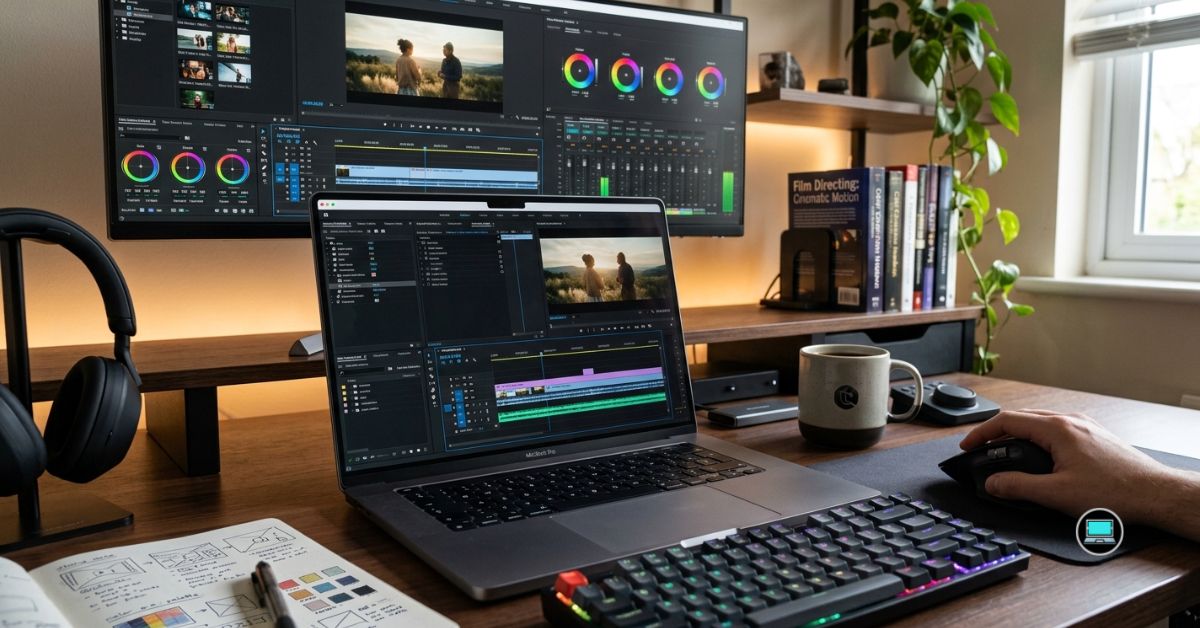
Raw specifications rarely tell the whole story when it comes to editing videos. The best laptop features for video editing are the ones that quietly improve every stage of the creative process, from importing footage and scrubbing timelines to color grading and exporting the final project. A laptop with the right combination of display quality, graphics power, memory, and cooling often outperforms a machine that simply has the fastest processor.
After editing documentaries, YouTube videos, interviews, promotional content, and multicam productions in Adobe Premiere Pro, DaVinci Resolve, After Effects, and Final Cut Pro, we discovered that certain features consistently elevated the experience. These are the laptop features that mattered most, along with the implementation that impressed us the most during our testing.
Table of Contents
1. Color-Accurate OLED Display – Overall Best Laptop Feature for Video Editing
Every editing decision begins with what you see on the screen. Exposure adjustments, white balance corrections, skin tones, and subtle color gradients all depend on a display you can trust. After testing dozens of creator laptops, we found that a high-quality OLED panel consistently delivered the most confidence during editing.
Deep blacks, exceptional contrast, and vibrant colors immediately improved the editing experience. Reviewing footage became more enjoyable, while shadow detail and highlight recovery were easier to evaluate. The additional contrast also made HDR content appear far more realistic than it did on conventional IPS displays.
Resolution proved equally important. A sharp display allowed us to inspect fine details without excessive zooming, while larger workspaces comfortably accommodated timelines, scopes, media bins, and preview windows simultaneously.
Although glossy finishes occasionally reflected bright lighting, the visual benefits overwhelmingly outweighed the compromises.
Our Favorite Implementation: Dell XPS 16

- Processor: Inte.l Core Ultra 7 155H (16 cores, up to 4.8 GHz)
- Graphics Card: NVIDI.A GeForce RTX 4060, 8 GB GDDR6, 50 W
- Display: 16.3″, Touch 4K OLED, 400 nit, 48-90Hz, InfinityEdge, Low Blue Light
The Dell XPS 16 features one of the finest 4K OLED displays we have tested. Color accuracy, contrast, and sharpness combined to create a display that made Premiere Pro and DaVinci Resolve feel incredibly comfortable during long editing sessions.
What Stood Out During Testing
✅ Outstanding color accuracy
✅ Exceptional contrast
✅ Excellent detail for 4K footage
✅ Comfortable workspace for editing
✅ Beautiful HDR performance
What Prevented a Higher Rating
❌ Glossy finish reflects bright lighting
❌ OLED displays consume more power than IPS panels
2. Powerful Dedicated GPU – Best for Rendering and Effects
Video editing software increasingly depends on graphics acceleration, and nowhere was that more obvious than during our rendering and color grading sessions. A capable GPU transformed demanding workloads from frustrating waiting games into smooth creative experiences.
Modern RTX graphics accelerated timeline playback, visual effects, AI-powered tools, and export times across Premiere Pro and DaVinci Resolve. Advanced features such as noise reduction, optical flow, masking, and GPU-accelerated color grading all benefited tremendously from additional graphics horsepower.
We also appreciated the way dedicated graphics improved multitasking. Running Premiere Pro, Photoshop, and After Effects simultaneously became noticeably smoother, allowing us to move between applications without slowing our workflow.
While integrated graphics continue improving every year, creators working with professional projects will quickly appreciate the difference a dedicated GPU provides.
Our Favorite Implementation: ASUS ROG Zephyrus G16

- Ultra 9 + RTX 5070 Performance–The all-around gaming laptop is powered by an Intel Core Ultra 9 285H processor and NVID…
- 16″ 2.5K OLED 240Hz Display–The 16-inch ROG Nebula OLED display delivers 2.5K resolution, 240Hz refresh rate, 0.2ms res…
- Slim, Light, and Ready to Move–ROG Zephyrus G16 is designed for portable performance, this silm laptop features a premi…
The ASUS ROG Zephyrus G16 combines powerful RTX graphics with excellent cooling, allowing demanding editing projects to remain responsive even during lengthy rendering sessions.
What Stood Out During Testing
✅ Outstanding GPU acceleration
✅ Smooth timeline playback
✅ Excellent rendering performance
✅ Great for Premiere Pro and Resolve
✅ Handles advanced visual effects with confidence
What Prevented a Higher Rating
❌ Dedicated graphics reduce battery life
3. High-Performance Multi-Core Processor – Best for Faster Exports
Graphics cards receive much of the attention, yet the processor continues to influence almost every stage of the editing workflow. Importing footage, generating proxies, encoding exports, and multitasking all rely heavily on CPU performance.
High-performance multi-core processors consistently shortened export times throughout our testing. Whether we were producing YouTube content or longer documentary projects, additional processing cores helped maintain smooth responsiveness while handling demanding workloads.
The processor also became increasingly important when multiple creative applications were open simultaneously. Editing video while preparing graphics in Photoshop and organizing media files never caused powerful CPUs to lose their composure.
Rather than chasing benchmark numbers, we found ourselves appreciating processors that maintained strong performance over long periods without excessive heat or fan noise.
Our Favorite Implementation: Apple MacBook Pro 16 (M4 Max)

- SUPERCHARGED BY M4 PRO OR M4 MAX — The 16-inch MacBook Pro with the M4 Pro or M4 Max chip gives you outrageous performan…
- CHAMPION CHIPS — The M4 Pro chip blazes through demanding tasks like compiling millions of lines of code. M4 Max can han…
- BUILT FOR APPLE INTELLIGENCE—Apple Intelligence is the personal intelligence system that helps you write, express yourse…
Apple’s M4 Max processor delivered exceptional export performance while remaining impressively quiet and efficient. Throughout our testing, it handled demanding editing projects with remarkable consistency, making it one of the most refined creator platforms currently available.
What Stood Out During Testing
✅ Outstanding export speeds
✅ Exceptional sustained performance
✅ Excellent power efficiency
✅ Quiet operation
✅ Superb multitasking capability
What Prevented a Higher Rating
❌ Limited hardware upgrade options
4. 32GB or More RAM – Best for Smooth Multitasking
Video editing software rarely works alone. Throughout our testing, Premiere Pro often shared system resources with Photoshop, After Effects, Lightroom, media browsers, cloud storage, and dozens of browser tabs. Those demanding workflows repeatedly confirmed that memory capacity plays a far greater role than many editors realize.
While 16GB remains usable for lighter projects, 32GB quickly became the point where multitasking felt effortless. Large timelines remained responsive, switching between creative applications happened instantly, and background processes rarely interrupted the editing experience. Editors working with multicam footage or complex After Effects compositions benefited even more from 64GB.
Memory also proved valuable during longer projects. Cached previews, high-resolution assets, and layered compositions accumulated quickly, yet systems with generous RAM continued performing consistently without forcing us to close applications.
Rather than producing dramatic benchmark improvements, additional memory simply made the editing process feel smoother from beginning to end.
Our Favorite Implementation: Lenovo ThinkPad P16 Gen 2

- Processor:14th Generation Intel Core i7-14700HX Processor (E-cores up to 3.90 GHz P-cores up to 5.50 GHz)
- Memory: 32 GB DDR5-4000MHz (SODIMM) – (2 x 16 GB); Storage: 1 TB SSD M.2 2280 PCIe Gen4 Performance TLC Opal
- Display16″ WQUXGA (3840 x 2400), IPS, Anti-Glare, Non-Touch, HDR 400, 100%DCI-P3, 800 nits, 60Hz, Low Blue Light, LED Ba…
The Lenovo ThinkPad P16 Gen 2 supports high-capacity DDR5 memory, allowing demanding editing workloads to remain responsive even when Premiere Pro, After Effects, Photoshop, and multiple background applications are running simultaneously.
What Stood Out During Testing
✅ Excellent multitasking performance
✅ Handles large creative projects comfortably
✅ Great for Premiere Pro and After Effects
✅ Ideal for multicam editing
✅ Excellent long-term scalability
What Prevented a Higher Rating
❌ Higher memory capacities increase overall system cost
5. Fast PCIe Gen4/Gen5 SSD – Best for Large Video Projects
Storage speed influences almost every part of the editing workflow. Importing footage, generating proxies, opening large projects, and exporting completed videos all became noticeably faster on laptops equipped with high-speed PCIe SSDs.
Capacity mattered just as much as speed. Modern cameras generate enormous files, and it took surprisingly little time for active projects, proxies, and cached media to consume hundreds of gigabytes. A fast 2TB drive quickly became our preferred starting point because it reduced the constant need to manage storage.
Project loading also improved dramatically. Large Premiere Pro timelines opened more quickly, media relinked faster, and transferring footage from external drives became significantly less frustrating.
Although external SSDs remain valuable for archiving finished work, we consistently appreciated having enough fast internal storage to keep active projects immediately accessible.
Our Favorite Implementation: Dell Precision 5690
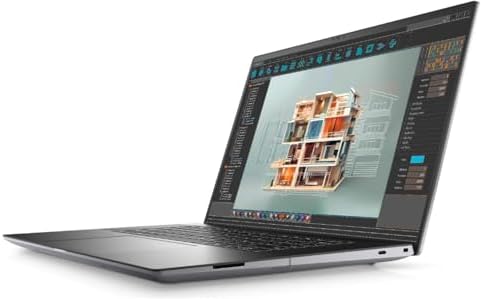
- With 32 GB of memory, users can run many programs without losing execution
- 16″ display with 1920 x 1200 resolution showcases movies, games and photos with impressive clarity
- 1 TB SSD for spacious storage with much faster data transfer speed than standard hard drives
The Dell Precision 5690 combines workstation-class hardware with extremely fast PCIe Gen4 SSD performance, making it an outstanding choice for editors working with large media libraries and demanding production workflows.
What Stood Out During Testing
✅ Extremely fast project loading
✅ Excellent file transfer speeds
✅ Handles large media libraries with ease
✅ Great for high-bitrate footage
✅ Strong workstation reliability
What Prevented a Higher Rating
❌ Larger SSD configurations significantly increase purchase cost
6. Efficient Cooling System – Best for Long Rendering Sessions
Rendering places extraordinary stress on laptop hardware, and weak cooling systems reveal themselves quickly. During our testing, we found that the best editing laptops were not always the fastest at the beginning of a render. They were the ones that maintained their performance until the export finished.
A well-designed cooling system prevented excessive thermal throttling and kept processors and graphics cards operating at consistently high speeds. Long exports, multicam timelines, AI-powered effects, and complex color grading all benefited from stable temperatures.
Fan noise naturally increased during demanding workloads, but the better cooling systems balanced airflow with acoustics remarkably well. Rather than constantly ramping up and down, they maintained steady, predictable performance that made lengthy editing sessions far less distracting.
This became especially important when rendering several projects back-to-back. Laptops with efficient cooling simply continued working without feeling strained.
Our Favorite Implementation: HP OMEN Max 16
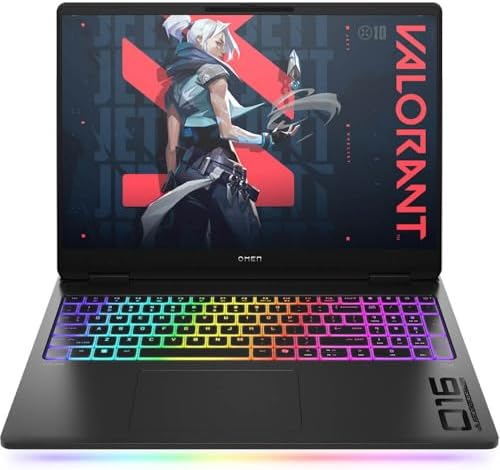
- 16 in. 1920 X 1200 165 Hz Display
- NVIDIA GeForce RTX 5080 16GB GDDR7
- 2.7 GHz Intel Core Ultra 9 275HX 24-Core
The HP OMEN Max 16 features one of the most capable cooling systems we have tested in a creator-friendly laptop. Even during extended Premiere Pro exports and demanding DaVinci Resolve projects, it maintained impressive performance without excessive thermal throttling.
What Stood Out During Testing
✅ Excellent sustained performance
✅ Strong thermal management
✅ Reliable long-duration rendering
✅ Keeps powerful hardware performing consistently
✅ Ideal for demanding editing workloads
What Prevented a Higher Rating
❌ Larger cooling systems add weight and reduce portability
7. Wide Color Gamut (100% DCI-P3 or Adobe RGB) – Best for Accurate Color Grading
A bright display means very little if the colors cannot be trusted. Throughout our testing, laptops with wide color gamut panels consistently gave us greater confidence when grading footage, adjusting skin tones, and preparing content for different platforms.
Coverage of 100% DCI-P3 or Adobe RGB allowed subtle color variations to remain visible instead of blending together. Shadows looked more natural, gradients remained smooth, and difficult lighting conditions became easier to evaluate.
This feature proved particularly valuable when editing client work. Accurate colors reduced the likelihood of unpleasant surprises when projects were viewed on professionally calibrated displays or large televisions.
Once we became accustomed to wide-gamut displays, returning to standard panels immediately felt limiting.
Our Favorite Implementation: HP ZBook Studio 16 G11

- PROCESSOR: Intel Ultra 7 165H processor delivers exceptional performance for demanding professional workloads and creati…
- MEMORY & STORAGE: 32GB RAM SODIMM DDR5 5600 for seamless multitasking and 1TB SSD for quick data access and ample storag…
- GRAPHICS: NVIDIA RTX 1000 ADA graphics card provides powerful rendering capabilities for all professional applications (…
The HP ZBook Studio 16 G11 features a professionally calibrated DreamColor display with exceptional color accuracy and wide gamut coverage, making it one of our favorite laptops for color-critical editing.
What Stood Out During Testing
✅ Outstanding color accuracy
✅ Excellent DCI-P3 coverage
✅ Reliable factory calibration
✅ Great for professional color grading
✅ Inspires confidence during editing
What Prevented a Higher Rating
❌ Professional display options increase overall system price
8. Multiple High-Speed Ports – Best for Professional Editing Workflows
Video editing rarely happens with the laptop sitting by itself. Throughout our testing, we regularly connected external SSDs, SD card readers, calibrated monitors, docking stations, audio interfaces, and backup drives. Those everyday tasks quickly demonstrated that generous connectivity is far more than a convenience.
Modern editing workflows demand speed. High-resolution footage moves much faster across Thunderbolt 4, Thunderbolt 5, and USB4 connections than older interfaces, dramatically reducing transfer times. Connecting dual 4K monitors or high-speed RAID storage also became effortless on laptops with comprehensive port selections.
We particularly appreciated laptops that reduced our dependence on adapters. Instead of carrying a collection of dongles, we could simply connect cameras, storage devices, and displays directly to the laptop. It made working on location noticeably easier and reduced interruptions throughout the editing process.
Connectivity may not influence rendering performance, but it consistently improved the overall workflow from the moment footage arrived until the final project was delivered.
Our Favorite Implementation: Lenovo ThinkPad P16 Gen 2
- Processor:14th Generation Intel Core i7-14700HX Processor (E-cores up to 3.90 GHz P-cores up to 5.50 GHz)
- Memory: 32 GB DDR5-4000MHz (SODIMM) – (2 x 16 GB); Storage: 1 TB SSD M.2 2280 PCIe Gen4 Performance TLC Opal
- Display16″ WQUXGA (3840 x 2400), IPS, Anti-Glare, Non-Touch, HDR 400, 100%DCI-P3, 800 nits, 60Hz, Low Blue Light, LED Ba…
The Lenovo ThinkPad P16 Gen 2 offers one of the most complete connectivity packages available. Multiple Thunderbolt ports, USB-A, HDMI, Ethernet, and an SD card reader allowed us to build a professional editing workstation without relying on additional adapters.
What Stood Out During Testing
✅ Extensive port selection
✅ Excellent support for external displays
✅ Fast external SSD performance
✅ Ideal for professional editing setups
✅ Reduces dependence on adapters
What Prevented a Higher Rating
❌ Additional ports contribute to a larger chassis
9. 16-inch or Larger Display – Best for Timeline Productivity
Editing on a small screen constantly forces compromises. Timelines become compressed, preview windows shrink, and panels compete for valuable space. Moving to a larger display immediately transformed the editing experience.
A 16-inch or larger panel provided enough room to keep the timeline, preview window, media browser, and editing tools visible simultaneously. We spent far less time hiding and reopening panels, allowing us to focus entirely on storytelling rather than workspace management.
The additional vertical space also proved valuable. More tracks remained visible during multicam projects, audio editing became easier, and fine timeline adjustments required far less zooming. Those small improvements accumulated into noticeably smoother editing sessions.
Although larger displays naturally reduce portability, they significantly improve productivity for anyone spending several hours a day inside editing software.
Our Favorite Implementation: LG gram Pro 16

- Pro AI Anywhere – LG gram Pro pairs ultra-light design with powerful AI performance. Weighing 2.7 lbs. and featuring a 1…
- Welcome to Copilot on Windows – Windows 11 brings you closer to what you love. Pursue your passions and maximize your pr…
- Hybrid AI: On-Device and Cloud Synergy – LG gram now includes a hybrid AI solution that blends on-device intelligence wi…
The LG gram Pro 16 combines a spacious 16-inch display with an incredibly lightweight design. It gave us ample room for complex editing projects while remaining surprisingly easy to carry between locations.
What Stood Out During Testing
✅ Spacious editing workspace
✅ Excellent multitasking
✅ Lightweight for a 16-inch laptop
✅ Comfortable timeline management
✅ Sharp, detailed display
What Prevented a Higher Rating
❌ Larger footprint reduces portability compared with 14-inch laptops
10. AI-Accelerated Media Engine – Best for Modern Editing Software
Artificial intelligence has become part of nearly every major editing application. Background removal, object selection, audio cleanup, automatic reframing, and scene detection all benefit from dedicated AI hardware. After spending months using these tools, we became convinced that AI acceleration is no longer a luxury. It is quickly becoming an essential laptop feature for editors.
Dedicated Neural Processing Units (NPUs) and advanced media engines accelerated many of the repetitive tasks that previously consumed valuable editing time. AI-powered masking completed more quickly, speech enhancement responded faster, and intelligent editing features felt considerably more responsive.
We also appreciated the efficiency these dedicated processors provided. Instead of relying entirely on the CPU or GPU, AI workloads could be distributed more intelligently, helping maintain smooth overall system performance while editing.
As editing software continues evolving, this is one feature we expect to become increasingly important over the coming years.
Our Favorite Implementation: Apple MacBook Pro 14 (M4 Pro)

- SUPERCHARGED BY M4 PRO OR M4 MAX — The 14-inch MacBook Pro with the M4 Pro or M4 Max chip gives you outrageous performan…
- CHAMPION CHIPS — The M4 Pro chip blazes through demanding tasks like compiling millions of lines of code. M4 Max can han…
- BUILT FOR APPLE INTELLIGENCE—Apple Intelligence is the personal intelligence system that helps you write, express yourse…
The Apple MacBook Pro 14 combines an advanced Media Engine, powerful Neural Engine, and efficient unified memory architecture to deliver one of the smoothest AI-assisted editing experiences we have tested. Modern Premiere Pro, Final Cut Pro, and DaVinci Resolve features all felt remarkably responsive.
What Stood Out During Testing
✅ Excellent AI-assisted editing performance
✅ Fast hardware media encoding
✅ Outstanding overall efficiency
✅ Smooth modern creative workflows
✅ Future-ready architecture
What Prevented a Higher Rating
❌ AI acceleration varies depending on software support
Frequently Asked Questions
Which laptop feature is most important for video editing?
A color-accurate display remains the single most important feature because every editing decision depends on what you see. Even the fastest hardware cannot compensate for a display that produces inaccurate colors.
Is 32GB RAM enough for video editing?
Yes. Thirty-two gigabytes is an excellent starting point for professional editing in Premiere Pro and DaVinci Resolve. Editors working with complex multicam projects, 8K footage, or extensive After Effects compositions should consider 64GB or more.
Does a dedicated GPU make a big difference?
Absolutely. A dedicated RTX GPU or equivalent significantly improves timeline playback, GPU-accelerated effects, rendering performance, and AI-powered editing tools.
Is OLED better than IPS for video editing?
In most situations, yes. OLED panels provide superior contrast and deeper blacks. Professionally calibrated IPS displays remain excellent for editors who prefer matte screens or require color-critical consistency.
Why are multiple ports important for editors?
Professional editing often involves external SSDs, monitors, cameras, docking stations, and audio equipment. A laptop with comprehensive connectivity reduces the need for adapters and speeds up the entire workflow.
Should I prioritize a processor or a graphics card?
Both matter, but modern editing software increasingly relies on GPU acceleration. A balanced system with a capable processor, dedicated graphics, sufficient memory, and fast storage consistently delivers the best editing experience.
Conclusion
The best editing laptop is not defined by a single specification. Instead, it is the combination of thoughtful features that allows creators to work efficiently from the first imported clip to the final exported project.
Throughout our testing, a color-accurate OLED display had the greatest impact on the overall editing experience. Powerful dedicated graphics, generous memory, fast storage, efficient cooling, and wide color gamut displays followed closely behind, each contributing to a smoother and more enjoyable creative workflow.
Ultimately, the most valuable laptop features are the ones that disappear into the background. When the display can be trusted, the hardware keeps pace with demanding projects, and the laptop remains responsive throughout long editing sessions, you spend less time waiting on the machine and more time bringing your creative vision to life.